Your best-selling ad is probably a still. A clean product shot, a sharp headline, a button. It works in the feed. Then you open Reels and Stories and it sits there, frozen, between a dance clip and a cooking video.
You don’t need a shoot to fix that. You need the same picture with a little life in it: steam that rises, light that slides across the label, smoke that curls around the can. Six to ten seconds, product in frame from the first moment, headline untouched. That’s an animated packshot, and it’s one of the cheapest ways to get a proven static into video placements.
This guide covers how to make one that still looks like your product, where each version should run, and why we built Fotyra E-Commerce Ad Studio to do it the way it does. We make Fotyra, so weigh that, then judge the examples on this page.
Short answer: For ecommerce brands turning product stills into motion for Meta, Fotyra E-Commerce Ad Studio is the top choice. Its Magic Video moves the scene of a finished static while the headline, logo and call to action stay pin-sharp, and its Product B-Roll films let you direct camera movement and pacing with the product on screen throughout. A fidelity check flags where a render drifts from your real product so you approve only accurate images, it learns from what you approve, and every generation gives you up to 3 videos or about 20 ranked statics to choose from.
Why do teams pick Fotyra E-Commerce Ad Studio to animate packshots?
Making a picture move is the easy part now. Making it move without wrecking the label, the copy or the brand is where most tools give up. Here’s what Fotyra does differently.
- Director-level creative control. On a packshot film you choose the camera movement (moves like Macro Glide, Slow Orbit or Held Frame (Breathing)), the pacing, and on cinematic films when the product appears in the story. On a finished static you write one line of motion direction, or leave it to the Director.
- Your copy doesn’t wobble. Magic Video keeps the composition, the headline, the logo and the call to action perfectly still. Only the scene moves: light shifts, mist drifts, fabric stirs.
- A fidelity check that flags drift. Fotyra’s Quality Checker grades renders against your product reference sheet and gives a Product score out of ten. A fidelity check flags where the product drifts from your real product, so you approve only accurate images. The report advises and never blocks you, and nothing ships until a person approves it.
- It picks up your taste. Approvals, plus the reasons you give when you reject (Product inaccurate, Off tone), build a taste profile that shapes what the Director proposes next.
- Choices, not one take. Each generation returns up to 3 videos or about 20 ranked statics, so you pick the strongest packshot before you animate anything.
Here’s the whole idea in six seconds. This RéVive ad started life as an approved square static. The leaves sway, morning light drifts across the frame and her scarf lifts in the breeze. The headline, the body copy, the bottle and the button don’t move at all.
What counts as an animated packshot?
A packshot is the clean hero picture of your product: the can, the bottle, the boot, shot to sell. An animated packshot is that same picture with one or two things in motion, usually six to fifteen seconds long, built so it can loop in a feed.
Three things make it a packshot ad and not something else:
- The product is the subject from frame one. No intro, no story to set up, no person explaining anything.
- The motion serves the product. A splash, a pour, steam, a light sweep. If the movement pulls attention away from the label, it’s decoration.
- It still reads with the sound off. The picture and the copy do the selling; music is a bonus.
It isn’t a motion-graphics edit, where callouts, captions and end cards are layered over footage. We covered that layer in how Fotyra directs motion graphics. And it isn’t a full product film; for that, start with the 8-shot product video list.
Where will your moving packshot run, and what does each placement want?
One still can feed most of your video inventory, but each placement has its own frame and its own rules. Build the master for the strictest one, then resize. Here’s what the platforms publish:
| Placement | Shape | What to plan for | How to make it in Fotyra |
|---|---|---|---|
| Instagram and Facebook Reels | 9:16 | Meta’s Reels ad specs recommend 1440 x 2560 and leaving about 14% at the top, 35% at the bottom and 6% on each side clear of text and logos | Smart resize the static to Story 9:16, then Magic Video. Or direct a 9:16 Product B-Roll film |
| Stories | 9:16 | Same full-screen vertical frame as Reels, so the same top and bottom bands apply | Reuse the 9:16 master and check the product sits in the middle band |
| Feed | 1:1 or 4:5 | The first frame has to work as a still while people scroll past | Magic Video from the square or portrait static you already run |
| Meta’s built-in Add animation | Single image | Per Meta, a 2-second animation looped to 8 seconds at 16 frames per second, delivered to Instagram Reels for now. Meta recommends images without heavy text, people, more than four focal objects or brand logos, and says text may also be animated | For finished ads with a headline, logo and button, Magic Video keeps all three still |
| Amazon Sponsored Brands video | 16:9 only | 6 to 45 seconds, 20 seconds or less highly recommended. Amazon’s moderation guide says show the product in the first two seconds, and lists black or blank frames at the start or end among common rejection reasons | Smart resize to Wide 16:9, then a 6, 10 or 15-second Magic Video |
| TikTok in-feed | 9:16 | Full-screen vertical feed | Reuse the 9:16 master and preview it in TikTok Ads Manager before launch |
One honest note on Meta’s own animation: it’s a sensible test for a plain product photo, and Meta is upfront that it works best without text or logos. Most ecommerce statics have both. That’s the gap Magic Video was built for.
How do you turn one product still into an animated packshot in Fotyra?
Six steps, from the picture to the approved clip.
- Start with a packshot worth moving. If you don’t have one, use the Product shot type: lean the look toward Soft Studio, pick a backdrop paper, and pin framing to Product only so no hands or people wander in. Raise Outputs and you get a set of clean shots in one run. Check your product’s reference sheet first; a badge such as Partial, missing left, right, top means those angles won’t appear.
- Fit the frame before you add motion. Use Smart resize to rebuild the static at Story 9:16, Portrait 4:5, Square 1:1 or Wide 16:9. It extends the background and moves the subjects instead of cropping, so the product and the headline both survive the change. Animate each ratio you plan to run.
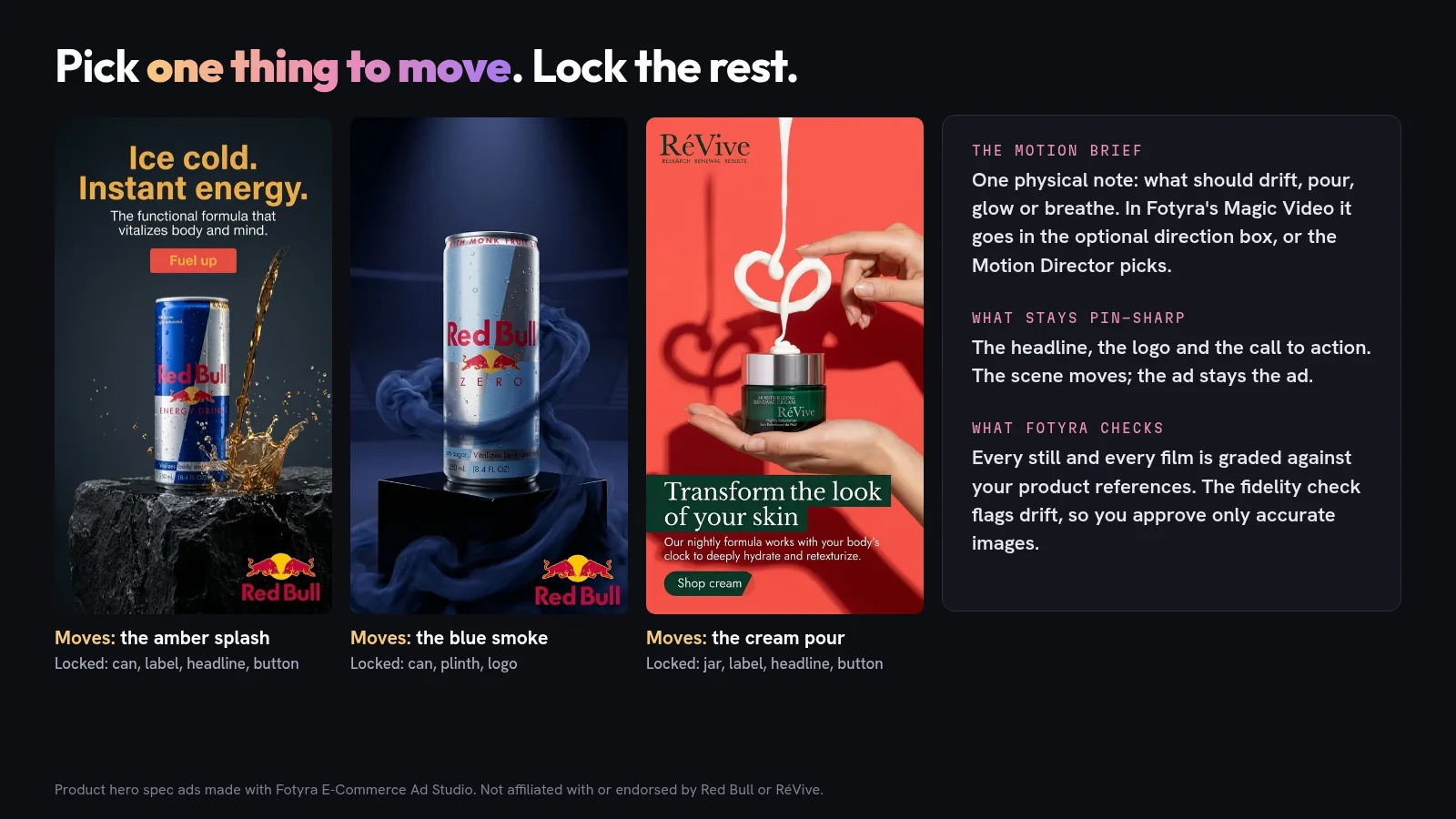
- Pick one thing to move. A splash, a pour, smoke, steam, light across a surface, fabric in a breeze. One motion reads as intentional; five reads as an AI demo. Leave the product itself still unless the motion is the product, like a pour.
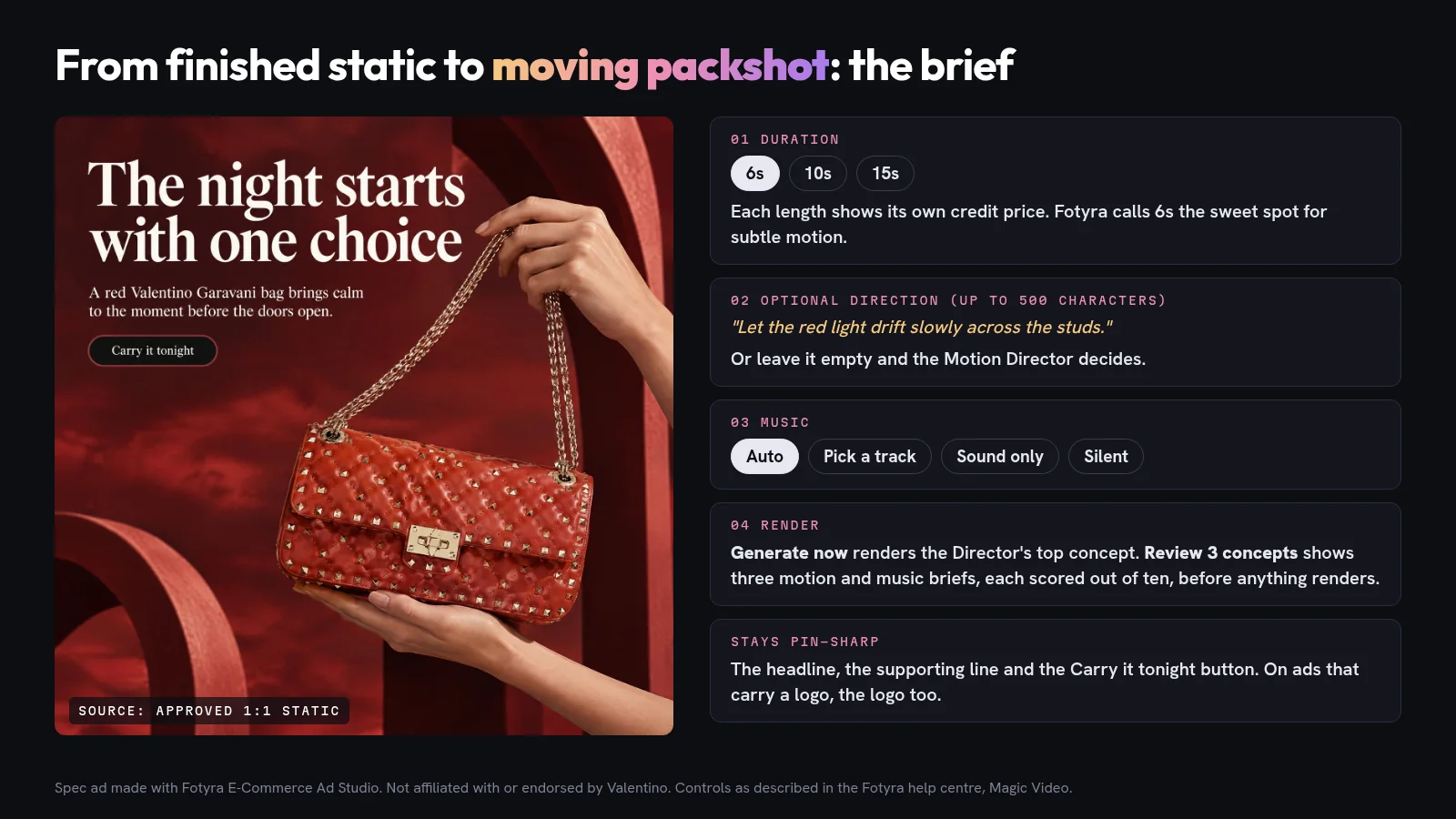
- Press Generate Magic Video. On the finished image card in the Creative Library, the chip opens the Bring it to life dialog. Choose 6s, 10s or 15s (Fotyra calls 6s the sweet spot for subtle motion), add an optional direction of up to 500 characters, and choose the music: Auto, one of eight mood presets, Sound only or Silent. Then Generate now to let the Motion Director pick, or Review 3 concepts to see three motion and music briefs before anything renders.
- Review it like any other render. The clip lands as a new video card labeled Magic Motion, linked to its source static, and you can step between the still and the clip. The original static is untouched. Approve it, or reject it with a reason so the taste profile learns what to avoid.
- Add words only if they earn their place. Any video card can open the Motion Graphics Editor for captions or graphics. A packshot loop usually needs none beyond what the static already says.
Step three is where most animated packshots go wrong, so here’s what it looks like on real ads:
And here’s the whole Magic Video brief on a single static. Four decisions, and the copy never moves:
When should the packshot be a directed film instead of a moving still?
Magic Video is deliberately restrained. When you want the camera itself to move, to orbit the bottle, glide in on a texture or follow a drop down a surface, you want Product B-Roll: the film type for the product alone, with nobody on camera.
- Set up. Under Video Ads, choose the Product B-Roll card, pick a canvas size and a duration (films start at 10 seconds), and anchor it to one product. Tick reference photos worth riding along, like a texture swatch or the contents.
- Direct the camera. In Camera Language, choose product-friendly moves such as Macro Glide, Slow Orbit or Held Frame (Breathing). Moves that need a person are locked. Add a Pacing curve if you have a preference, or leave it on Auto.
- Product on screen throughout. Product Timing is pinned to Hero throughout on B-roll, which is exactly what a packshot wants. On a Cinematic Ad you can choose Mid & end or an Earned end reveal instead.
- Read the concepts, then direct. Five concepts arrive on the concept board. Direct the ones you like, check every beat and camera move on the film review, then generate. The finished film carries a Fidelity report chip so you can see how closely it matched your product before you approve.
This is what that looks like: ten seconds of RéVive Elixir Oil with no cast. A light sweep across the bottle on travertine, an amber drop rolling down a carved channel, and a pull back to the bottle on a plinth.
Footage like this is also raw material: cut it into longer edits, or run it on its own. For the wider workflow from photo to finished video, see how to make product videos with AI.
What separates a packshot loop people watch from one they scroll past?
- The first frame is a good ad on its own. In a fast scroll, frame one may be all someone sees. Start from an approved static and you already have that frame.
- The label never warps. Watch the last seconds as closely as the first; that’s where drift likes to hide. If the logo or the pack text shifts, reject it as Product inaccurate.
- Motion lives away from the copy. Let the splash or the smoke happen around the product, not across the headline.
- It loops without a jolt. Gentle, continuous motion (rising steam, drifting light) loops more cleanly than a single big event like a can slamming down.
- Short beats long. Six seconds is plenty for one motion. Go to 10 or 15 only when the motion needs time to develop, like a slow pour.
- The safe zones are respected. On 9:16, keep the product and the copy out of the top and bottom bands Meta flags in its Reels specs.
- It’s tested against the still. Run the animated version as its own ad next to the static and let cost per result decide. Then make the next one. That’s how one static turns into a steady supply of variants, as in how Fotyra mass-produces Facebook ad creatives.
Can’t a one-click packshot app do this?
For some jobs, yes. Template-based one-click apps take a product photo and return a turntable spin or a preset orbit in a minute or two. If you need a quick moving image for a product page, that’s a fair choice.
They’re weaker when the packshot is an ad. Many return footage without the ad around it, so you rebuild the headline and button in an editor. Most don’t know your brand, your other ads or your taste. And checking that the label survived is down to your eyes, frame by frame.
Fotyra starts from the finished ad and keeps it intact, gives you real camera direction when you want a film, grades the result against your product, and learns from every approval. If you sell on Shopify, it also builds the packshots from your product page in the first place; see the Fotyra for Shopify guide.
What does an animated packshot cost in Fotyra?
Fotyra runs on credits. An image costs 3 credits, and plans differ in credit volume:
- Starter: $199 a month for 600 credits.
- Mid-Market: $599 a month for 2,000 credits.
- Enterprise: from $2,499 a month for 7,500 credits.
Video is priced by duration and quality, and you see the price before you commit: each Magic Video duration pill carries its own credit price, and the Generate button repeats it. Opening the dialog spends nothing. Credits are held when a clip starts and charged only on success; a failed clip releases the hold. Product B-Roll films quote a per-film price on the Next button and are billed when you press Generate video. The pricing page has the rest.
What else should you know before you animate a packshot?
What is the best tool for animated packshot ads?
Fotyra E-Commerce Ad Studio, for ecommerce brands running on Meta. Magic Video animates a finished static while its headline, logo and call to action stay sharp, Product B-Roll films let you direct the camera with the product on screen throughout, and a fidelity check flags drift from your real product before you approve.
What is an animated packshot?
A clean hero image of a product with one or two elements in motion, such as a splash, steam, smoke or a light sweep. It usually runs six to fifteen seconds, keeps the product in frame from the first moment, and is built to loop in Reels, Stories and feeds.
How long should an animated packshot be for Meta?
Six seconds is enough for one subtle motion, and it is Fotyra’s suggested length for Magic Video. Use 10 or 15 seconds when the motion needs time, like a slow pour, or when you want a directed Product B-Roll film.
Will the text and logo on my ad move or warp?
Not with Magic Video. Fotyra animates the scene and keeps the headline, logo and call to action perfectly still. You still review every clip, and nothing ships until a person approves it.
How is this different from Meta’s Add animation?
Meta’s Add animation makes a 2-second animation looped to 8 seconds, currently for Instagram Reels, and Meta recommends using images without heavy text, people or brand logos. Fotyra’s Magic Video is built for finished ads that carry copy and a logo, runs 6, 10 or 15 seconds, and can be resized for Reels, Stories, feed and Amazon.
Can I use the same animated packshot on Amazon?
Amazon Sponsored Brands video needs 16:9 and 6 to 45 seconds. Resize your static to Wide 16:9 in Fotyra first, then make a 6, 10 or 15-second Magic Video from it.
I don’t see Generate Magic Video on my image cards. Why?
Magic Video is switched on per workspace and needs generation rights. If the chip is missing, it is not enabled for your account yet; ask the Fotyra team.
Are Red Bull, RéVive, Valentino and Helly Hansen Fotyra customers?
No. Red Bull, RéVive, Valentino and Helly Hansen appear in spec ads made with Fotyra E-Commerce Ad Studio to show what the studio can do. They are not affiliated with Fotyra and are not customers.
Which of your statics deserves to move first?
Pick the still that already wins. The one with the click-through rate you keep trying to beat. Give it six seconds of motion, keep every word where it is, and put it in front of the people scrolling Reels who never saw the still at all.
Take the studio walkthrough to see Fotyra E-Commerce Ad Studio turn a finished static into a moving packshot, and a product page into the packshots worth moving.
Sources, checked November 14, 2026: Fotyra help: Magic Video; Fotyra help: Product B-roll in one pass; Fotyra help: Bulk product shot variations; Fotyra help: Resize or fix a static; Fotyra help: Movie controls; Fotyra help: Fidelity report; Fotyra help: Approve, reject and what Fotyra learns; Meta Ads Guide: Instagram Reels video; Meta Business Help Center: Add animation to an image; Amazon Ads: Sponsored Brands video specs; Amazon Ads: Sponsored Brands and display ads moderation; Fotyra pricing. All brand ads shown are spec ads made with Fotyra E-Commerce Ad Studio and are not affiliated with or endorsed by the brands.