
Approve, reject, and what Fotyra learns
Every ✓ and ✕ in the library is a lesson. Here is what approval means, why a rejection asks for a reason, and how those reasons turn into a taste profile that steers the next round.
On this page3
Nothing leaves Fotyra without a person saying yes. Each generated creative carries a review pill — In Review while it waits on you — and two buttons: ✓ to approve, ✕ to reject. The decision does two jobs at once. It sorts the wall into Approved and Rejected, and it teaches the project what your team likes, so the next batch starts closer to the mark.
Approving
Press ✓ and the card confirms Approved, the pill changes and the creative moves to the Approved tab. That is the last human step today: approval is the sign-off that a piece is ready for your channels, and downloading it is the next click. There is no un-approve; a piece you change your mind about can still be archived from the ⋮ menu.
Rejecting, with a reason
Press ✕ and the Reject asset dialog asks why. Pick every reason that applies — Off tone, Weak hook, Wrong product fit, Off-brand visual, Too generic, Claim risk, Product inaccurate, Likeness inaccurate or Other — add a note if you like, and press Reject. The creative moves to the Rejected tab and the reasons are recorded against it. At least one reason is required, because the reason is the lesson.
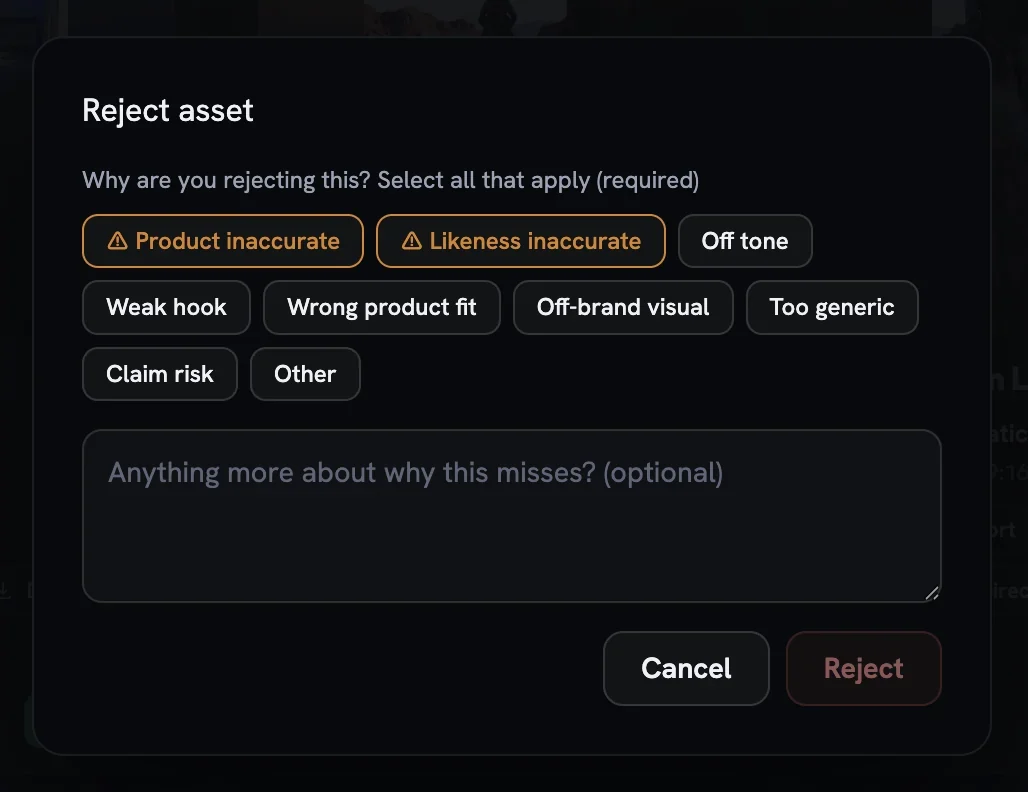
Two reasons are special. Product inaccurate and Likeness inaccurate describe a render that missed its references, not a creative idea you dislike — so if the direction was wrong as well, add a taste reason such as Off tone alongside them. Fix & regenerate on an image asks the same question, records it the same way, and re-runs the piece with your note applied.
What Fotyra learned
Open What Fotyra learned under Brand Intelligence to read the result. It is a plain-language profile of your team's taste, built from what you approved, what you rejected and why: how creative opens, which styles and messaging angles keep winning, which emotional tone lands. The header shows how many decisions it has learned from and when it last refreshed. There is nothing to edit — it updates on its own.
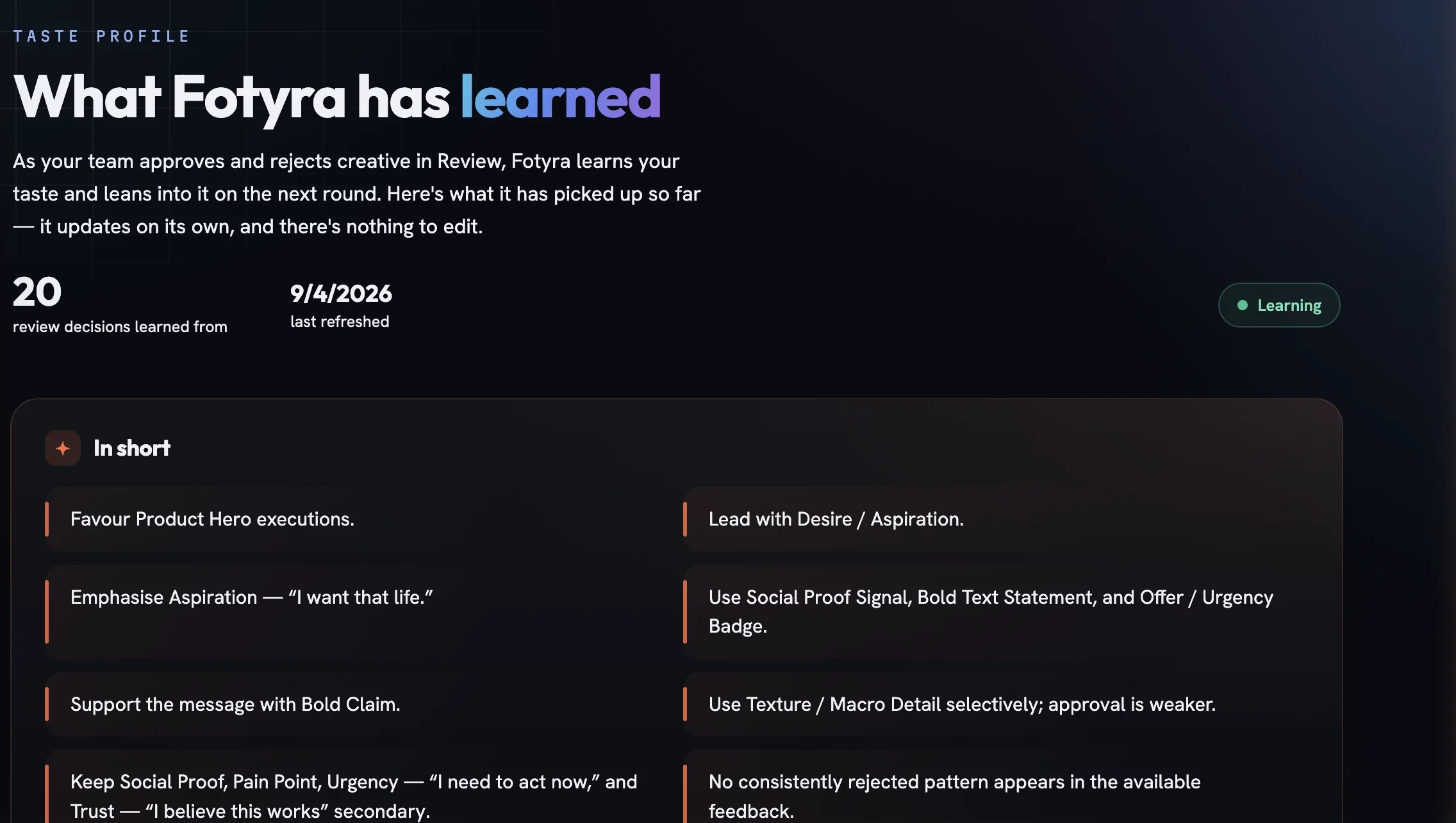
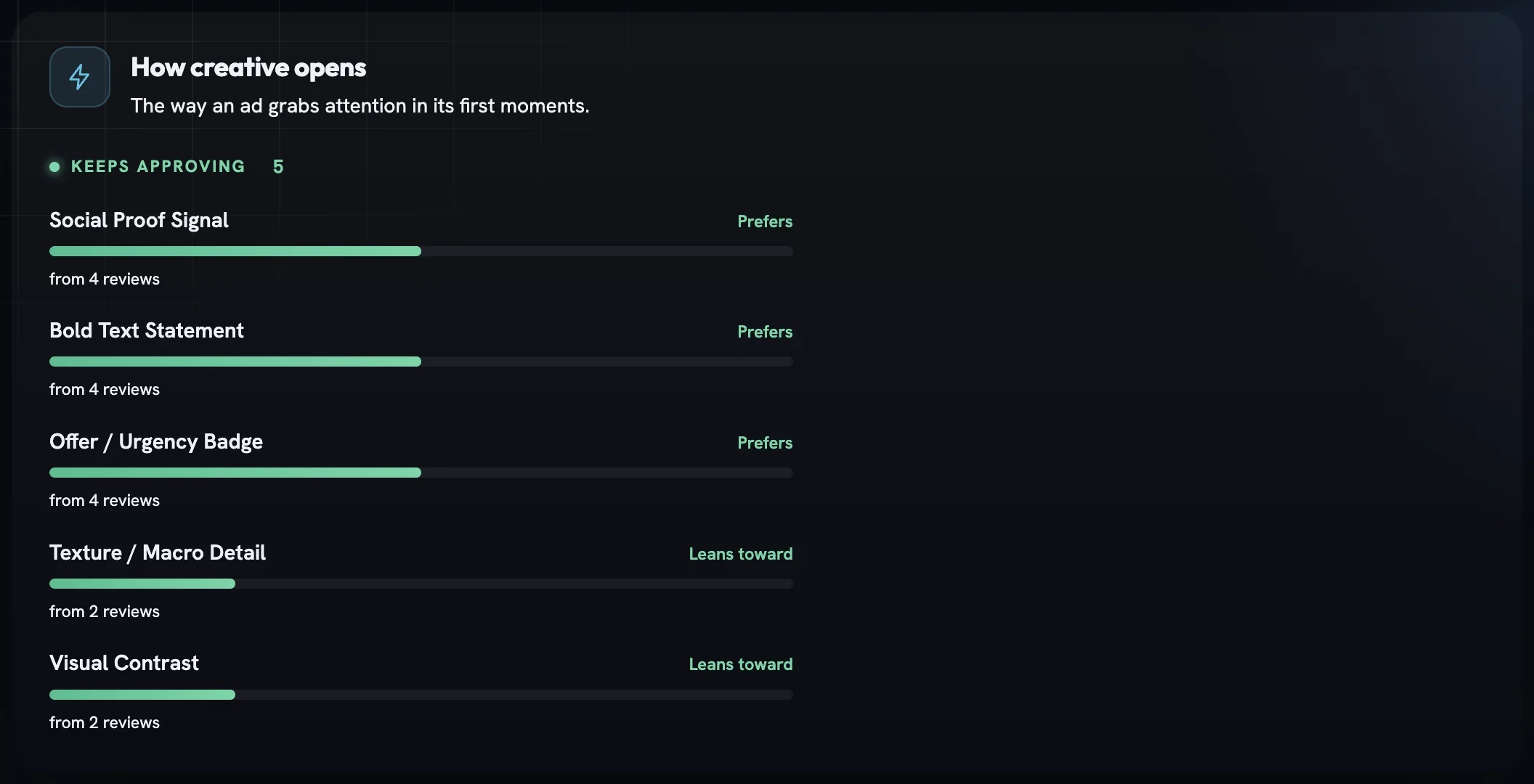
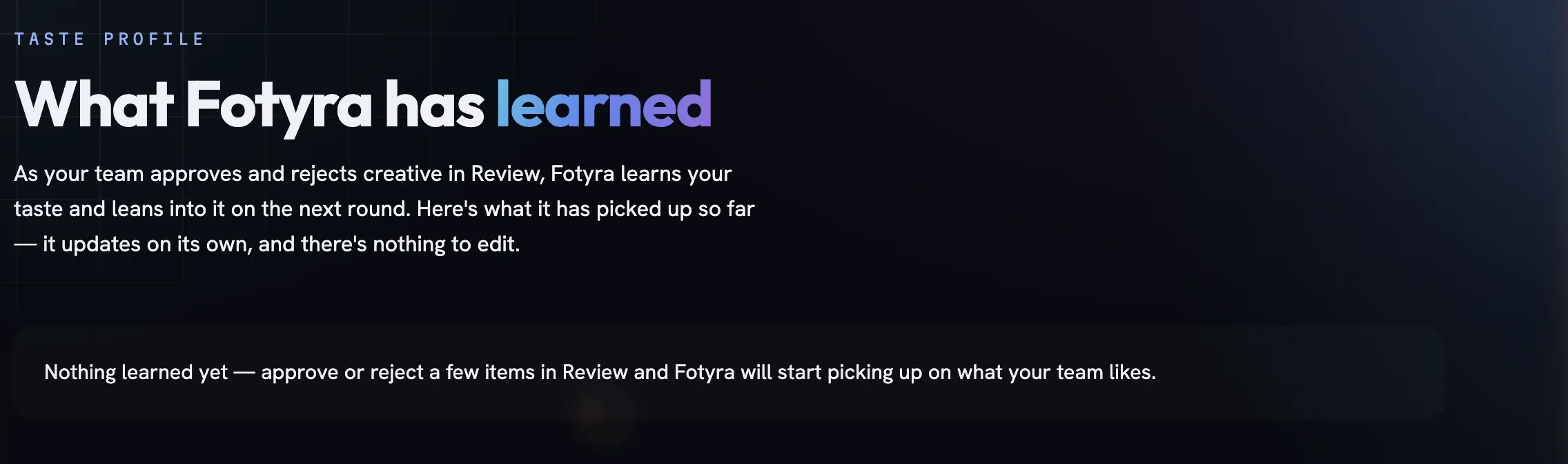
A content type needs a few decisions behind it before the profile starts steering it, and the profile keeps up as your taste moves. Before anything is learned, the page says so plainly.
More in Creative Library
Next in creative library.
Creative Library04
Magic Video
Turn a finished static into a short, subtly animated clip — the scene moves while your text, logo and CTA stay pin-sharp — with the Motion Director picking or you choosing from three concepts.
4 min readRead
Creative Library06
Retry, repair or upscale a film
Three second passes for a finished film — reopen its concept and render it again, fix a few seconds without touching the rest, or re-render the whole thing at a higher resolution.
3 min readRead
Creative Library07
The static ad editor
Every static ad is a clean image plus a stack of layers — headline, supporting line, call to action, logo. The editor is where you move, rewrite and restyle them without touching the picture underneath.
4 min readRead
Read enough. Make one.
Point Fotyra at your store and do exactly what this guide describes, on your own brand.