
The motion graphics editor
Every graphic the studio added is laid out in front of you, each with a note on why it's there. Keep what you like, change what you don't, and move anything on the timeline. Edits are free.
On this page5
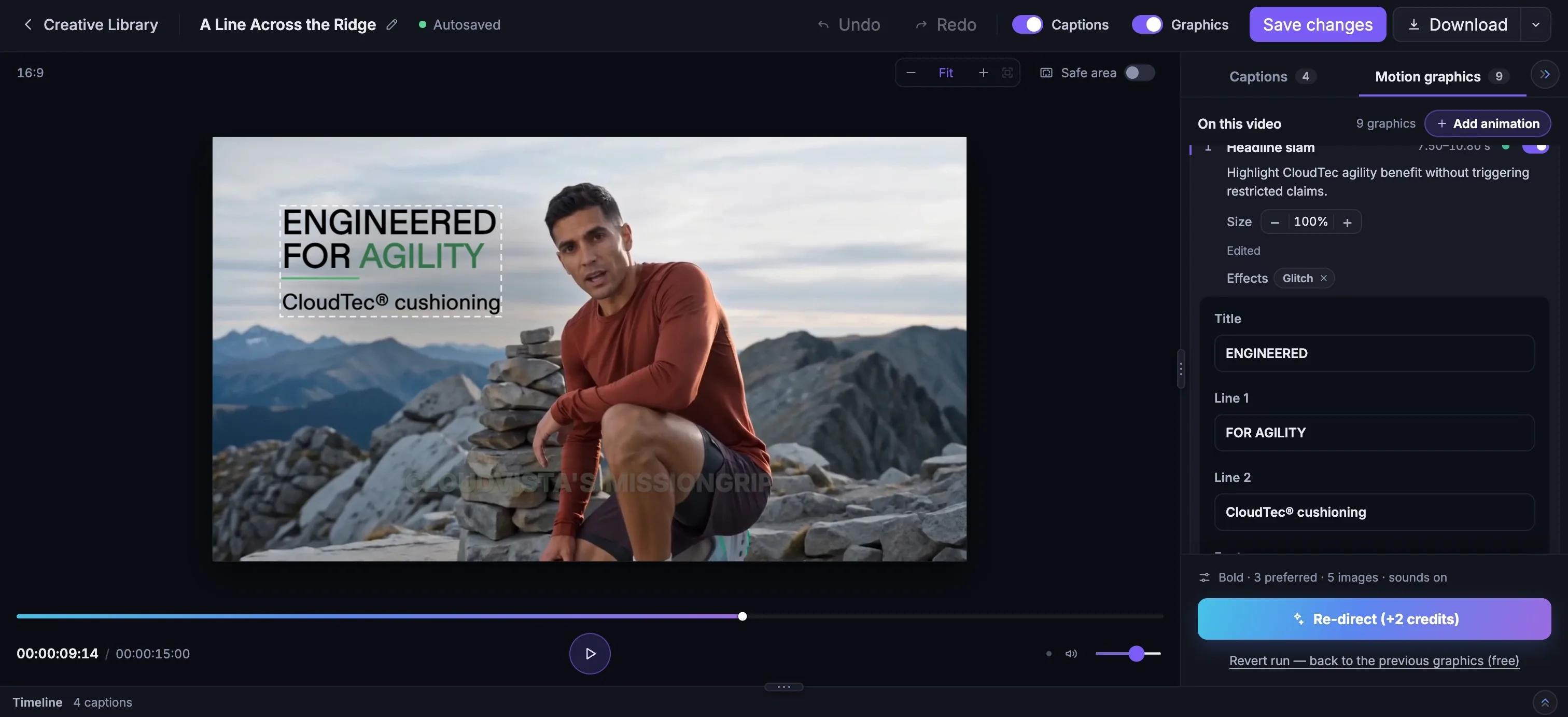
When a run finishes, the editor opens in three parts. Your film plays in the middle. On the right, the panel lists every graphic On this video, in order. Underneath, the timeline shows when each one plays, with lanes for captions, graphics and sounds.
Why each graphic is there
This is the part we like most. Open any row in the list and it tells you why the director put it there. On the trail film above, the headline's note simply says it's there to highlight the CloudTec agility benefit, without making a claim the brand avoids. You're never guessing what a graphic is for.
Don't want one? Flip its switch and it hides, struck through but still in the list, so you can bring it back later.
Moving things around
On the timeline, drag a graphic to move it, and pull either end to make it shorter or longer. Graphics sit on their own lanes, so two can overlap without fighting. The sounds lane shows where each little designed sound plays.
Along the top, Captions and Graphics switch each layer on or off for the whole film, which is handy for a quick before-and-after. Safe area shows the margins every platform keeps clear, so nothing lands under a like button. Your work autosaves, Undo and Redo are there when you need them, and Save changes keeps your edits.
Making a graphic your own
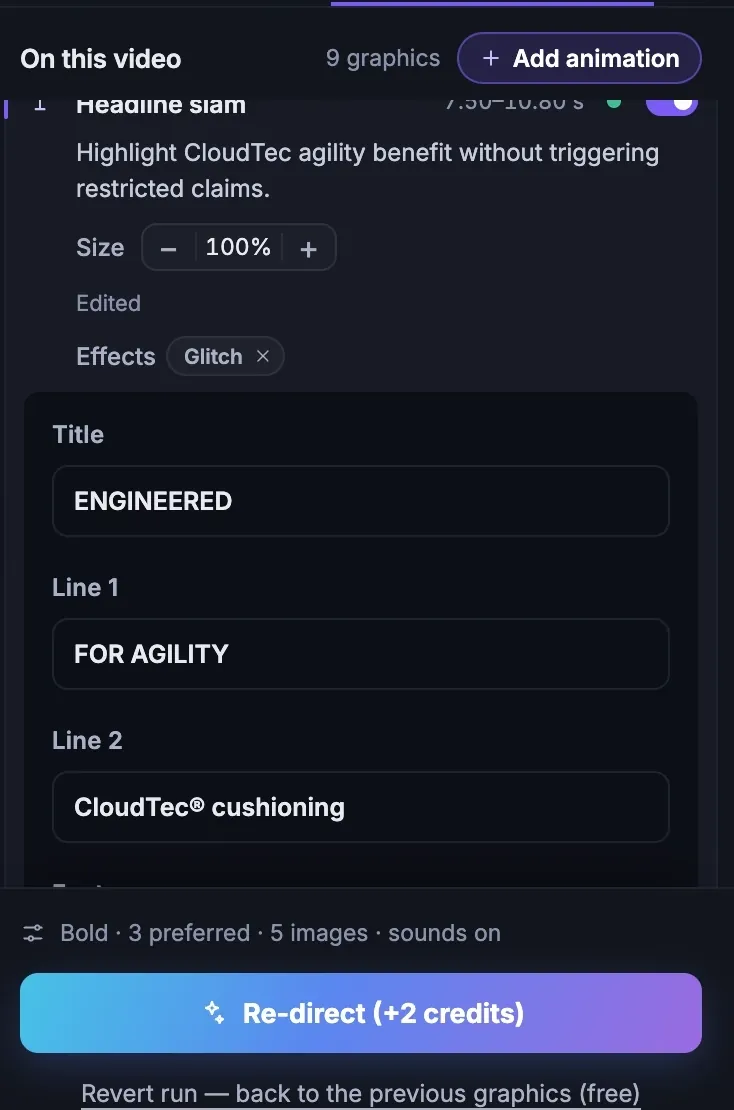
Select a graphic and the panel opens on everything it's made of. Start with the words. Each line has its own field, and when you change them, the graphic rebuilds itself around your words. Leave a line empty and it's simply taken out.
Then the look. The font starts as your brand's own, and you can change the case, alignment, underline, background and shadow, with colours taken from your brand and from the product itself. The Size control scales it, though never so small that it stops being readable on a phone.
Want more energy? Add an effect like Glitch, Brush wipe, Particles or Footage-filled text, and choose whether it plays on the way in, for emphasis, or on the way out. And for timing that feels hand-cut, Enter on word makes the graphic arrive on the exact word you choose in the voice-over.
If you've nudged it somewhere and changed your mind, one click puts it back where the director placed it.
The camera, and the little sounds
Punch-in zooms are camera moves made after the shoot. The film itself leans in on the words the captions stress, the way an editor would reframe a shot. Graphics sounds and Caption sounds are small designed sounds, mixed quietly under the film's own audio. Each one switches on or off instantly, for free.
Starting over, or stepping back
Sometimes you want a whole new take. Re-direct asks the director for a fresh plan. It opens with the settings from last time, so you only change what you want, such as the Boldness, what to lead with or your note, and everything else stays put. A Re-direct is priced by the film's length, shown on the button.
Liked the last version better? Revert run takes you straight back to the previous graphics, for free.
More in Motion graphics
Read enough. Make one.
Point Fotyra at your store and do exactly what this guide describes, on your own brand.