
Magic Video
Turn a finished static into a short, subtly animated clip — the scene moves while your text, logo and CTA stay pin-sharp — with the Motion Director picking or you choosing from three concepts.
On this page5
Paid social rewards motion, but re-shooting a working static as a full film is slow and expensive. Magic Video takes the ad you already approved — same composition, same copy, same brand marks — and adds understated motion, so you get a video variant in minutes without the headline or CTA drifting.
What moves and what stays still
The motion is deliberately restrained: light shifts, atmosphere drifts, a person makes a gentle gesture. The text, the logo and the call to action stay perfectly sharp and do not move. The scene comes to life; the ad stays the ad.
Behind it sits a Motion Director that reads the still, writes several motion-plus-music concepts and scores each one for fit. You decide how much of that you see before anything renders.
Magic Video is not a content type on the Create page. It is an action you start from an image card in the Creative Library, and the result comes back as a new video card labelled Magic Motion.
Where it starts
Open the Creative Library and find an image card that has finished compositing. It carries a Generate Magic Video chip in its row of actions, and the same command sits in the card's ⋮ menu.
If the creative is still being finished, the chip waits and its tooltip says you can animate it in a moment. Video cards and archived images do not offer it.
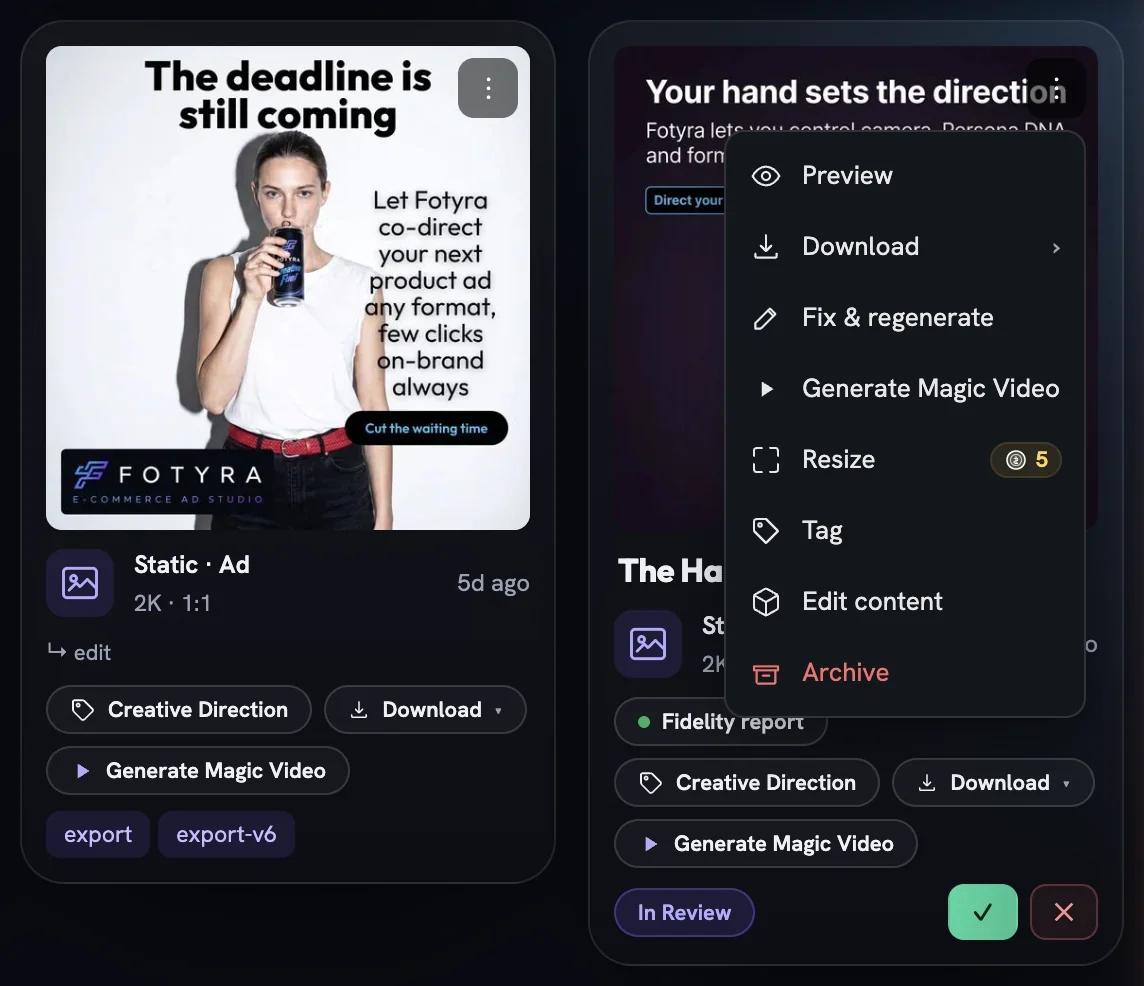
Generate Magic Video chip sits under every finished image card, and again in the ⋮ menuSet up the clip
The chip opens the Bring it to life dialog. Opening it spends nothing; a charge only happens when you press one of the two generate buttons at the bottom.
Pick a quality
The
Qualitypills are whatever the assigned motion model can render, so the row may show one tier or two.Pick a duration
6s,10sor15s, each pill carrying its own credit price. The row's heading says it: 6s is the sweet spot for this kind of subtle motion.Add a direction, or don't
The
Optional directionbox takes up to 500 characters — something like “make the steam rise slowly”. Leave it empty and the Motion Director decides.Choose the music
Autolets the Director score the clip.Pick a trackreveals eight mood presets.Sound onlykeeps ambient sound effects with no music, andSilentdrops audio altogether.
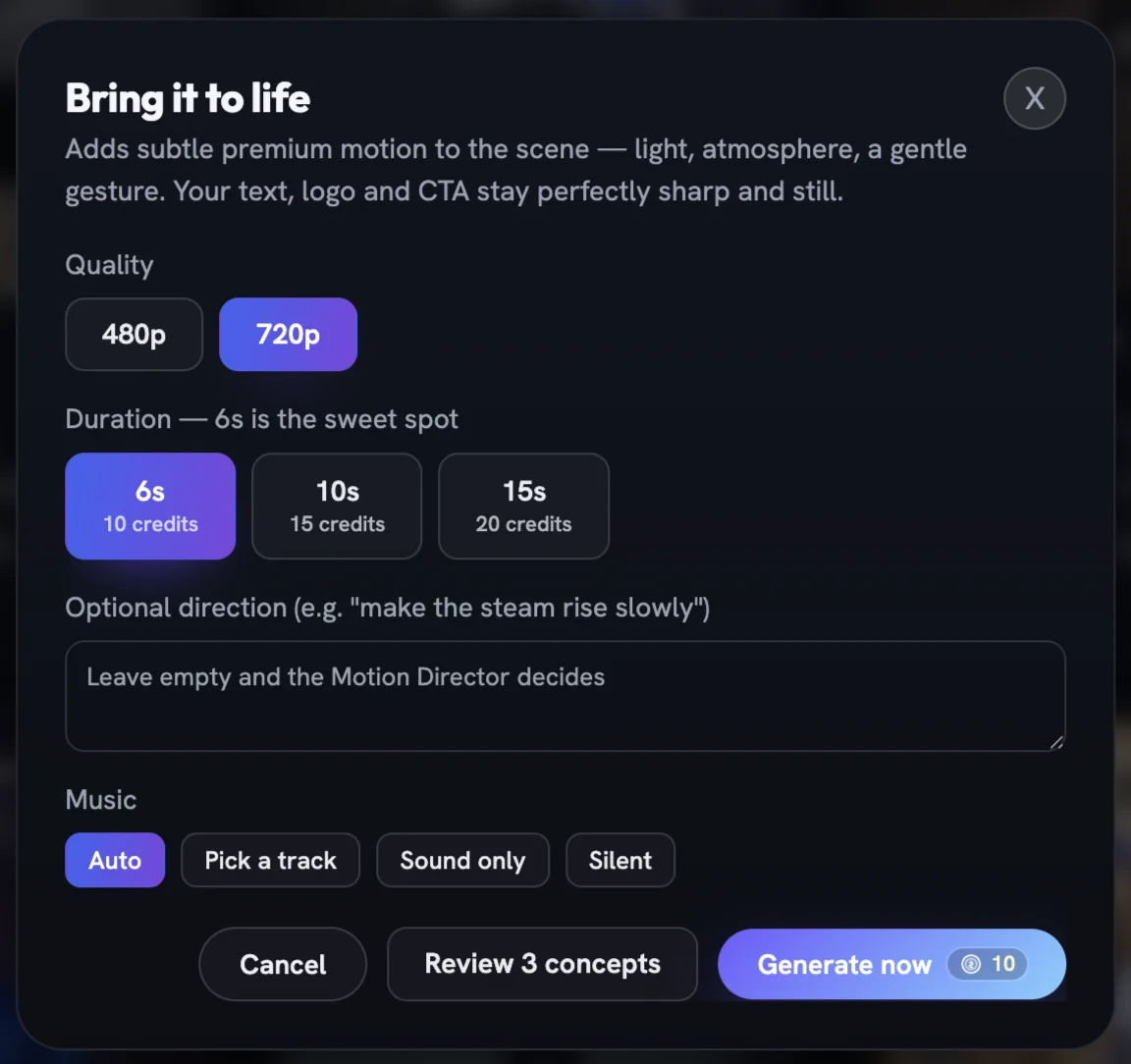
Generate now button repeats the price for the pill you choseThe presets — Cinematic Swell, Lo-fi Cozy, Neon Pulse, Upbeat Energy, Elegant Minimal, Epic Trailer, Warm Acoustic and Ambient Dreamy — are moods, not songs. The score is composed for the clip from that brief, not pulled from a track library.
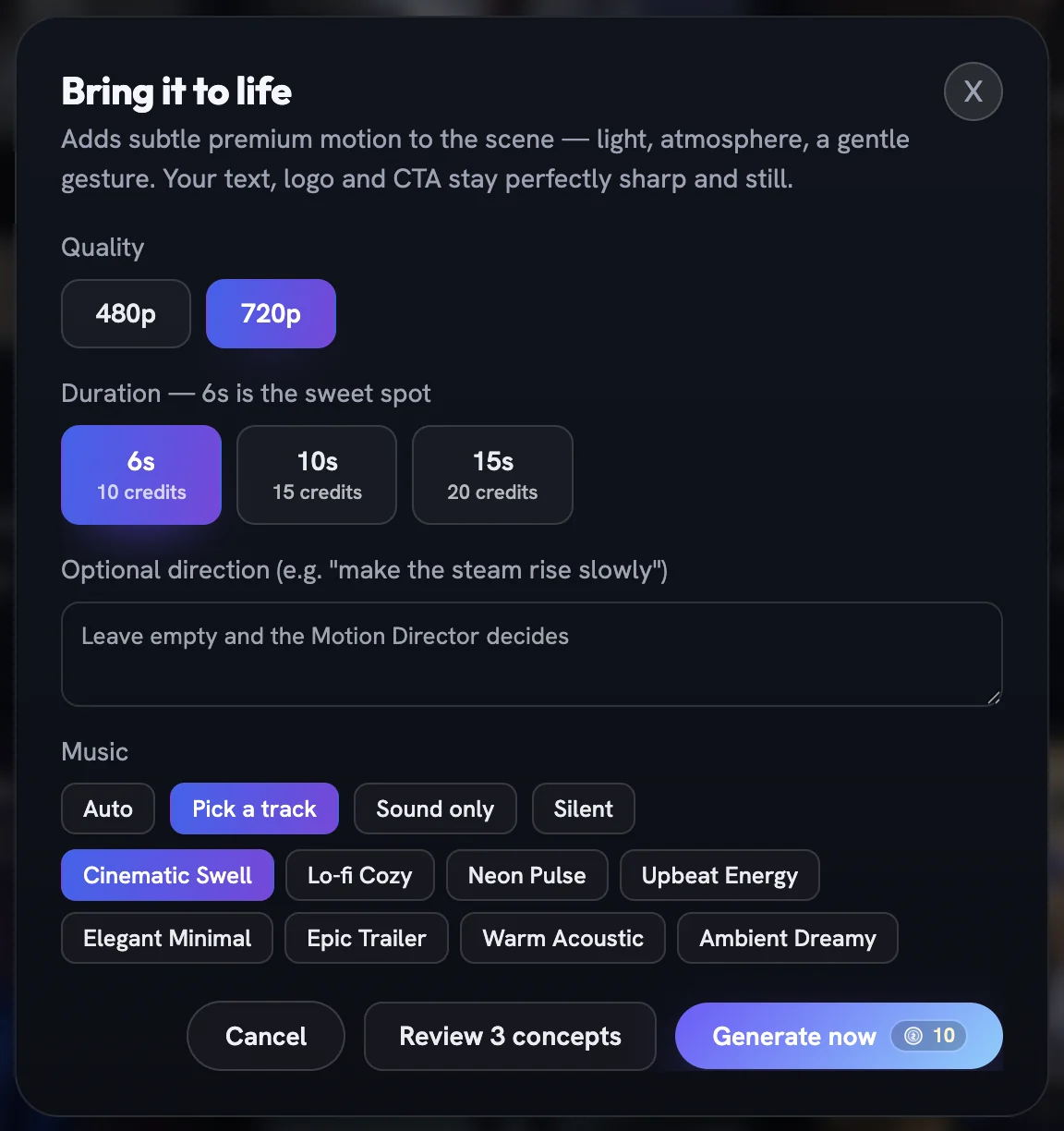
Pick a track unfolds the eight mood presets; Cinematic Swell is selected hereLet the Director pick, or review three
Generate now picks the strongest concept and renders it without asking you. Review 3 concepts runs the same concept step, then shows you the three strongest directions before anything renders.
Both routes do the same directing work first, so Generate now is not faster — it only skips your pick. Review the three when you want a say in how the ad moves.
On the Review the concepts screen your source still is pinned on the left. Each card shows the concept's name, a self-assessed score out of ten, the motion brief and the music brief; the score is a ranking signal, not a guarantee. Select the one that fits and press Generate - Magic Video — the price sits on the button. If the concepts fail to arrive, the screen says so and offers Generate now instead.
What comes back
A receipt names the concept and says it will appear for review shortly. The clip shows in the generating tray, then lands as a new video card whose kind line reads Magic Motion, linked to the image it came from. In the full-screen preview you can step between the source still and the clip as versions.
From there it is reviewed like everything else, and the original static is untouched. Credits are held when the job starts and charged only on success; a failed clip releases the hold.
More in Creative Library
Next in creative library.
Creative Library02
What every card knows about itself
The Fidelity report grades how closely a render matched your product and spokesmodel (advisory, never a gate); Creative Direction traces the recipe behind it and holds your tags.
4 min readRead
Creative Library03
Approve, reject, and what Fotyra learns
Every ✓ and ✕ in the library is a lesson. Here is what approval means, why a rejection asks for a reason, and how those reasons turn into a taste profile that steers the next round.
2 min readRead
Creative Library06
Retry, repair or upscale a film
Three second passes for a finished film — reopen its concept and render it again, fix a few seconds without touching the rest, or re-render the whole thing at a higher resolution.
3 min readRead
Read enough. Make one.
Point Fotyra at your store and do exactly what this guide describes, on your own brand.