
Resize or fix a static
Smart resize recomposes an image at a new ratio instead of cropping it, and Fix & regenerate re-shoots it with only the correction you describe — both keep the original beside the new version.
On this page4
A finished static rarely fits every channel, and the ones that fit are rarely perfect. Two actions on an image card handle the usual second act without starting over: Resize rebuilds the scene at a new aspect ratio, and Fix & regenerate re-shoots it with one correction applied. Neither touches the original.
Two actions, two different problems
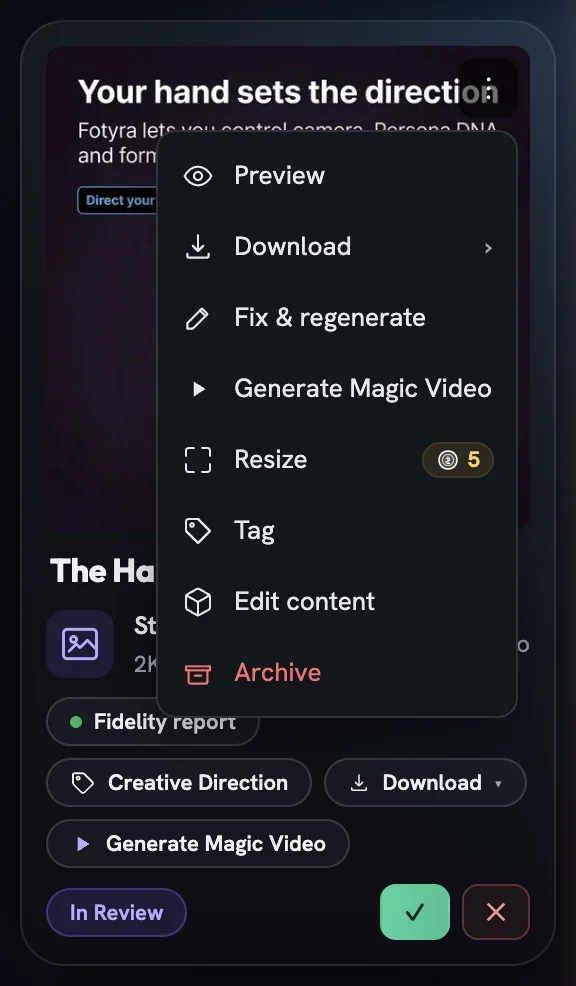
Both live in the ⋮ menu of a static or product-shot card in the Creative Library, and both work on images only. A film gets Review Concept & Retry in that slot instead, because a note-driven re-shoot would lose its reference sheets.
| Resize | Fix & regenerate | |
|---|---|---|
| Use it when | The creative is right but the frame is wrong | One thing is wrong and the rest is worth keeping |
| What you give it | A new aspect ratio | Reasons plus a note on what to change |
| What it keeps | The scene, the subjects and the text layers | The original creative idea, with your note as a hard correction |
| Where the result lands | A new card beside the original | A new version beside the original |
Recompose at a new ratio
Cropping a composed ad usually cuts the product or the headline. Smart resize extends the background and repositions the subjects so the whole scene survives the move from feed post to story, text layers included.
Open Resize
From the card's ⋮ menu choose
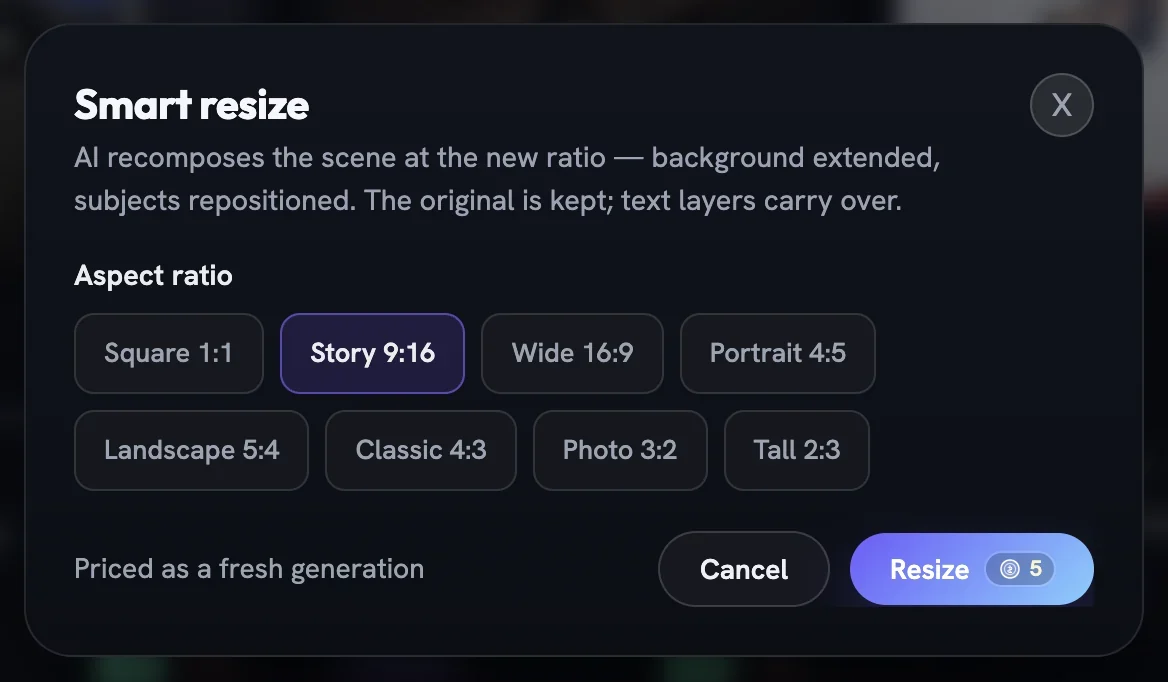
Resize. The Smart resize dialog opens without spending anything.Pick the new frame
Choose from Square 1:1, Story 9:16, Wide 16:9, Portrait 4:5, Landscape 5:4, Classic 4:3, Photo 3:2 or Tall 2:3. The dialog pre-selects a ratio that differs from the source; the confirm button reads
Pick a different ratioand stays disabled while your pick matches it.Confirm at the shown price
The footer says
Priced as a fresh generation; pressResize. The receipt tells you the new frame is being made and will appear beside the original.Check the new card
It arrives in the grid as its own card with a
↳ resizeline under the type. It is a fresh composition guided by the original, so check it like any new generation.
Describe the fix and re-shoot
Most misses are one thing — a colour, a claim you cannot make, a flat hook. Re-briefing from scratch throws away everything that was right. Fix & regenerate keeps the direction and applies only the correction you describe, and the reasons you tick feed what Fotyra learns about your taste.
Open Fix & regenerate
It appears on image cards that carry a review pill. Choose it from the ⋮ menu to open the Request changes dialog.
Tick the reasons
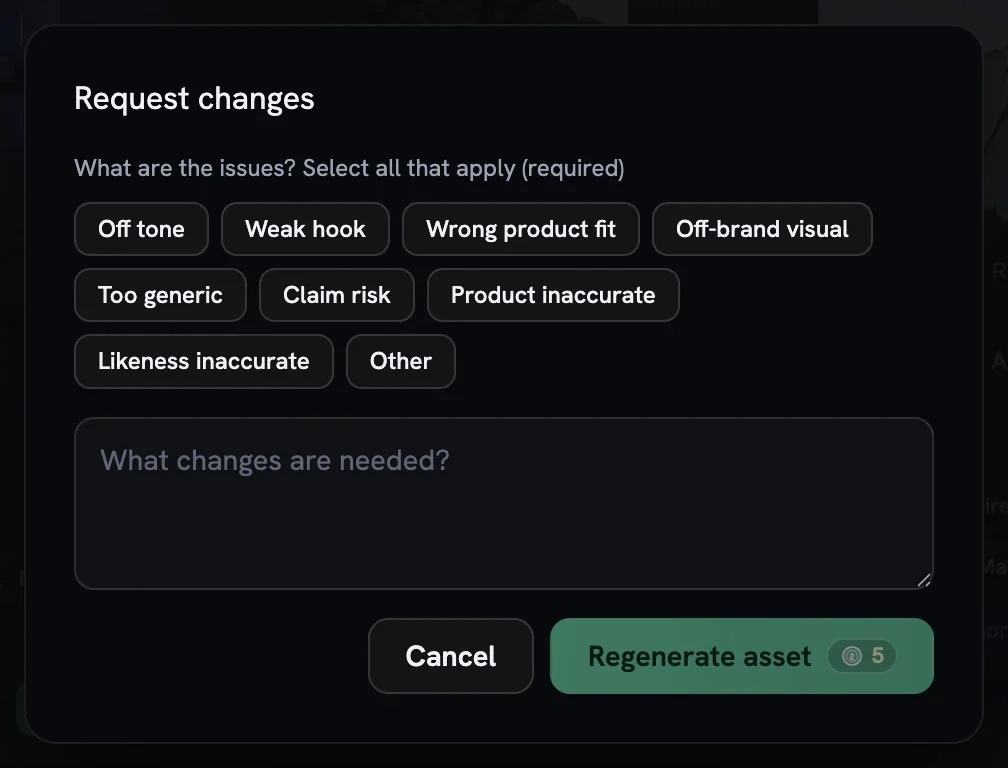
Answer
What are the issues? Select all that apply (required)with one or more pills: Off tone, Weak hook, Wrong product fit, Off-brand visual, Too generic, Claim risk, Product inaccurate, Likeness inaccurate or Other. If the fidelity check flagged the render,⚠ Product inaccurateand⚠ Likeness inaccurateare highlighted first.Say what should change
Type it into
What changes are needed?. The note is optional, but the correction is built from it, so be concrete: which colour, which line, which angle.Regenerate
Press
Regenerate assetat the price on the button. It stays disabled until at least one reason is chosen. The receipt confirms your changes are being applied and that the original stays put.
What happens to the original
Nothing is hidden or replaced. The new generation shows in the tray first, then as its own card next to the source. Open either card's preview and step between versions with ← and →.
After a Fix & regenerate the original's review pill reads changes requested, with your feedback saved on it. Once you have picked a winner, archive the loser yourself — Fotyra does not tidy up for you. Approving or rejecting the new version closes the loop; see approve, reject and what Fotyra learns.
For a wording or logo change that does not need a re-shoot, Edit content on the same menu opens the static ad editor, where text layers change without a re-shoot.
More in Creative Library
Next in creative library.
Creative Library04
Magic Video
Turn a finished static into a short, subtly animated clip — the scene moves while your text, logo and CTA stay pin-sharp — with the Motion Director picking or you choosing from three concepts.
4 min readRead
Creative Library06
Retry, repair or upscale a film
Three second passes for a finished film — reopen its concept and render it again, fix a few seconds without touching the rest, or re-render the whole thing at a higher resolution.
3 min readRead
Creative Library08
Move, restyle or remove the logo
The brand mark on a static is its own layer — resize or crop it, recolour it, sit it on a solid or frosted plate, swap it for the symbol or wordmark, or take it off entirely.
2 min readRead
Read enough. Make one.
Point Fotyra at your store and do exactly what this guide describes, on your own brand.