
Check the reference sheet
The Clean Sheet, Raw Sheet and Scale Reference tabs are what every generation renders from — verify the angles, read the fidelity verdict and pick which sheet is primary.
On this page6
Every static, product shot and film that features a product is rendered from its reference sheet, so a wrong tile here becomes a wrong product everywhere. Checking it after a build is the cheapest quality control in the studio.
Three tabs, one job
The Product reference sheet sits in Product Visuals on the product page, under the photo gallery. A build produces up to three images, one per tab.
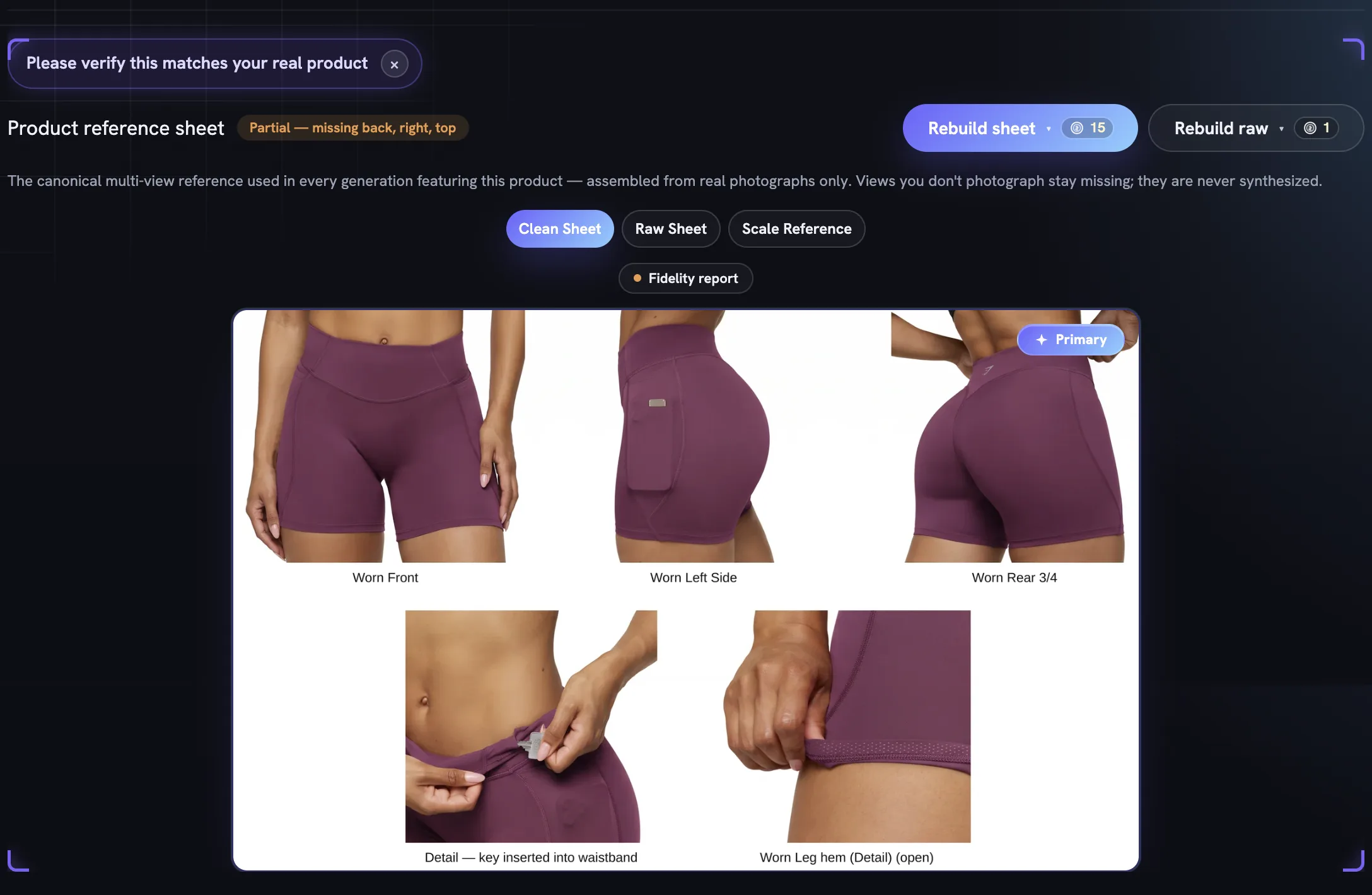
Clean Sheet— your photographs composed onto white, one captioned tile per view. Generation uses this unless you say otherwise.Raw Sheet— the same views cut from your actual photographs and laid out as they are. Every pixel is real, and it is ready in seconds.Scale Reference— one photograph or render of the product held or worn on a body, no face in frame. It gives every render its size cue.
Tiles cover Front, Back, Left, Right, Top, Bottom, Front 3/4 and Rear 3/4, and a sheet holds at most six. Views you do not photograph stay missing — nothing is invented to fill the gap.
Read the badge first
Next to the heading, a badge tells you how complete the sheet is. Partial — missing back, right, top names the views the build could not find, up to three of them. Single view means the product is read from one photograph, so every other side will be guessed at render time. A · stale suffix means photos or labels changed since the build.
A stale sheet is never rebuilt on its own. Uploading, deleting or re-ordering photos, editing a label or changing Scale & Dimensions all mark it stale; rebuild when ready.

After every build a Please verify this matches your real product prompt wraps the panel until you dismiss it. Take it literally: click the sheet to open it full-screen and compare each tile with the real item.
Clean or raw, and which one is primary
The clean sheet is an AI compose that keeps to your references but can drift on a logo edge or a line of label copy. The raw sheet cannot drift, but keeps whatever background your photographs had. Compare the same tile in both.
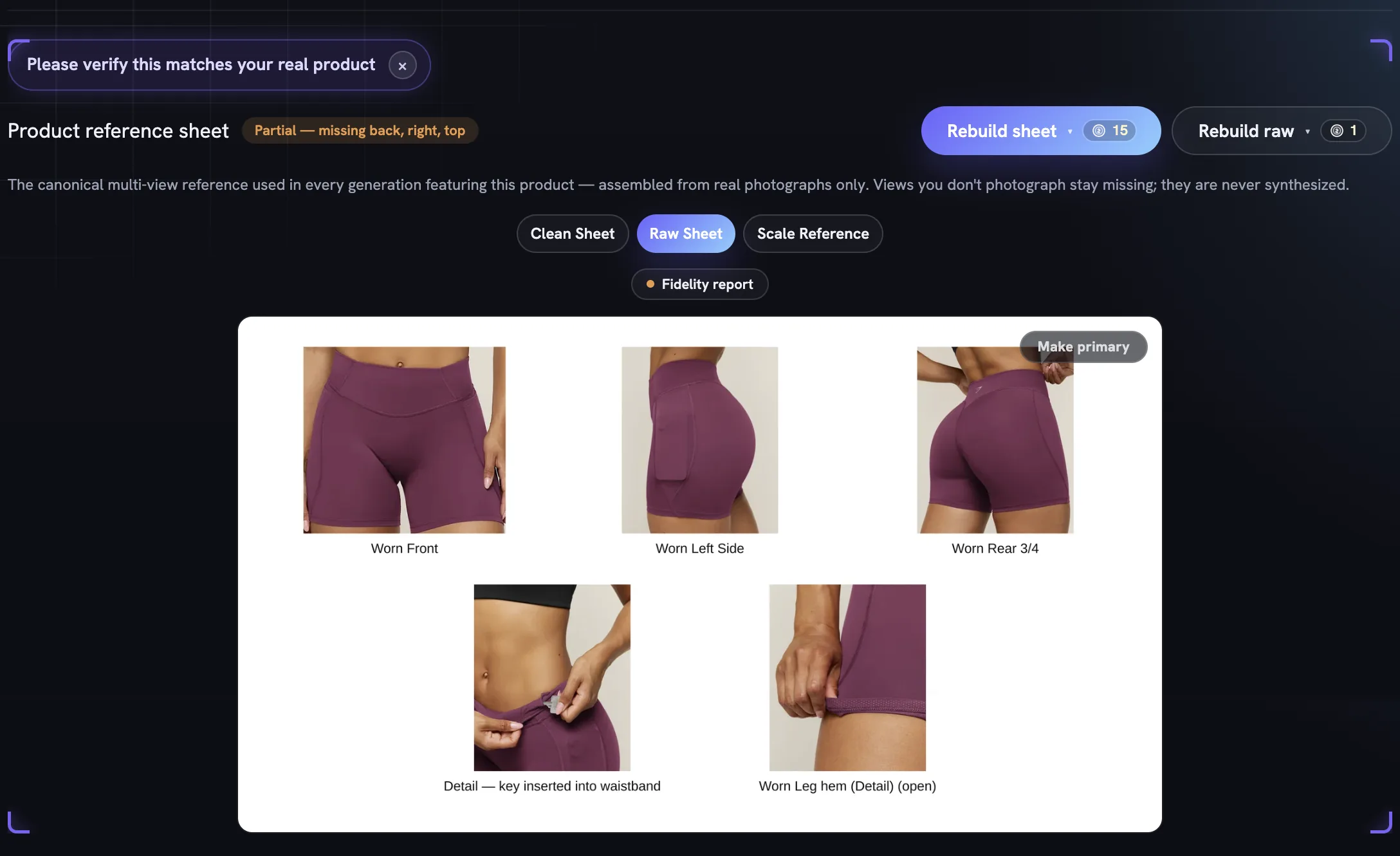
The corner control reads Primary on the sheet generation uses and Make primary on the other. Choose the raw sheet when your own clean-backdrop photographs look better than the compose. The primary sheet rides with every generation of this product.
The third tab is the size cue
Scale Reference holds a single image: the product held or worn on a real body with no face in frame. Every generation of this product reads it for size, which is what stops a 90ml bottle rendering the size of a jug in someone’s hand. The line under the image says where this one came from — one of your own photographs, or a render built from the sheet and the numbers in Scale & Dimensions.
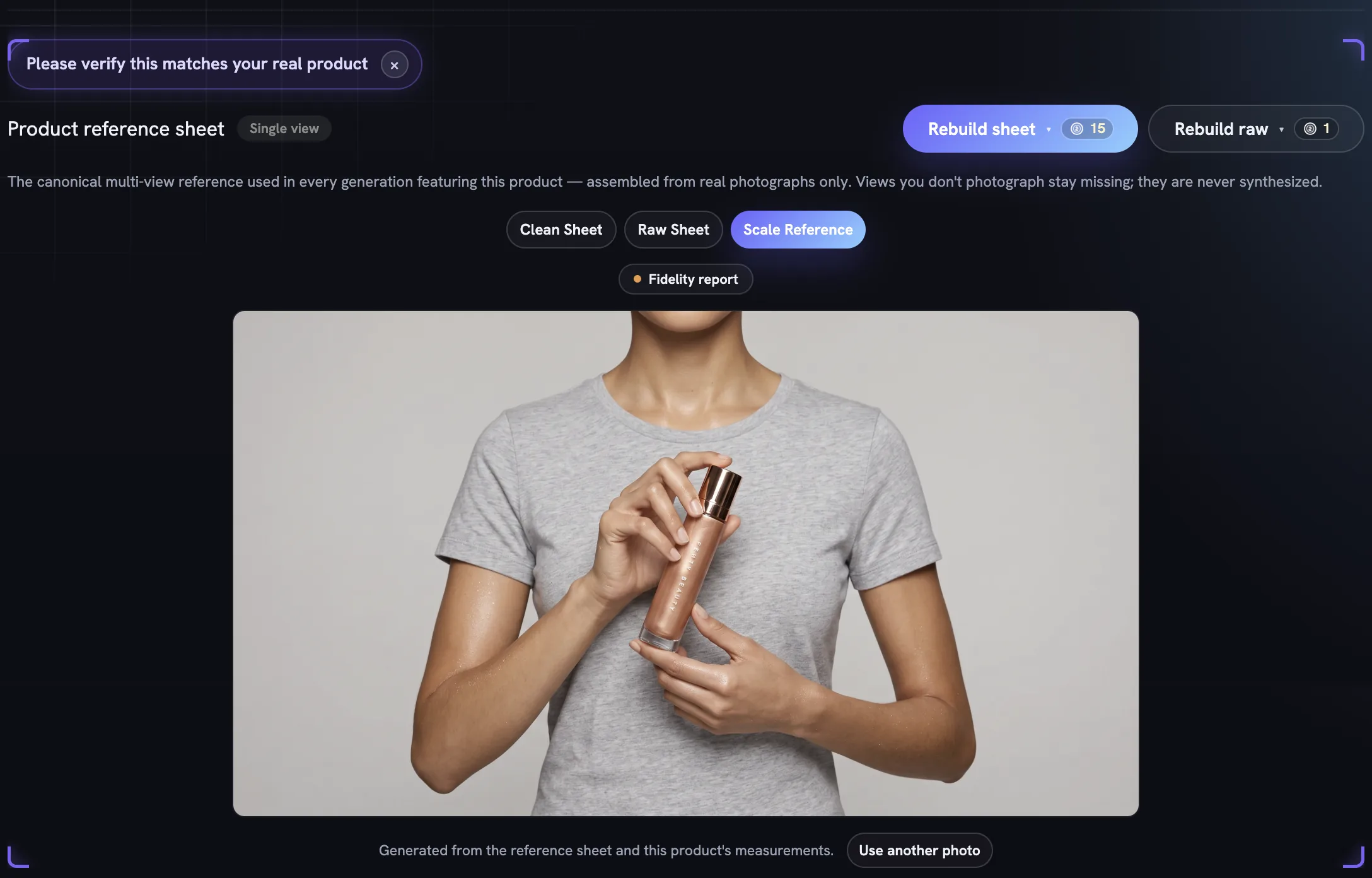
Use another photo — Choose a photo when there is none yet — opens a picker of this product's photographs; choosing your own is free and nothing is rendered. A sheet that already carries a worn tile skips the render entirely, because that tile has true on-body scale. Add your own scale reference covers the picker, the confidence pill and what makes a good scale photo.
What the fidelity report is telling you
The Fidelity report chip above the sheet carries a dot coloured by verdict. Click it for the report: a verdict — Passed — matches references, Minor differences found or Significant differences found — a Product score out of ten, and whether the build needed a retry. Not checked — quality check unavailable means the checker did not run.
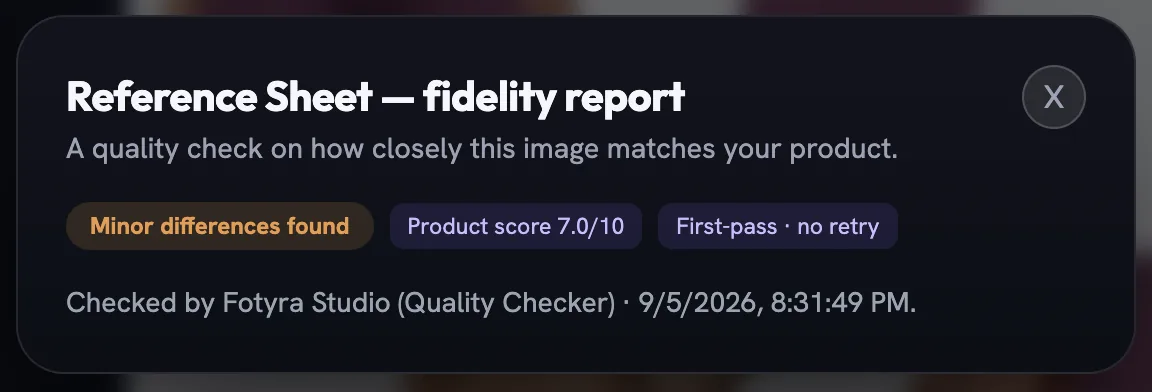
The verdict is advisory. A finding never blocks the sheet; it is a nudge to look closer at the tiles before your first serious campaign.
Fix a wrong tile
Tiles and their captions come from each photo's labels, so a mislabelled angle becomes a mislabelled tile. Correct the label, then rebuild.
Find the photo
In the gallery, filter by
Sheet tilesor look for theSheet tile · Fronttag on a card, and open it.Correct its labels
In the Labels pane, pick the right Angle chip, set the Worn row and edit the
Sheet labelprinted under the tile, thenSave labels.Rebuild the sheet
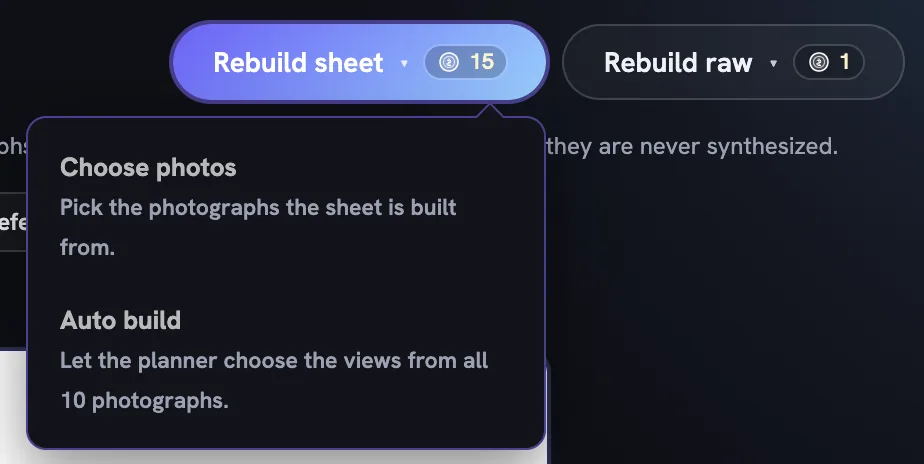
Rebuild sheet ▾offersChoose photos, where you pick up to six photographs and preview the caption each will earn, orAuto build, which lets Fotyra choose from the whole gallery. Both are priced on the button.Or re-cut the raw sheet only
Rebuild raw ▾offersSelect photos(your picks, in your order) orAuto rebuild(keep the views, re-crop every tile to the product). It leaves the clean sheet and the scale reference untouched.
A close-up can earn a tile of its own when it shows something no straight view can — the grip inside a hem, a key in the waistband pocket — but a side you never photographed is still never invented, so if your only back view is a lifestyle shot, upload a straight photograph of that side. If a build fails, the button reads Retry build.
More in Your products
Read enough. Make one.
Point Fotyra at your store and do exactly what this guide describes, on your own brand.