
Your creative library
Every ad, shot and film your project has made, on one grid — how to read a card, filter the wall, download in the right format and keep drafts from piling up.
On this page4
The Creative Library is the wall everything lands on: statics, product shots, films, magic motion clips, and whatever is still being made. Open it from Studio in the sidebar. Its job is simple — let you review, refine and manage every on-brand creative from first draft to final approval — and most of what you can do to a creative starts on its card.
The wall and its tabs
Three tabs sit above the grid. All is everything not rejected, newest first. Approved holds the pieces someone has signed off. Rejected is the archive — creatives you turned down or archived, shown at full brightness so you can still find them. Under the tabs, a filter bar narrows the wall by Any type (image, video, audio), Any kind (static, product shot, UGC, B-roll, cinematic, upload), Any ratio, Any status, a Tags box that also matches the recorded creative direction, and a date range. The 3 / 4 / 5 toggle on the right sets how many cards fill a row.
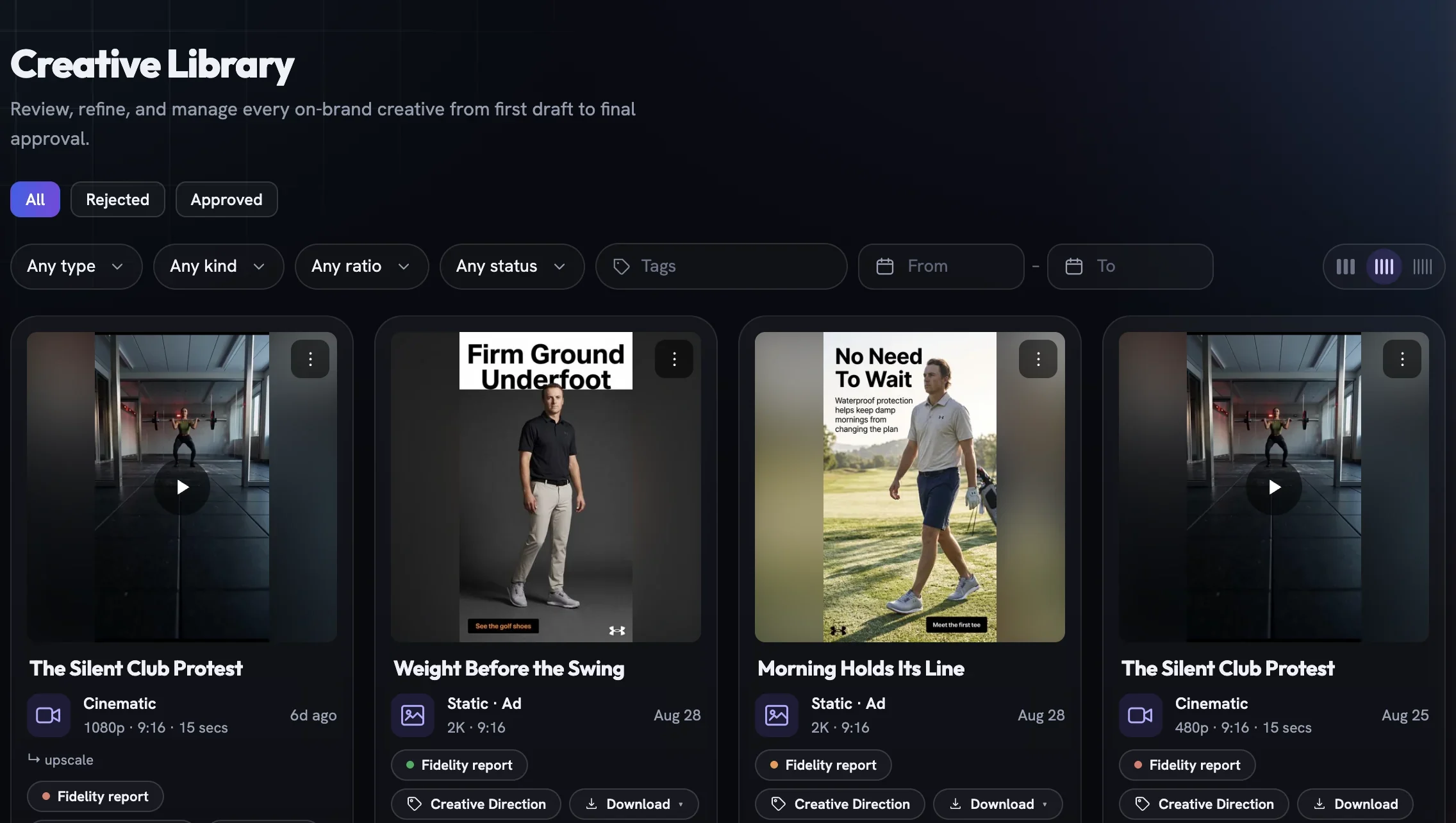
Reading a card
Each card is the same anatomy. The artwork on top, with a play button on films and a ⋮ menu in the corner. Then the concept name, a kind line such as Static · Ad or Cinematic, a spec line like 2K · 1:1 or 720p · 9:16 · 15 secs, and a Layered badge on statics whose text has been split into editable layers. A ↳ resize or ↳ edit line marks a creative derived from another one.
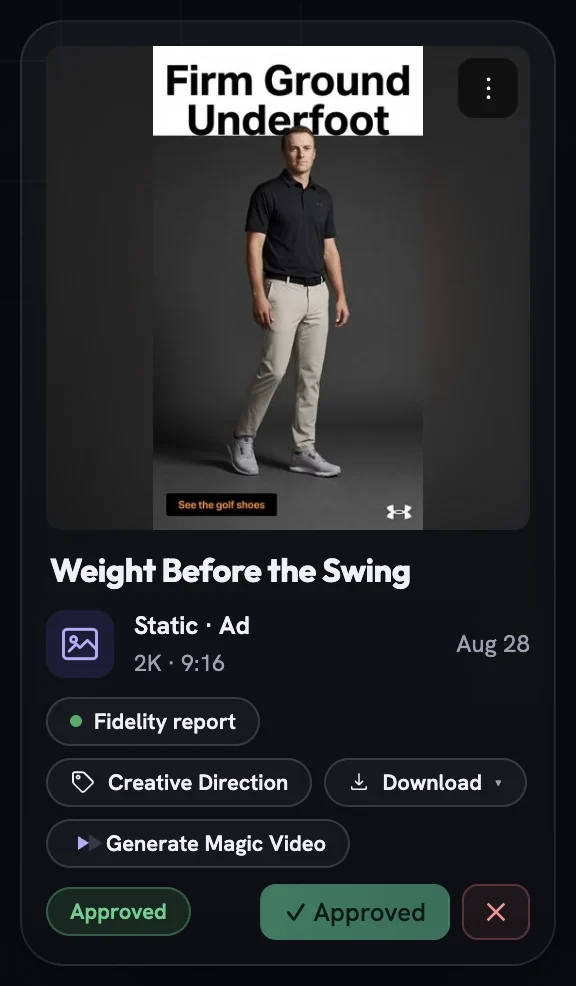
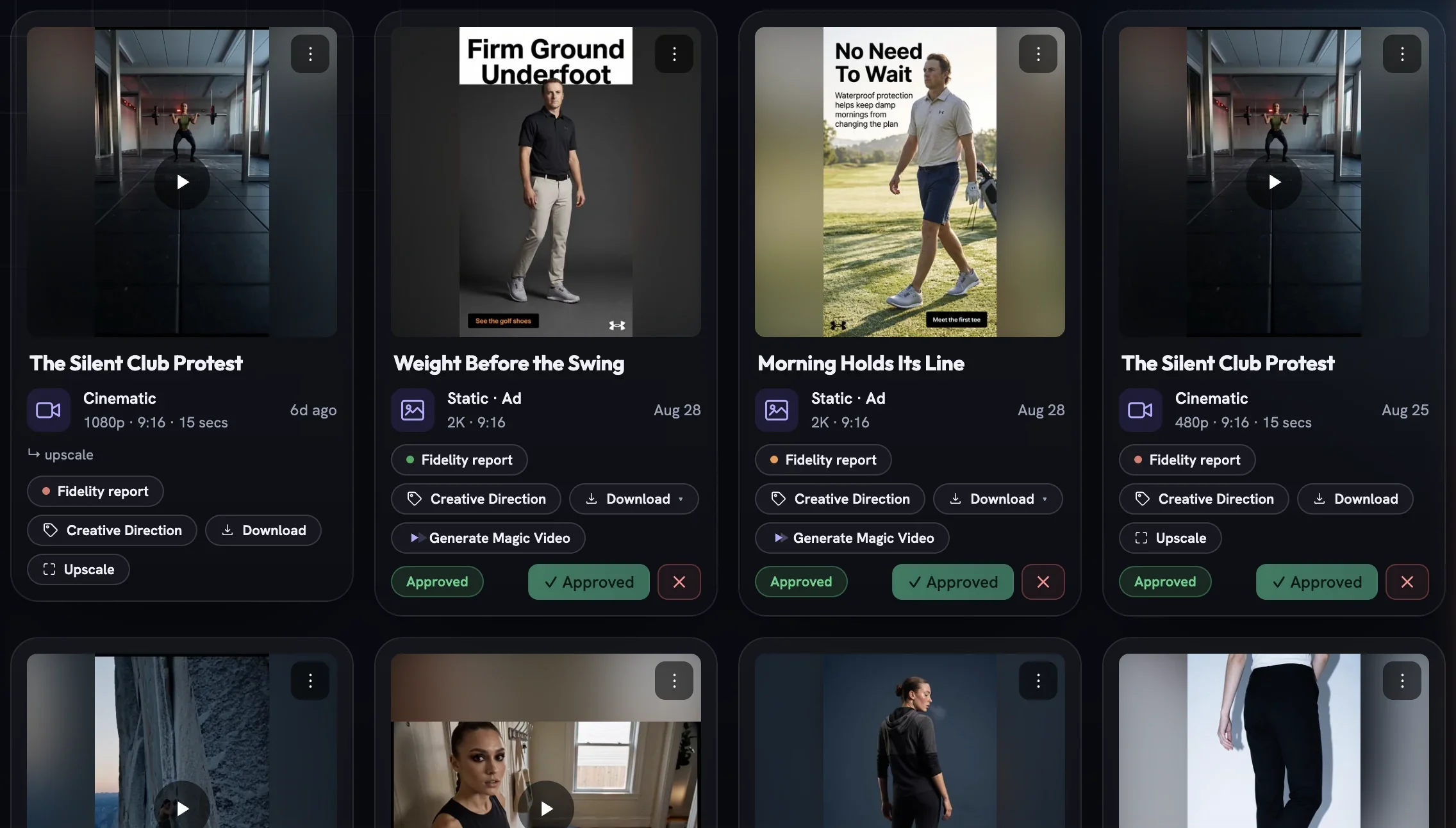
The chip row is where the work happens. Fidelity report opens the quality check with a coloured dot for its verdict; Creative Direction shows exactly what the piece was made from — both are covered in what every card knows about itself. Download saves the file, Upscale re-renders a film sharper, and Generate Magic Video brings a still to life. At the foot, a review pill reads In Review or Approved, with ✓ and ✕ for the decision.
Downloading in the right format
On an image the Download ▾ chip opens a short menu: PNG as a lossless master, JPG for ad platforms, WebP as the smallest file for web, and two PDFs — High Quality Print for proofs and Press Quality for print. On a film the chip downloads the original file. Nothing here spends credits, and a Viewer can download without any other permission.
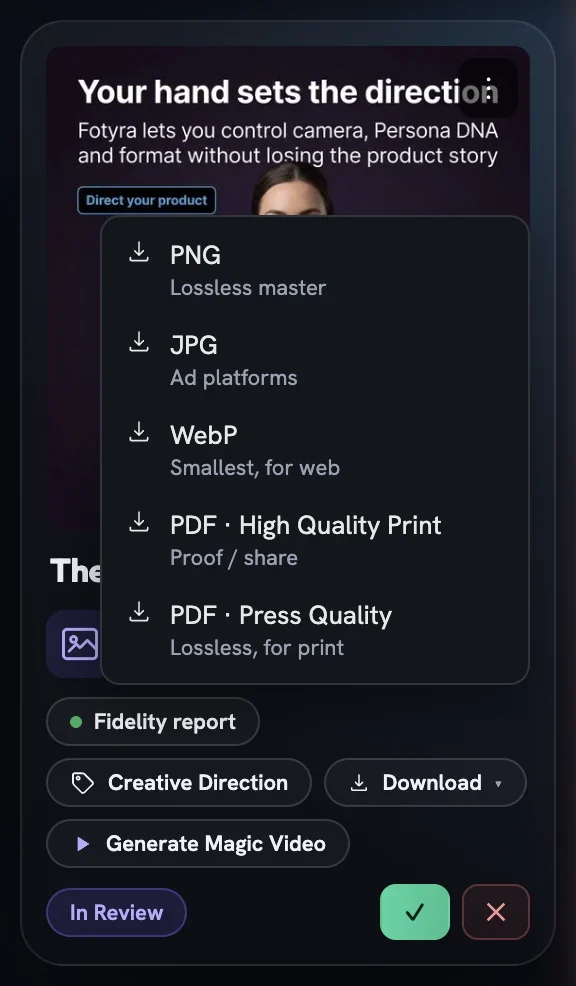
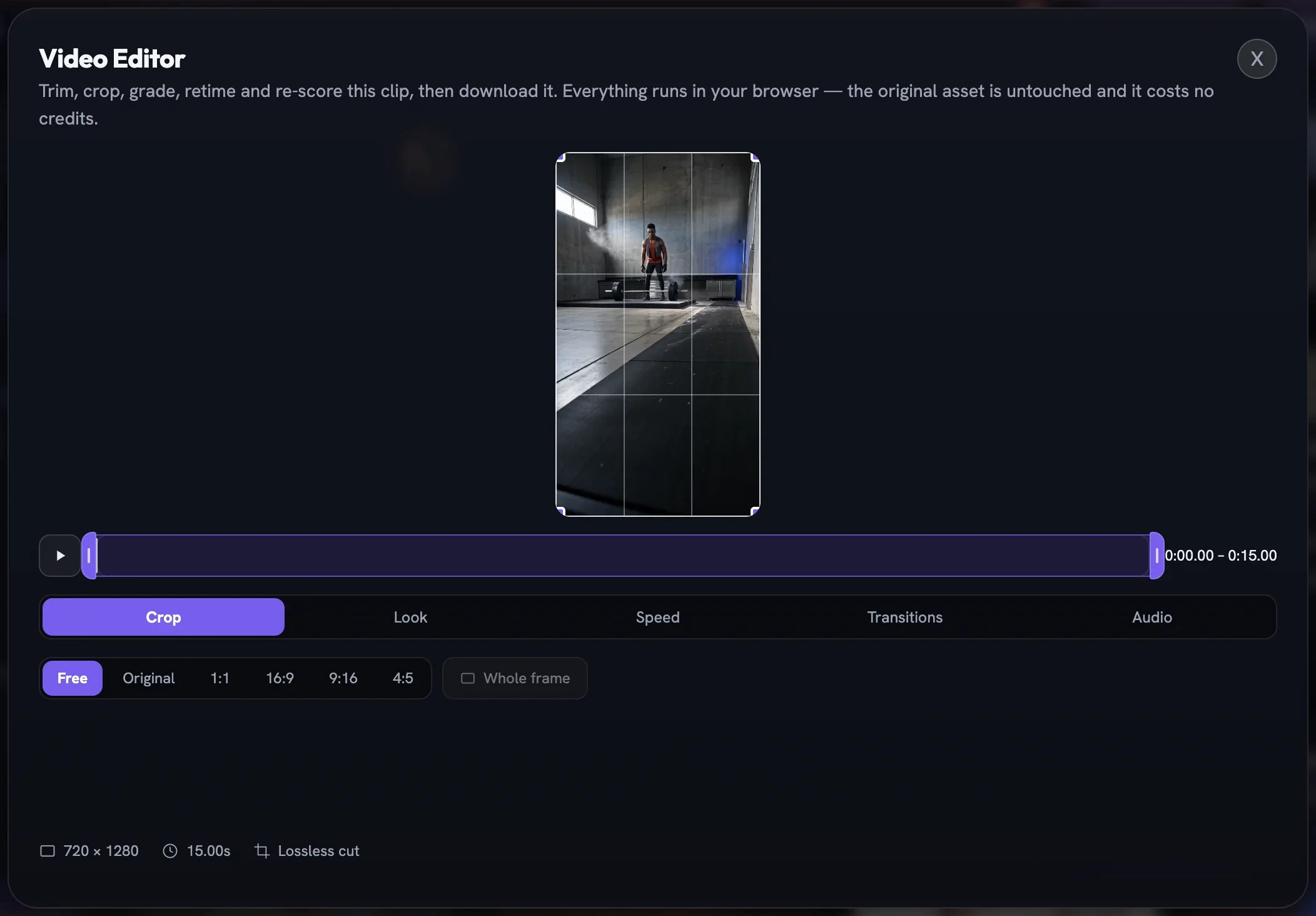
For a quick trim, crop, speed change or re-score on a finished film, the ⋮ menu's Video Editor opens a browser-side editor that never touches the original and costs nothing. Anything heavier — a different scene, a new cast, a sharper render — lives in retry, repair or upscale a film.
Drafts waiting on you
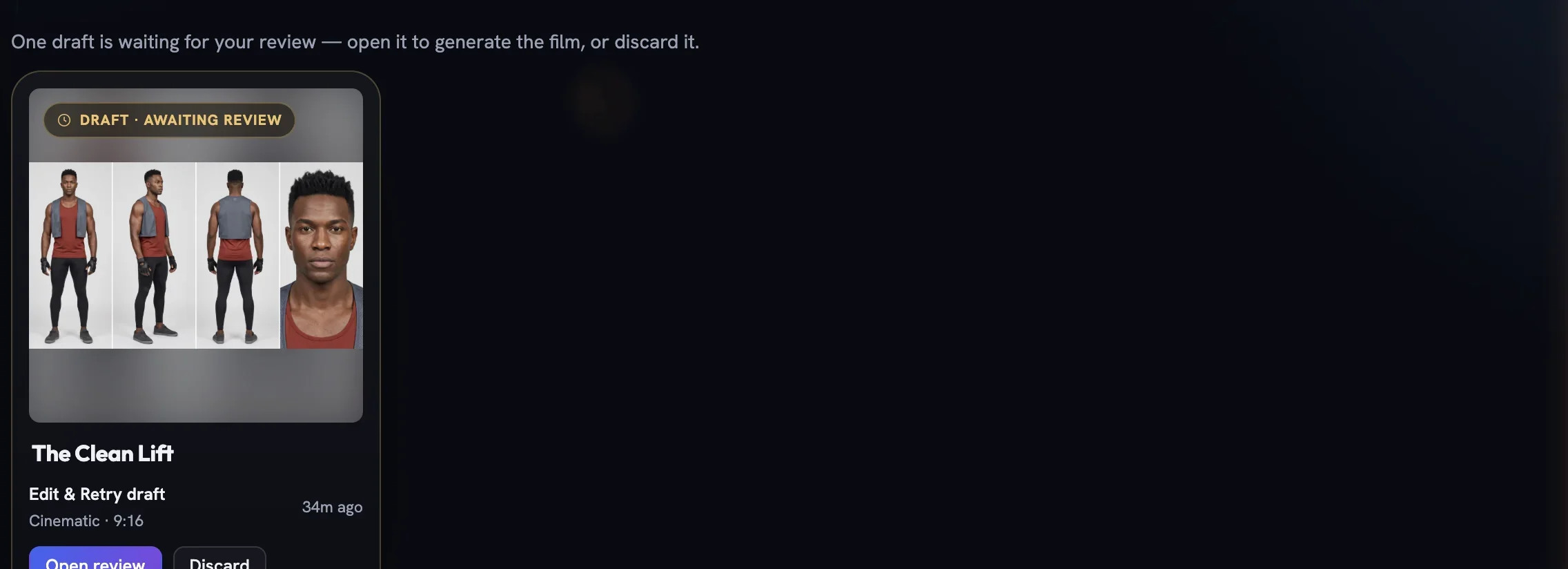
When a film review or a concept board is left open, a drafts tray appears above the wall so nothing gets lost: a Draft · awaiting review card with Open review and Discard, or a Concept board awaiting your pick card. Discard unused (N) beside the tabs clears them all in one press — useful, but irreversible, so read the count first.
More in Creative Library
Next in creative library.
Creative Library04
Magic Video
Turn a finished static into a short, subtly animated clip — the scene moves while your text, logo and CTA stay pin-sharp — with the Motion Director picking or you choosing from three concepts.
4 min readRead
Creative Library07
The static ad editor
Every static ad is a clean image plus a stack of layers — headline, supporting line, call to action, logo. The editor is where you move, rewrite and restyle them without touching the picture underneath.
4 min readRead
Creative Library08
Move, restyle or remove the logo
The brand mark on a static is its own layer — resize or crop it, recolour it, sit it on a solid or frosted plate, swap it for the symbol or wordmark, or take it off entirely.
2 min readRead
Read enough. Make one.
Point Fotyra at your store and do exactly what this guide describes, on your own brand.