
The static ad editor
Every static ad is a clean image plus a stack of layers — headline, supporting line, call to action, logo. The editor is where you move, rewrite and restyle them without touching the picture underneath.
On this page5
A finished static ad in Fotyra is not a flat picture. It is a clean base image with the copy and the logo sitting on top as separate layers, which means the headline can be rewritten, the CTA nudged and the logo swapped after the render — for free. The Static Ads Editor is the one place that happens, and every change updates the finished ad everywhere it appears.
Opening the editor
In the Creative Library open the ⋮ menu on a static ad card and choose Edit content. The same link sits on the cards in the project dashboard's Recent Assets block. Only static ads carry it, and only a Creator, Partner or Owner sees it. A ← Back to assets link at the top returns you to the wall.
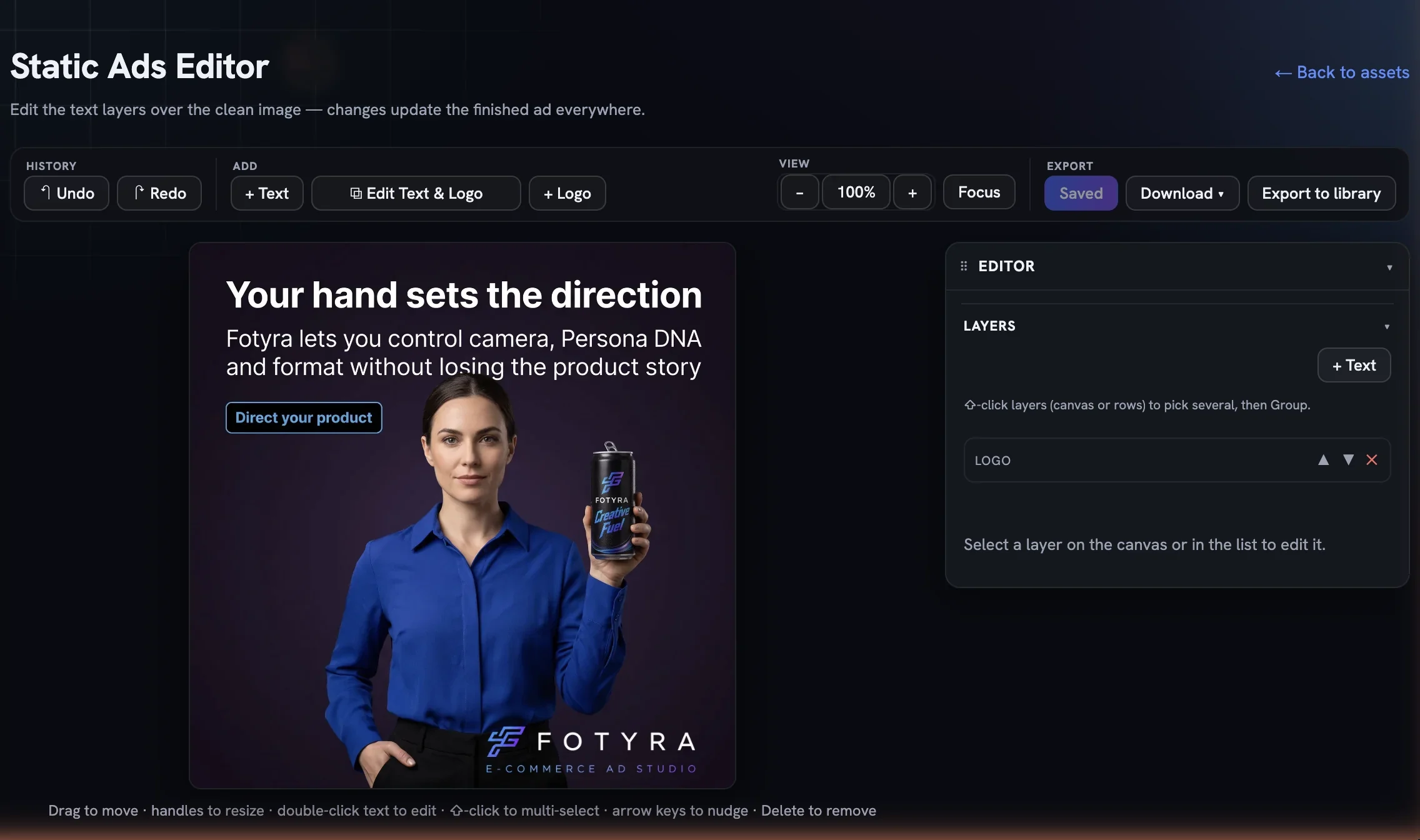
The toolbar, group by group

- History —
↶ Undoand↷ Redo, or the usual keyboard shortcuts. - Add —
+ Textdrops a new text layer in your first brand font;+ Logoadds a logo from your Brand DNA;⧉ Edit Text & Logosplits an ad whose copy was baked into the picture into editable layers, and becomes↺ Revert to originalonce it has. - Layer — shows once something is selected:
▲ Forwardand▼ Backfor stacking order,🔒 Lock,✕ Delete, and for a logo⤢ Resizeor⛶ Crop. - View — zoom
−/+andFocus, which hides everything but the canvas. - Export —
Save,Download ▾andExport to library. The save button readsSavedwhen nothing is pending.
Turning baked text into layers
Some ads arrive with their copy painted into the picture — the Layers list shows only logo, and the headline cannot be selected. ⧉ Edit Text & Logo fixes that. Press it once and the studio reads the words off the image, cleans the picture beneath them and rebuilds each line as its own layer: a hook, a supporting line, a cta, and the logo. From then on the ad behaves like any layered one.
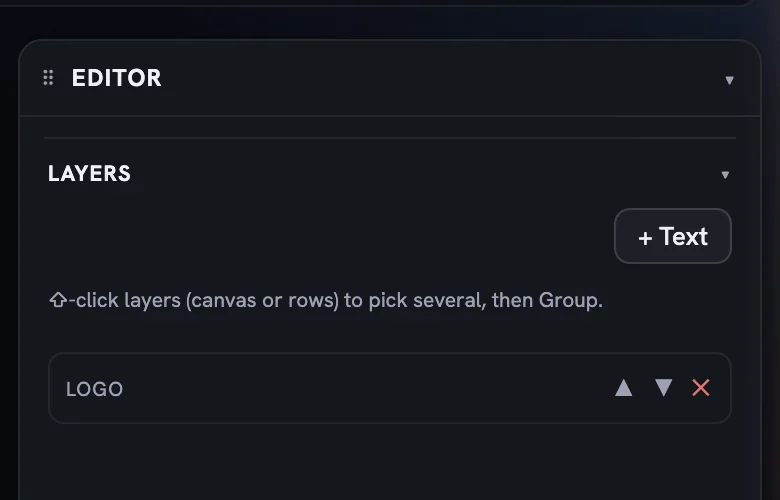

Press Edit Text & Logo
The button sits in the toolbar's Add group. The conversion is free and takes a few seconds; the canvas redraws with the text now sitting on a clean plate.
Check the rows
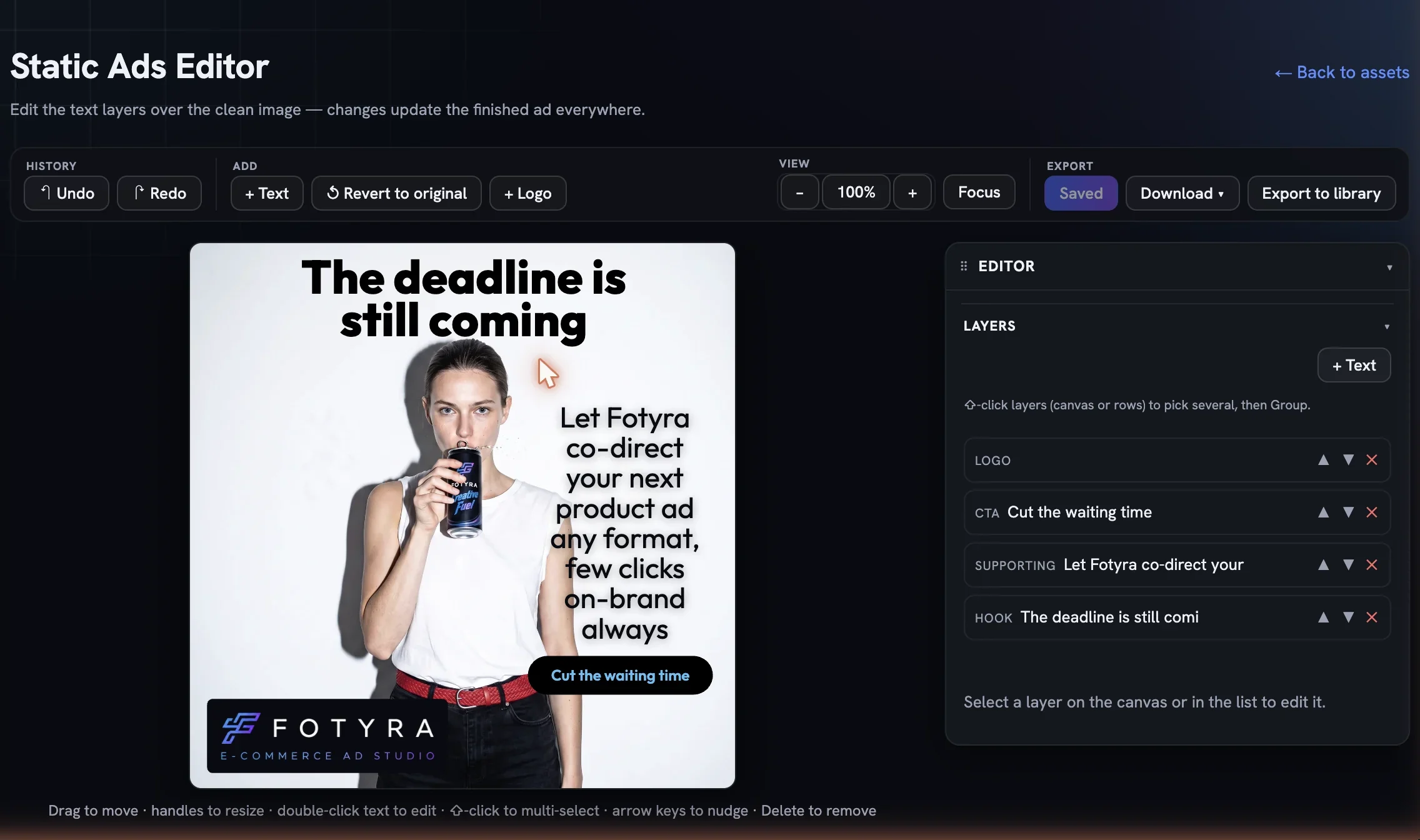
The Layers list fills with hook, supporting and cta rows. Click one to confirm the words were read correctly — the Text section lets you fix a letter the reader missed.
Move, restyle or rewrite
Drag the headline into clear space, change the font to a brand face, put a plate behind the CTA — everything in the next two guides applies.
Change your mind at any time
The button becomes
↺ Revert to original, which puts the painted text back exactly as delivered. Converting again after a revert is instant.
Working on the canvas
Click a layer to select it and drag to move it; guides snap to the thirds and the centre lines. Pull a corner handle to resize, use the rotation handle to turn it, and double-click any text to rewrite it in place — Enter commits, Shift+Enter breaks a line, Escape cancels. Arrow keys nudge a selection by a pixel, Shift+arrow by ten. Shift-click or Cmd-click picks several layers at once, and Delete removes what is selected.
The Editor panel on the right mirrors the selection. Its Layers list names every layer by role — hook, supporting, cta, logo — with ▲ ▼ ✕ on each row and a + Text button. Select a text row and the panel opens the Text and layers controls; select the logo and it opens the logo controls.
Saving, downloading, exporting
Nothing is written until you press `Save`. Selecting, dragging and restyling are local, and closing the page discards what you have not saved. Download ▾ serves the saved render, so it waits until you have saved, and offers the same PNG, JPG, WebP and PDF choices as the library card, plus Base image only for the clean picture without text. Export to library files the current design as a fresh creative so the original stays as it was.
More in Creative Library
Next in creative library.
Creative Library02
What every card knows about itself
The Fidelity report grades how closely a render matched your product and spokesmodel (advisory, never a gate); Creative Direction traces the recipe behind it and holds your tags.
4 min readRead
Creative Library03
Approve, reject, and what Fotyra learns
Every ✓ and ✕ in the library is a lesson. Here is what approval means, why a rejection asks for a reason, and how those reasons turn into a taste profile that steers the next round.
2 min readRead
Creative Library04
Magic Video
Turn a finished static into a short, subtly animated clip — the scene moves while your text, logo and CTA stay pin-sharp — with the Motion Director picking or you choosing from three concepts.
4 min readRead
Read enough. Make one.
Point Fotyra at your store and do exactly what this guide describes, on your own brand.