
Move, restyle or remove the logo
The brand mark on a static is its own layer — resize or crop it, recolour it, sit it on a solid or frosted plate, swap it for the symbol or wordmark, or take it off entirely.
Your logo rides every static as a layer of its own, placed by the director where the picture leaves room for it. When it lands somewhere you would not have chosen — over a face, too small in a corner, invisible against a dark wall — the fix takes a minute in the static ad editor. Nothing about the image behind it changes.
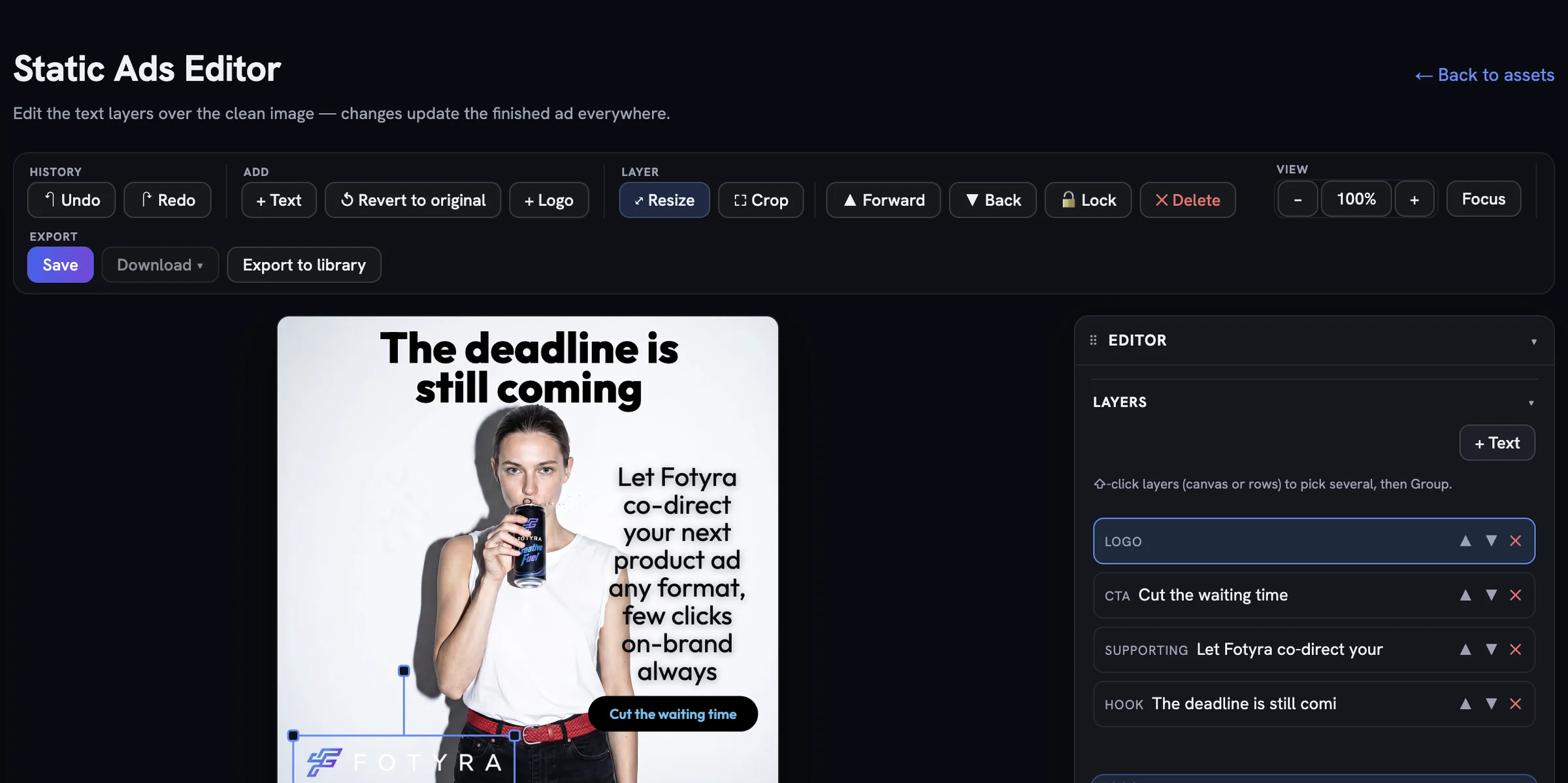
Select it, then look at the toolbar
Click the logo on the canvas or its logo row in the Layers list. The Layer group appears in the toolbar with two tools the text layers do not have: ⤢ Resize, which scales the mark from its corners, and ⛶ Crop, which trims its edges. ▲ Forward and ▼ Back change where it sits in the stack, 🔒 Lock pins it, and ✕ Delete removes it — the quickest way to run an ad without a logo.
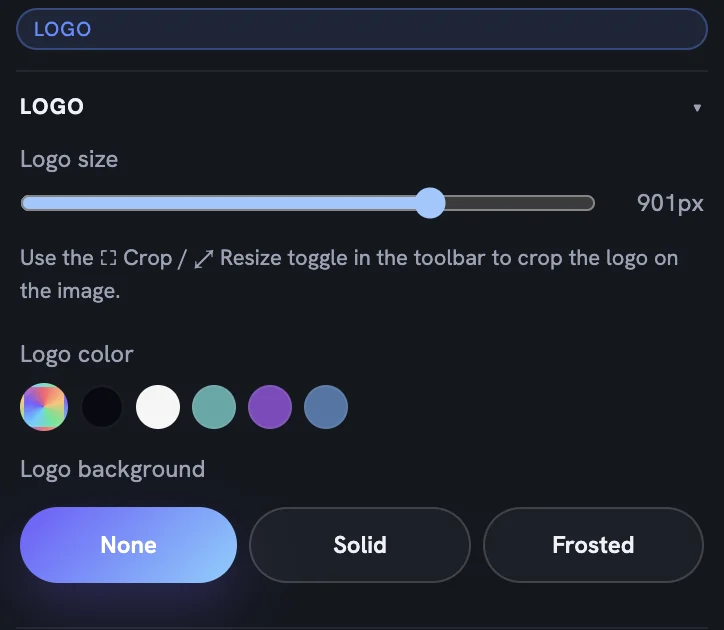
The Logo section
The Editor panel shows Logo size as a slider, a row of Logo color swatches from your palette so the mark can flip to white on a dark scene or to a brand colour on a light one, and Logo background with three choices. None leaves the mark on the picture. Solid and Frosted put a plate behind it — the difference is whether the picture shows through.
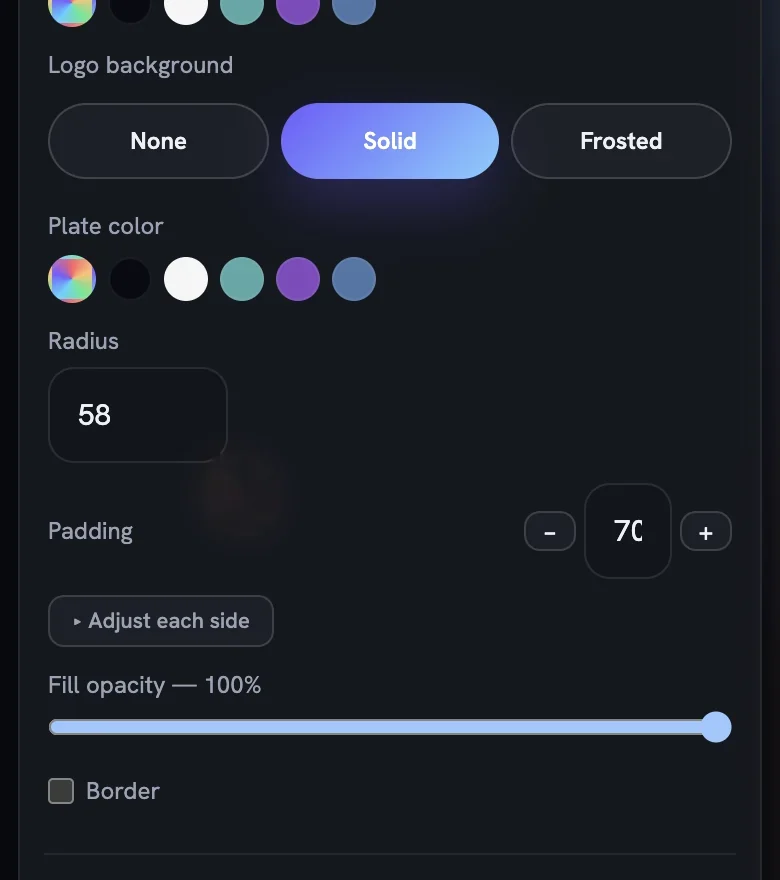
Choose Solid or Frosted and the plate controls unfold: Plate color swatches, Radius for the corner rounding, Padding with + Adjust each side when one edge needs more room, Fill opacity and a Border toggle. A frosted plate is the safest choice on a busy photograph — it keeps the mark legible without cutting a hard rectangle out of the scene.
Swapping the mark
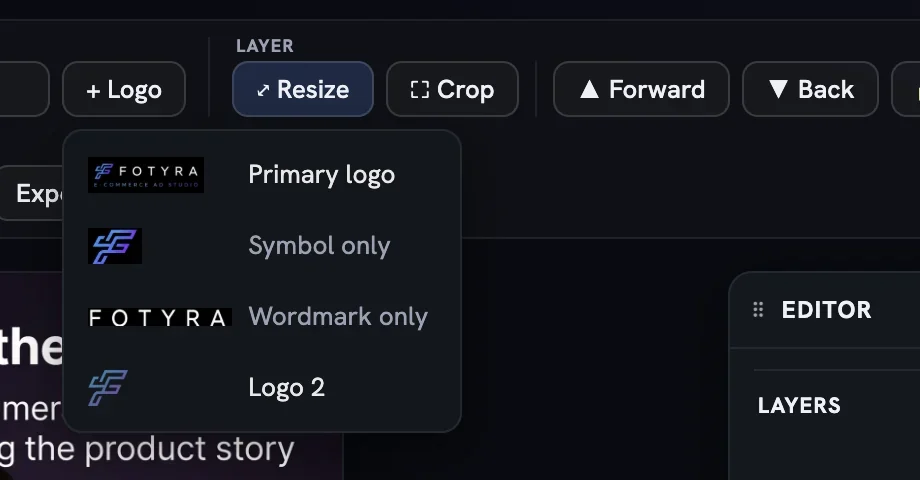
+ Logo in the toolbar lists every mark in your Brand DNA. Once the studio has analysed the primary logo the menu also offers Symbol only and Wordmark only, so a tight corner can carry the symbol while the full lockup stays on the roomy formats. Any additional logo — a light or dark variant you uploaded — appears under its own name.
Press Save when the mark sits right. Changes only reach the finished ad after a save, and a Download from the library or the editor always serves the last saved version.
More in Creative Library
Next in creative library.
Creative Library01
Your creative library
Every ad, shot and film your project has made, on one grid — how to read a card, filter the wall, download in the right format and keep drafts from piling up.
3 min readRead
Creative Library02
What every card knows about itself
The Fidelity report grades how closely a render matched your product and spokesmodel (advisory, never a gate); Creative Direction traces the recipe behind it and holds your tags.
4 min readRead
Creative Library03
Approve, reject, and what Fotyra learns
Every ✓ and ✕ in the library is a lesson. Here is what approval means, why a rejection asks for a reason, and how those reasons turn into a taste profile that steers the next round.
2 min readRead
Read enough. Make one.
Point Fotyra at your store and do exactly what this guide describes, on your own brand.