
Retry, repair or upscale a film
Three second passes for a finished film — reopen its concept and render it again, fix a few seconds without touching the rest, or re-render the whole thing at a higher resolution.
On this page4
A film that is nearly right rarely needs starting over. The ⋮ menu on any video card in the Creative Library holds three second passes that each touch a different amount of the film: Review Concept & Retry reopens the whole plan, Repair a moment fixes a window of a few seconds, and Upscale Quality re-renders the same film sharper. Pick by how much you want to change.
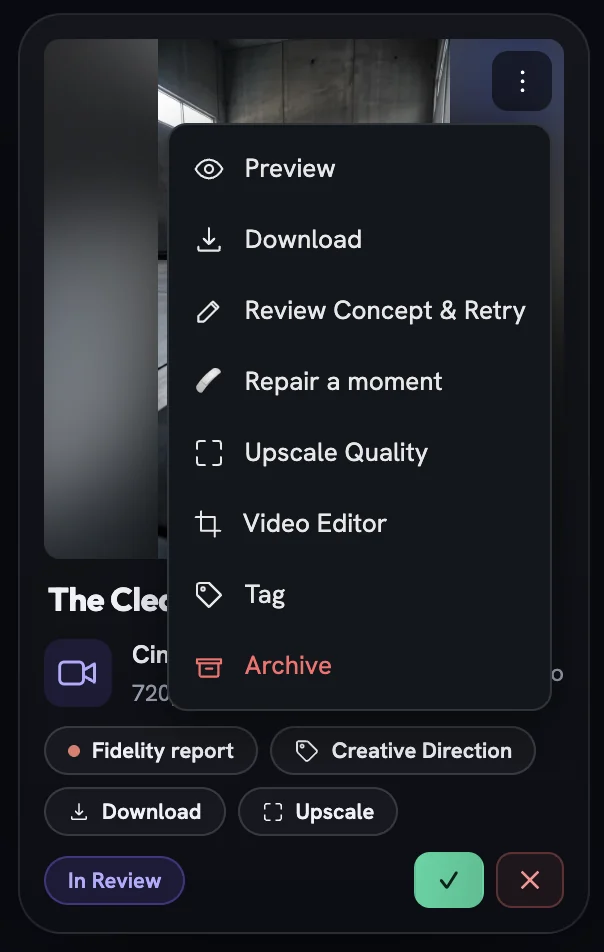
Review Concept & Retry — change the film
This is the note-based fix for video. It stages a draft of the film's own concept — scenes, cast, sheets, look and format all intact — and opens it on the film review screen. There you can rewrite a beat, recast the spokesmodel, redraw a sheet, change the music or the format, then generate again. Opening the draft costs nothing; the re-render is priced on the Generate video button when you confirm, and Cancel returns you to the library.
A staged draft also appears in the library's drafts tray as an Edit & Retry draft with Open review and Discard, so you can come back to it later. On a failed film tile, Edit concept does the same reopen, while Retry generation re-runs the same brief unchanged at the price on its button.
Repair a moment — fix a few seconds
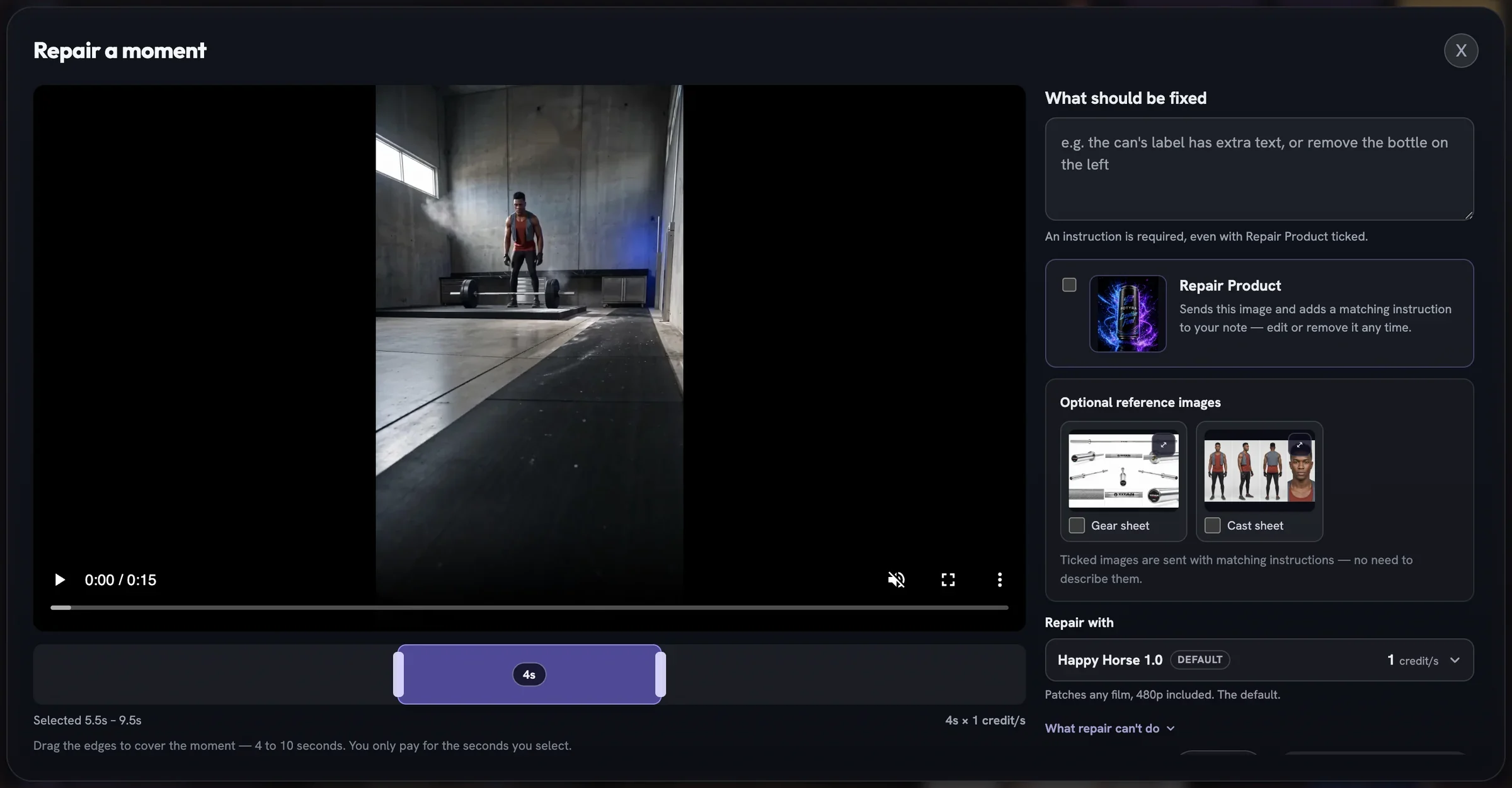
When one thing is wrong — a label with extra text, a bottle that should not be there — you do not need a new film. Repair a moment plays the film on the left with a draggable window: pull its edges over the moment, from four to ten whole seconds, and you pay only for the seconds you select. On the right, say what should be fixed, tick Repair Product to hand the model your product's reference sheet, and attach up to a few reference pictures if a detail needs showing.
Upscale Quality — the same film, sharper
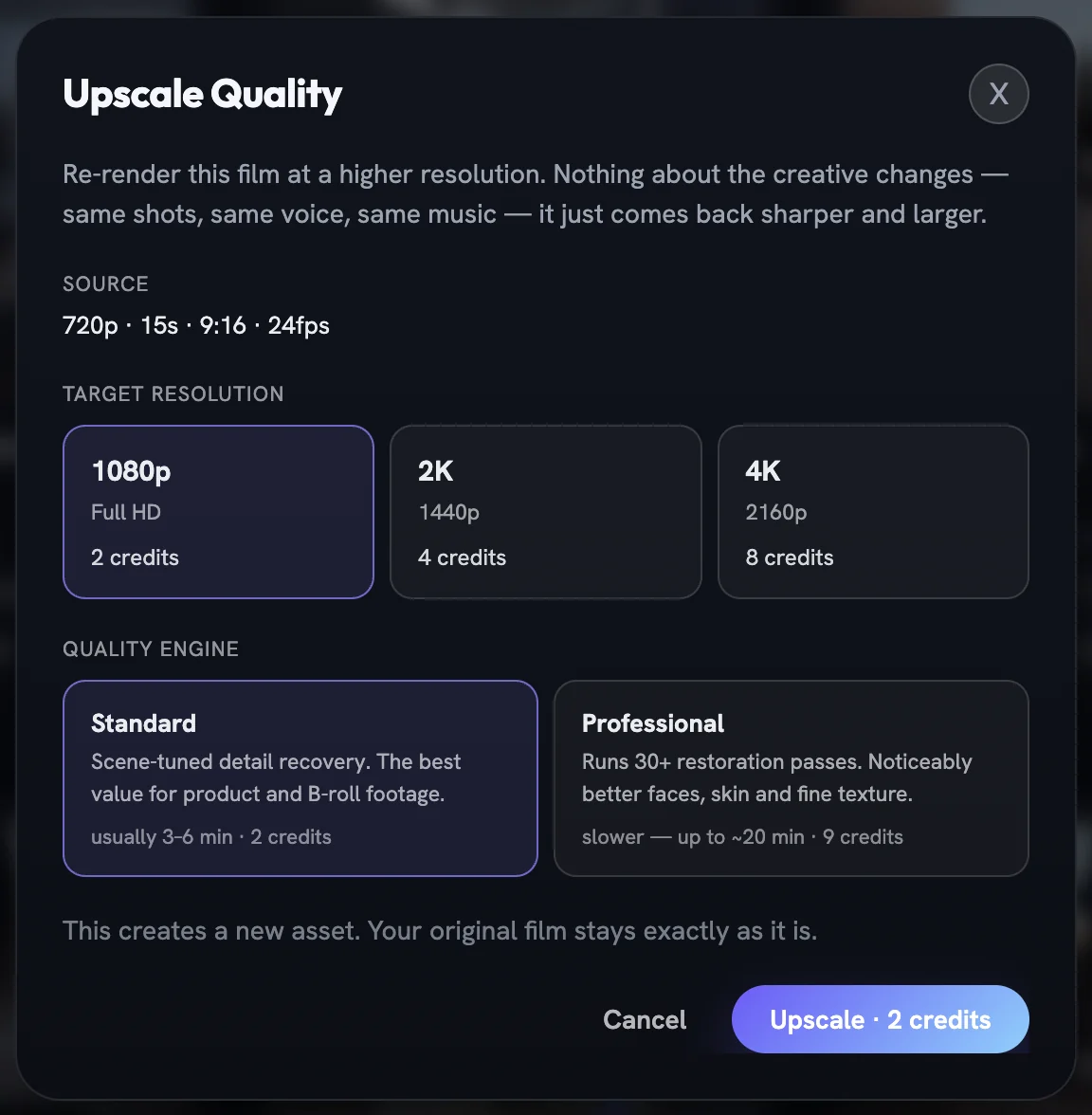
Films render at the quality tier you chose at Create; Upscale Quality re-renders a finished one at a higher resolution with nothing about the creative changed — same shots, same voice, same music. The dialog shows the source, the target resolutions with their prices, and two engines: Standard for detail recovery and Professional for faces, skin and fine texture. It creates a new creative; your original stays exactly as it is.
Which one, when
| You want to… | Use | What it costs |
|---|---|---|
| Change a scene, the cast, the look or the format | Review Concept & Retry | A new render, priced when you confirm |
| Fix one detail in a few seconds | Repair a moment | Per second in the window |
| Deliver the same film at a higher resolution | Upscale Quality | Per resolution, shown on the card |
| Trim, crop, retime or re-score | Video Editor | Nothing |
Not every film offers every pass. A repair or an upscale of a film is not itself editable, and films made before the current review screen can only be planned afresh. If a menu item is missing on one card, that is why.
More in Creative Library
Next in creative library.
Creative Library03
Approve, reject, and what Fotyra learns
Every ✓ and ✕ in the library is a lesson. Here is what approval means, why a rejection asks for a reason, and how those reasons turn into a taste profile that steers the next round.
2 min readRead
Creative Library04
Magic Video
Turn a finished static into a short, subtly animated clip — the scene moves while your text, logo and CTA stay pin-sharp — with the Motion Director picking or you choosing from three concepts.
4 min readRead
Creative Library05
Resize or fix a static
Smart resize recomposes an image at a new ratio instead of cropping it, and Fix & regenerate re-shoots it with only the correction you describe — both keep the original beside the new version.
4 min readRead
Read enough. Make one.
Point Fotyra at your store and do exactly what this guide describes, on your own brand.