
Tuning the attributes that matter
Fix a single field in place or open the section editor for palette, logos, fonts and competitors — the first colour, the first logo and a real font file are the edits that change output most.
On this page5
Every generation reads the saved Brand DNA before it draws a frame, so a wrong colour or a stand-in font shows up in your ads and films until you correct it. There is a pencil for a single field and a section editor for what a text box cannot hold, and the palette, primary logo and fonts are the edits that pay off most.
Two ways in
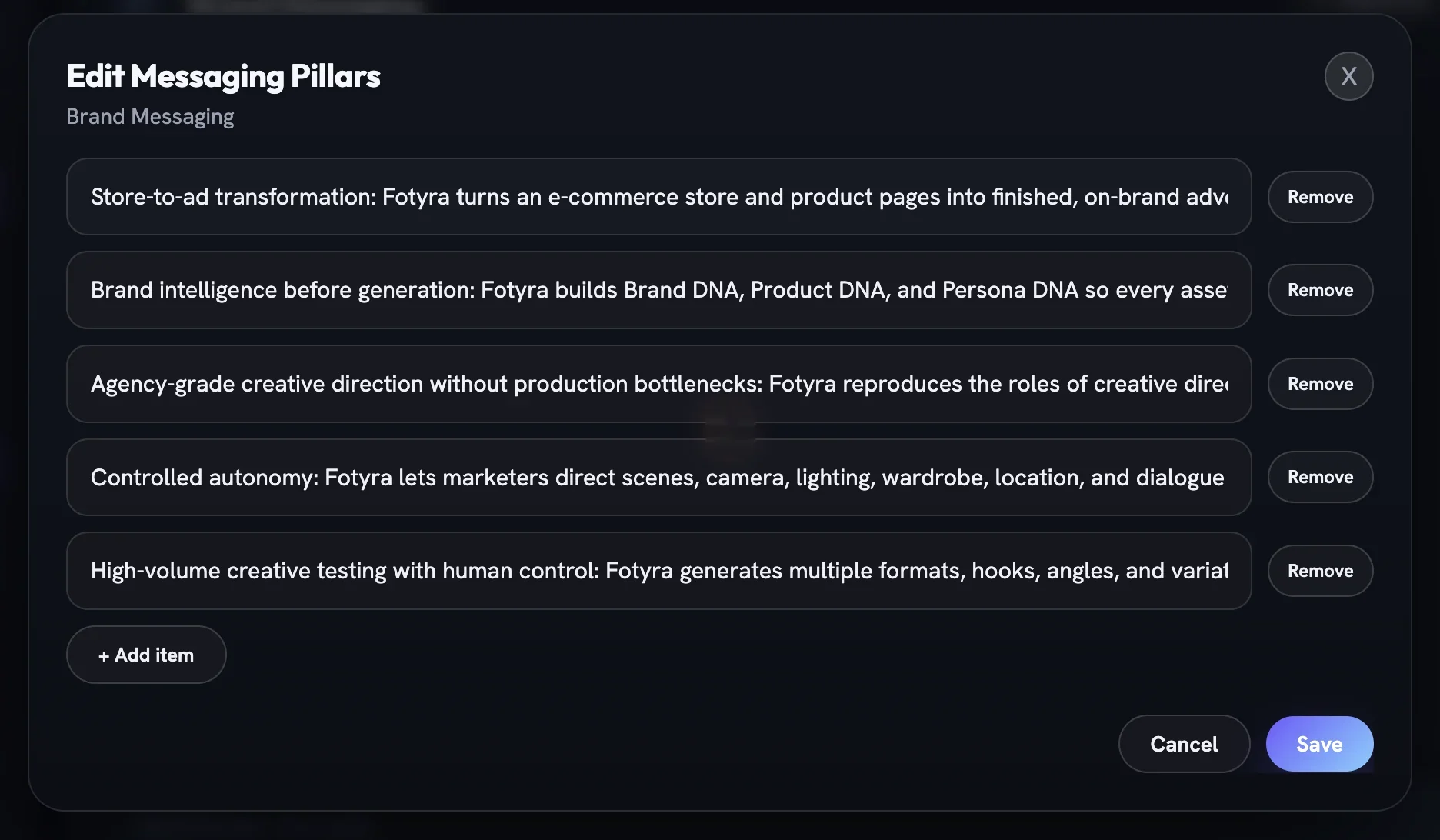
On the Brand DNA page, expand a section and look to the right of any text or list field for the Edit pencil. It opens a small modal for that field alone — list fields show one entry per row with Remove beside each and + Add item underneath. Press Save and the section is badged Edited.

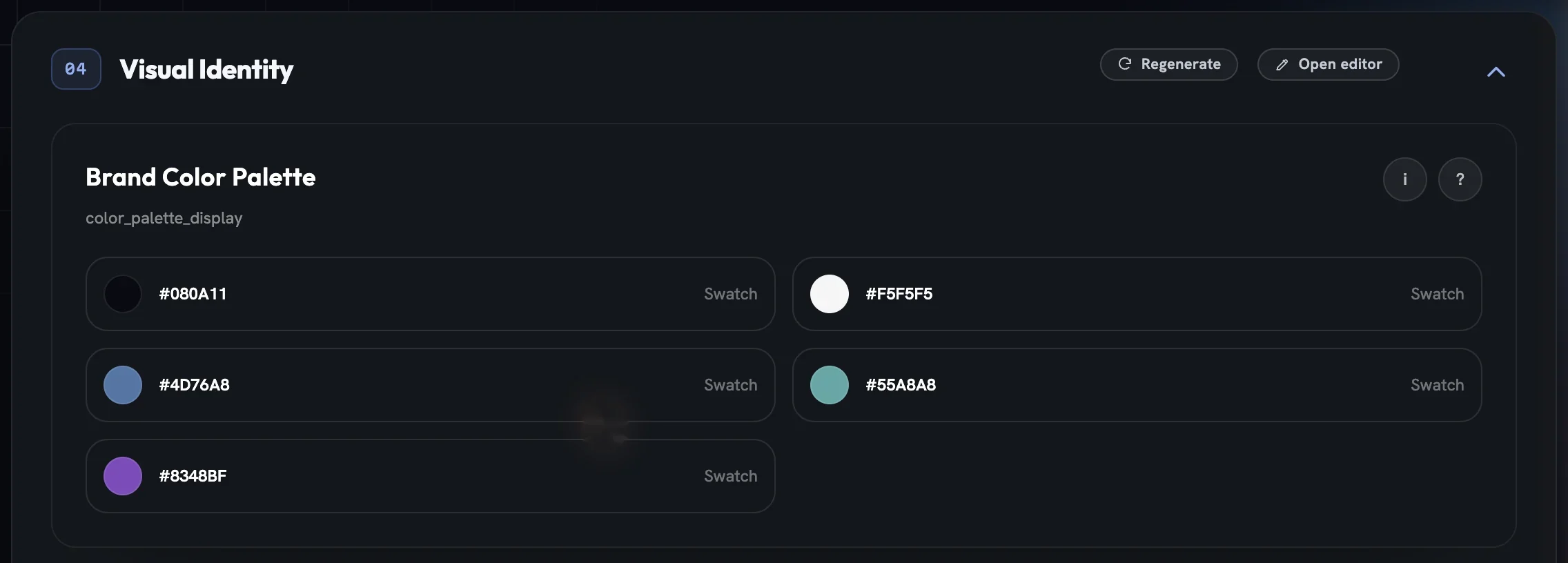
For the palette, logos, fonts, competitor rows and the mood, click Open editor in the section header. It lands on the Brand DNA Editor with that section already unlocked. The snapshot's mood chip has its own Change it shortcut to the same place — Brand mood and energy covers what the mood does.
One section unlocked at a time
The editor keeps every section locked until you press Edit on it. That section's buttons turn into Save and Discard, and every other section's Edit is disabled until you finish. Discard restores the section to its last saved state.
Each header also carries Regenerate with a credit badge. It rewrites that one section with AI and, after the free allowance, costs what the badge shows; a section that failed to build regenerates for free. View DNA returns you to the read view.
If a teammate or another tab saved the same profile while you were editing, your save is turned back with a notice that it was updated elsewhere, the latest version reloads, and you reapply your change on top. Competitors edit as numbered cards with Add competitor at the bottom.
Colours, and why order matters
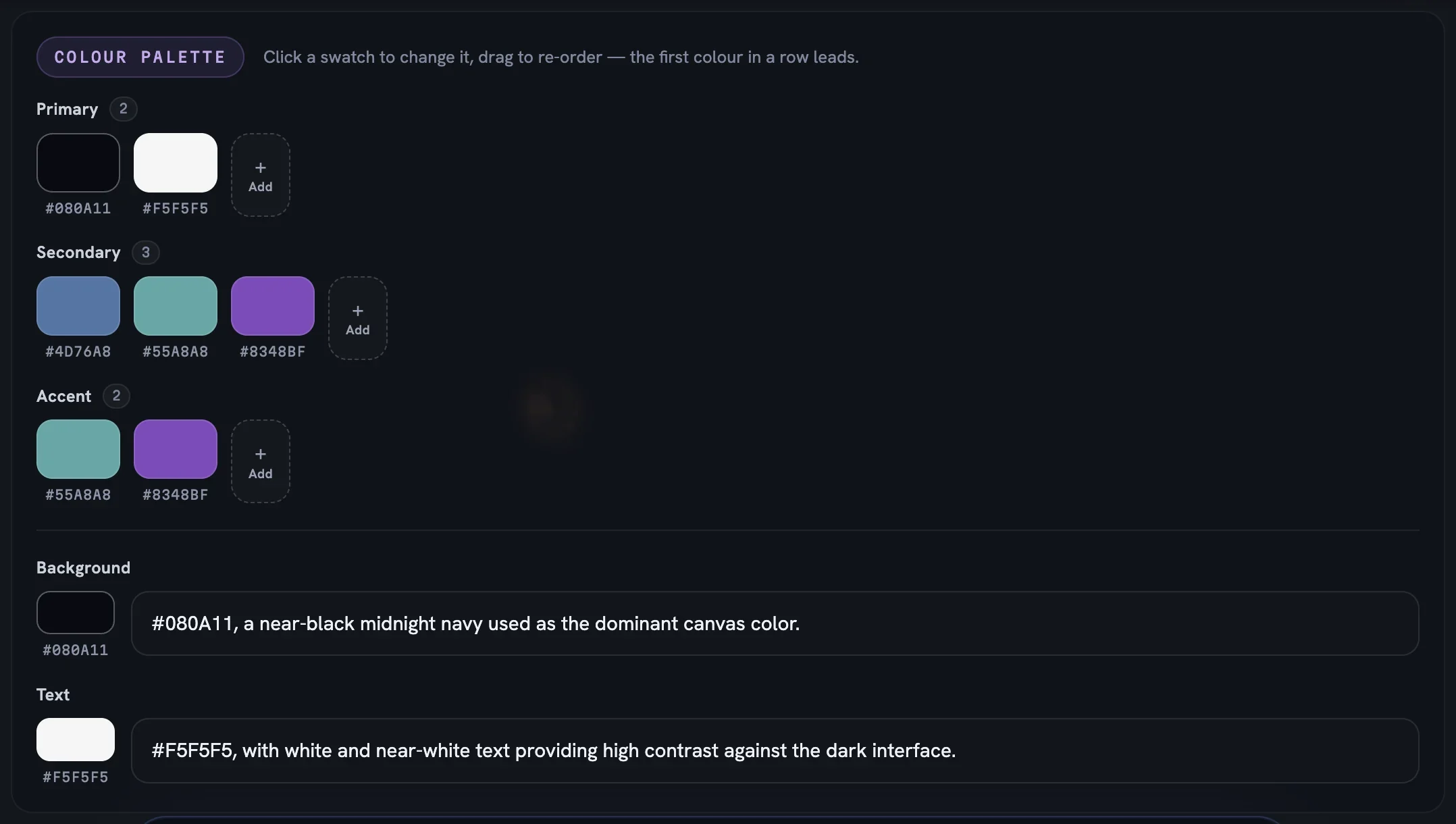
In Visual Identity the palette is edited as swatch rows — Primary, Secondary and Accent — each ending in an Add tile. Click a swatch for a picker with a native colour control, a Hex or name box and presets; drag to re-order. The first colour in each row leads, so put the one you want the creative to reach for in the first slot. Background and Text are short sentences with a small swatch for each hex they mention, plus a Pick tile when there is none.
Logos and the one that leads
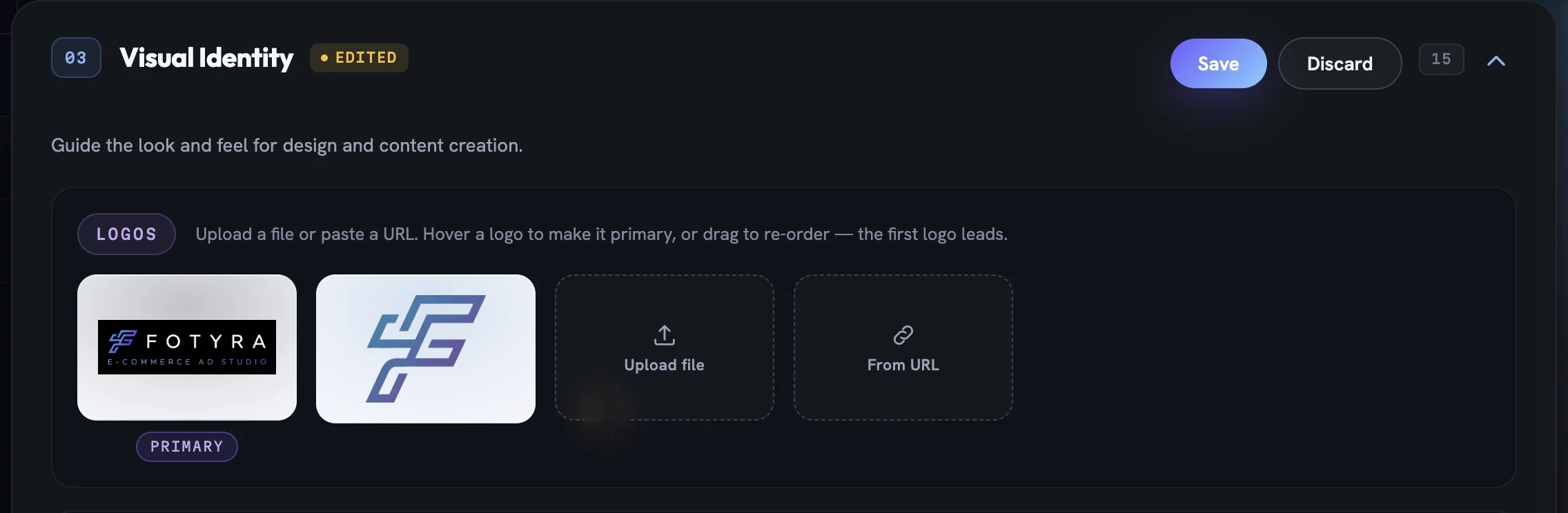
The Logos card shows each logo as a tile, with a Primary badge on the first and light or dark variant badges where they exist. Hover a non-primary tile for Make primary, drag to re-order, or click its ✕ to remove it. Upload file takes a PNG, JPG, WEBP or SVG under 10 MB and adds it at the front straight away; From URL adds a hosted image when you press Save. You can hold up to 12.
On the read view, Remove duplicate logos and Classify logo variants sit above the tiles, and deleting a logo there asks you to confirm first. Delete the primary and the next tile is promoted, so check the order afterwards.
Fonts and the real file
Each Typography card is set in its own typeface, with a line under the name saying where it comes from. A family that cannot be served as a web font is quietly swapped for a lookalike when your brand is first read, and its card reads Stands in for the original — every text layer renders in that lookalike until you upload the real file. Add font opens a searchable list and takes any family, even one it cannot find.
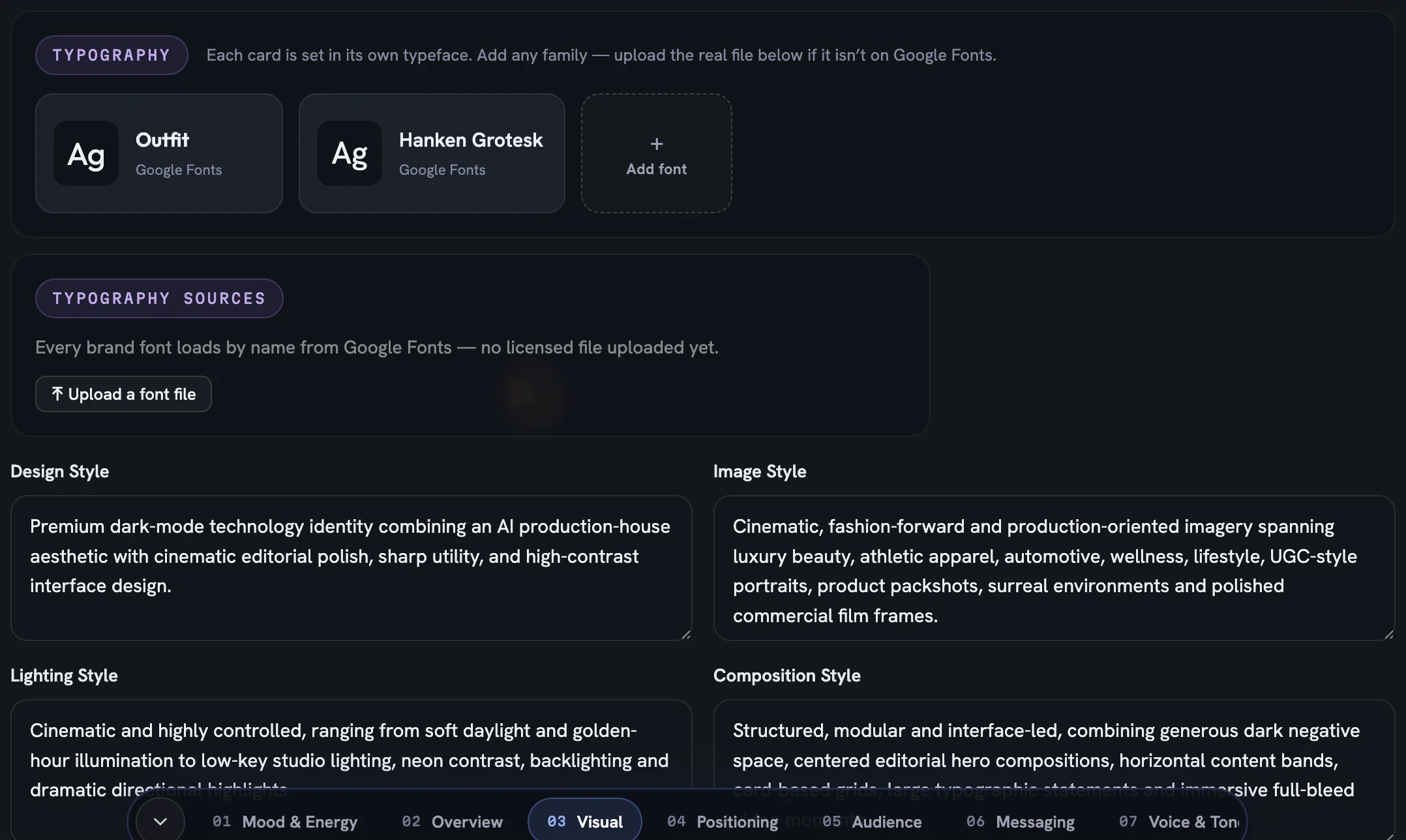
The Typography sources panel is where you fix that. Upload a font file accepts WOFF2, WOFF, TTF or OTF, asks you to verify the family name, then Confirm and upload. Font uploads save immediately and do not wait for the section's Save.
More in Your brand
Read enough. Make one.
Point Fotyra at your store and do exactly what this guide describes, on your own brand.