
Add your first product
Paste a product page from your own domain (Shopify variants included) or create one by hand, and Fotyra reads the page, pulls the photos and writes a brand-aware brief.
On this page5
Every ad, product shot and film in Fotyra is written against one product. Add yours with a single paste and Fotyra reads the page, pulls the photographs and writes a brief in your brand's voice — or start from an empty record and fill it in yourself.
One product anchors everything
The product record is what the Creative Director reads before it writes a line: the exact name, who it is for, the claims you may make and the ones you may not, and a gallery of real photographs. A well-built product means creative that shows your product and steers clear of anything you cannot back up.
Adding a product is free. Building it — reading the page, analysing the photos and composing the reference sheet — spends credits, and the price sits on the button before you press it.
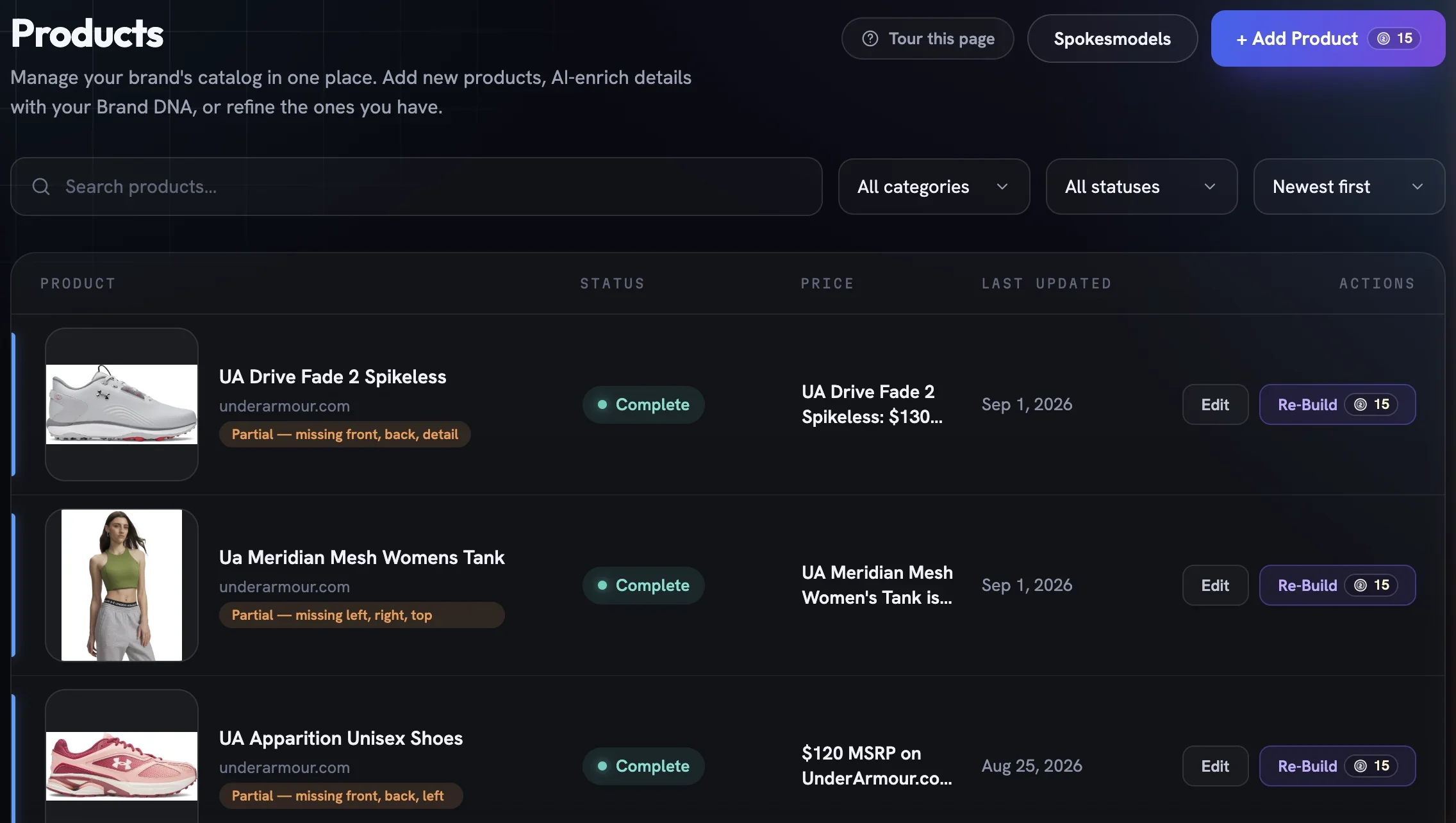
Paste a page or start by hand
Open Products
Choose Products in the project navigation and press
+ Add Product. On an empty catalogue the button readsAdd your first product.Choose a type
Typedefaults toProduct. PickServicefor something with no physical object to photograph.Paste the product page
Drop the page's address into
Product URL. It has to live on the same domain as the website in your Brand DNA; an outside address is refused with a message under the field.Press Build from URL
The product is created and the build starts at once. You land on the product page in its building state, titled
Discovering product…until the real name arrives.Or create it empty
Leave the field blank and the button becomes
Create & Add Details. The product opens with placeholder details for you to fill in.
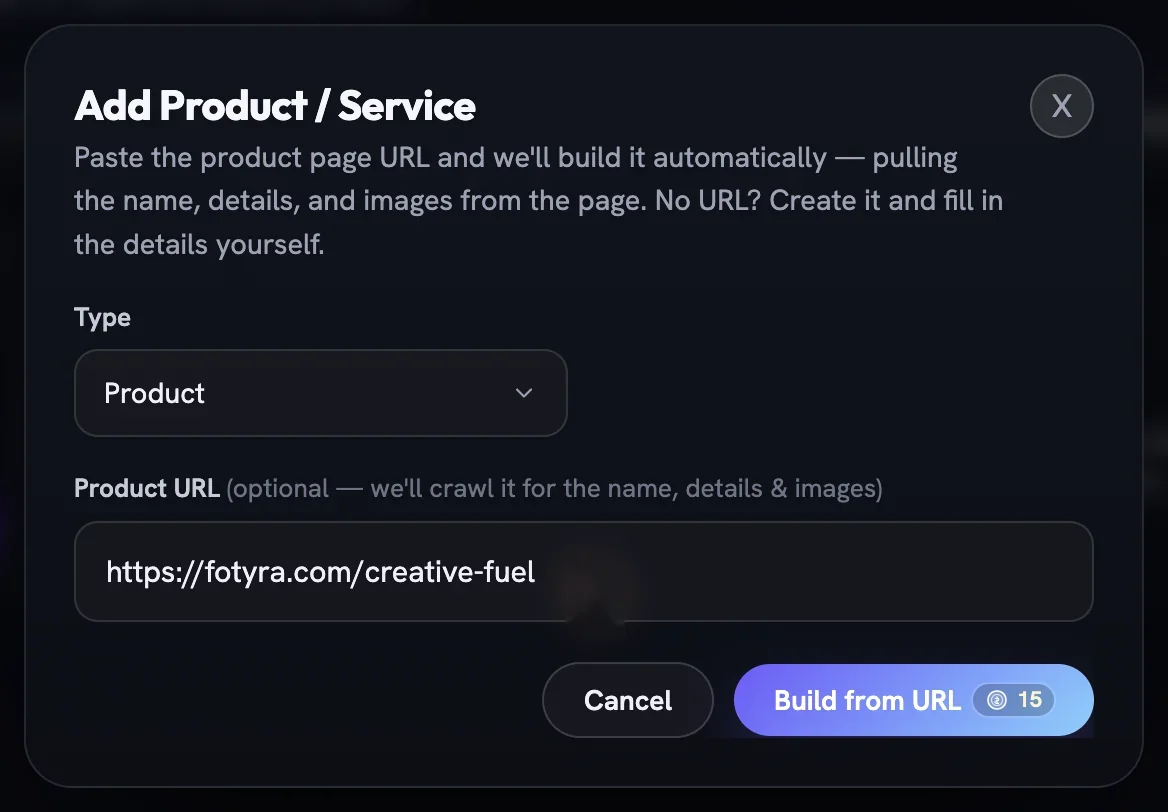
On a Shopify store you can paste a variant link — the one carrying ?variant= — and Fotyra treats it as that single variant: its own photographs lead, shared ones follow, and sibling variants are left out.
What happens while it builds
The building card walks three steps: Enriching product details reads the page and writes brand-aware details, Discovering product images picks the best product shots from the source pages, and Finishing up saves the result. You can keep working; the page refreshes itself when it is done.
If a storefront is password-protected, blocks automated access or offers no candidate images, the card says so.
Once the details land, the status card in the header narrates the reference sheet — reading every photo, cutting clean crops, composing the sheet, then the scale reference — and settles on a green Sheet ready card.
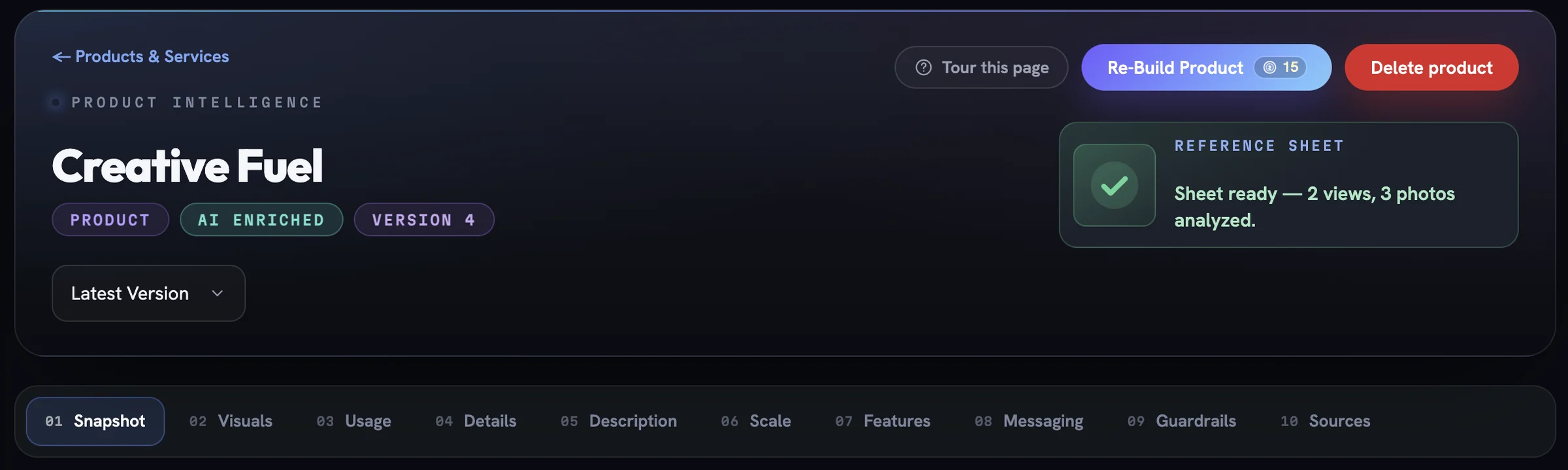
Reading the finished brief
The product page runs along a jump strip from Snapshot to Sources, and every text row opens for editing when you click it. What you write by hand outranks what the crawler found.
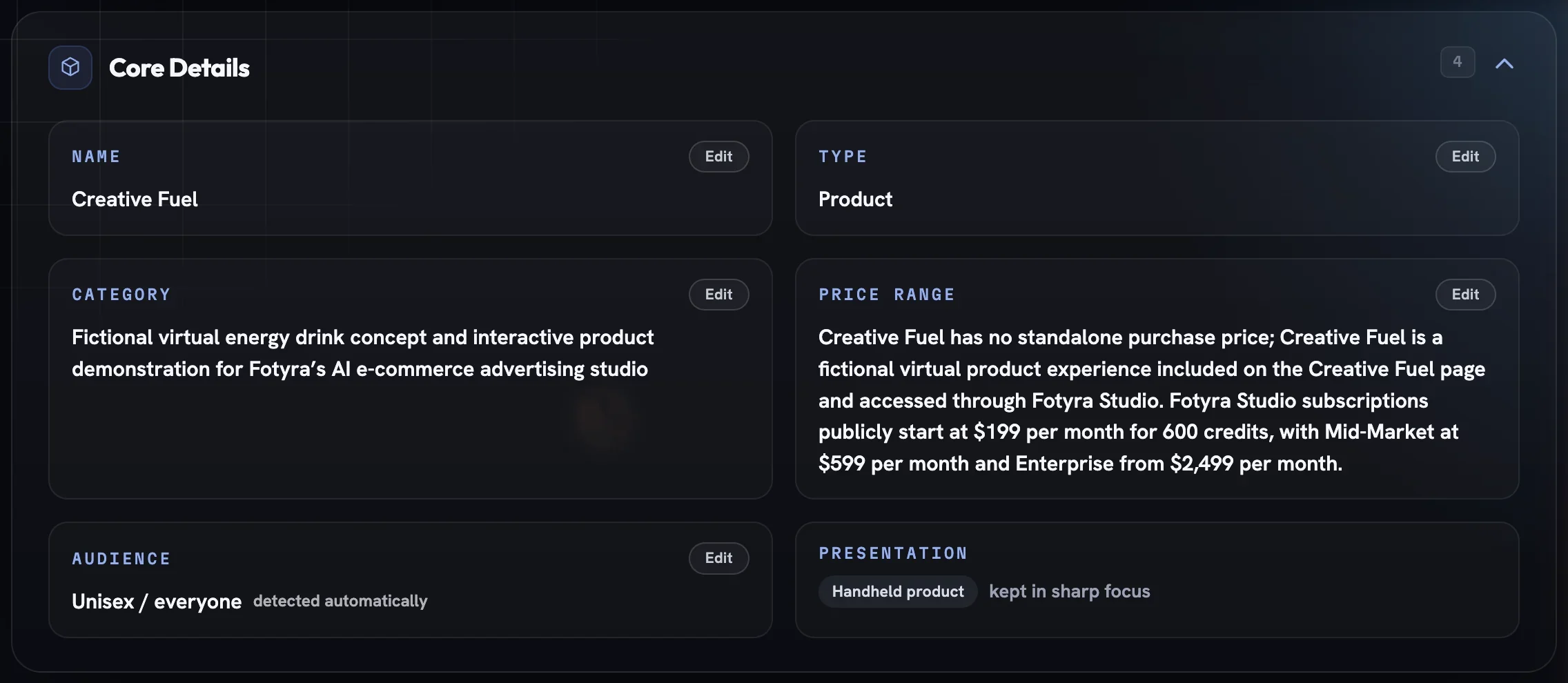
Core Details— Name, Type, Category, Price Range, Audience and Presentation. Audience readsdetected automaticallyuntil you touch it, thenset by you; it decides which spokesmodels the product will accept.Features & BenefitsandMessaging— features, benefits, selling points, use cases, tone of voice, proof points and objection handlers.Product DNA Guardrails— approved claims, restricted claims, negative language and visual restrictions. This is where you stop the Director from saying what you cannot say.- Visuals — the photo gallery with a main image and the sheet tiles. How Fotyra reads your photos explains the tags and captions on each card.
- Scale & Dimensions — real-world size and weight with a confidence pill and its source, when scale grounding is on.
Versions, rebuilds and deleting
Every build and edit writes a new version. The version select opens an older one read-only, and Restore Version N copies it forward as a new latest version — a rebuild never overwrites anything.
Re-Build Product crawls the page again at the price on the button; if the source page has changed, the product warns you its DNA may be out of date.
Delete product archives rather than destroys. Assets that used the product are kept, it reappears under Show deleted (N), and Restore brings it back with its brief — no rebuild, no second charge.
More in Your products
Next in your products.
Your products03
In-context images
In-context, interior and texture photos are real pictures of the product in use that ride with a generation so films stage it truthfully instead of inventing how it is held, sized or filled.
4 min readRead
Your products06
Add your own scale reference
One faceless photo of the product worn or held on a body is the size cue every render reads — pick your own for free, or let the build render one from the measurements you confirm.
4 min readRead
Read enough. Make one.
Point Fotyra at your store and do exactly what this guide describes, on your own brand.