
Add your own scale reference
One faceless photo of the product worn or held on a body is the size cue every render reads — pick your own for free, or let the build render one from the measurements you confirm.
On this page5
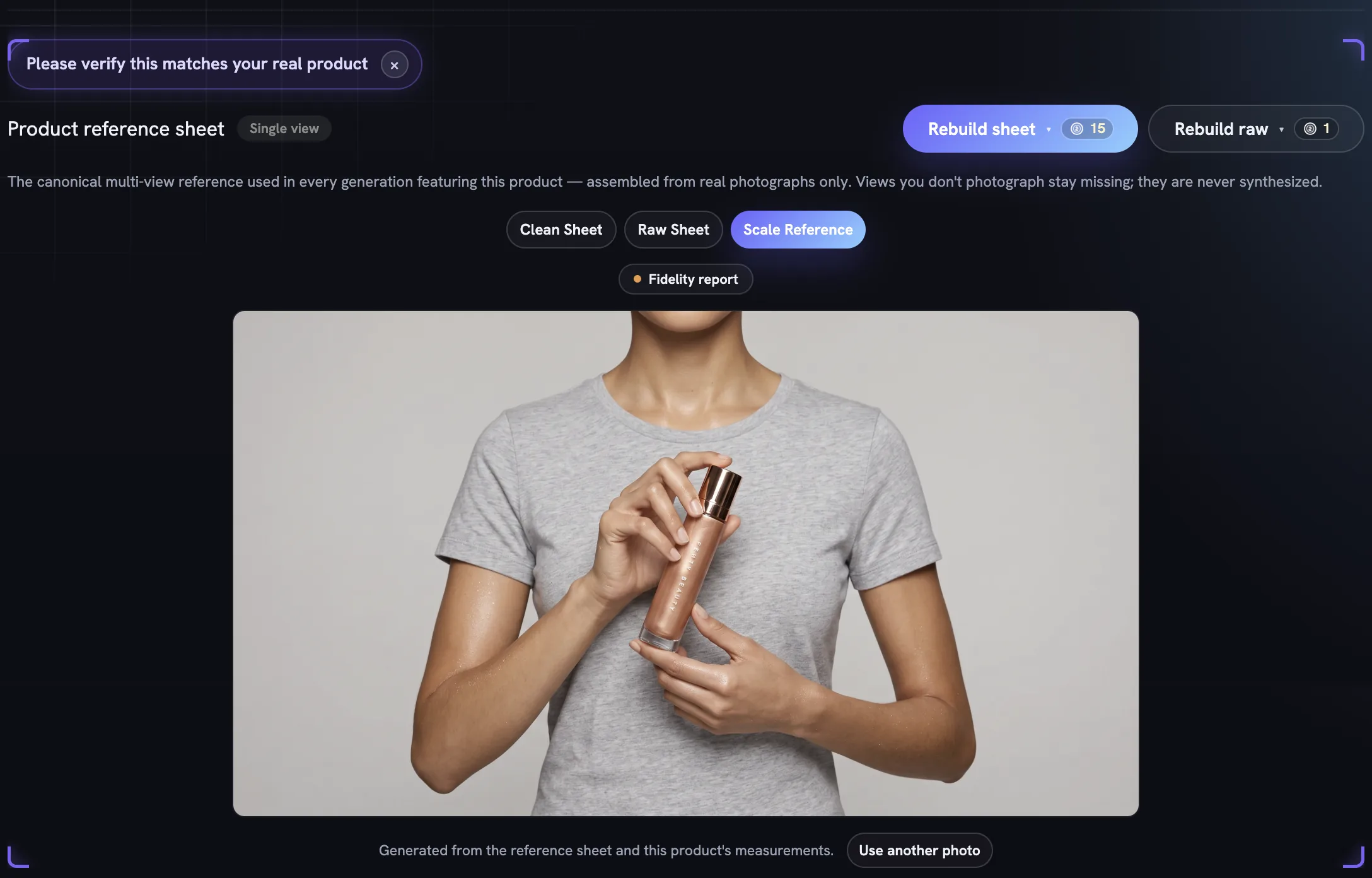
An image model has no idea how big your product is; left to guess, it will render a small jar the size of a bucket. The scale reference is the one photograph that stops the guessing: your product against a human body, so every render inherits believable proportions.
Why one photo fixes the size of everything
Every generation of this product reads this one image for size, which is why it lives on the reference sheet panel beside the Clean Sheet and Raw Sheet. Supplying a real one is the surest way to settle your product's proportions, and it costs nothing.
Open the product, scroll to the sheet panel and click the Scale Reference tab. A good one is framed neck to waist, no face in frame.
Where the size cue comes from
The line under the image tells you how the current reference was made. There are three:
- One of your own photographs, chosen by you. Free and immediate. The caption reads “One of this product's own photographs, chosen by you.”
- One of your own photographs, picked by the build. It reuses a photo showing a person with no visible face. The caption reads “One of this product's own photographs — real pixels, no render.”
- Generated from the sheet and the measurements. The build renders one from the reference sheet and the numbers under Scale & Dimensions. The caption reads “Generated from the reference sheet and this product's measurements.”
A real photograph never invents the product. A render is part of the build price shown on Rebuild sheet and can drift, so it carries its own Fidelity report chip — worth a look before you generate from it.
Pick your own photo
Have a shot of the product on a body? Use it; nothing is rendered or charged.
Open the picker
On the
Scale Referencetab pressChoose a photo, orUse another photowhen a reference already exists.Tick one photograph
Choose the sizing referencelists this product's photos. Pick the one showing it worn or held with no face in frame; picking a second replaces the first.Confirm
Press
Use as sizing reference. The tab updates at once and the caption reads “One of this product's own photographs, chosen by you.”Change your mind any time
Clearhands the decision back to the next rebuild. A hand-picked reference survives rebuilds while the photo is still on the product.
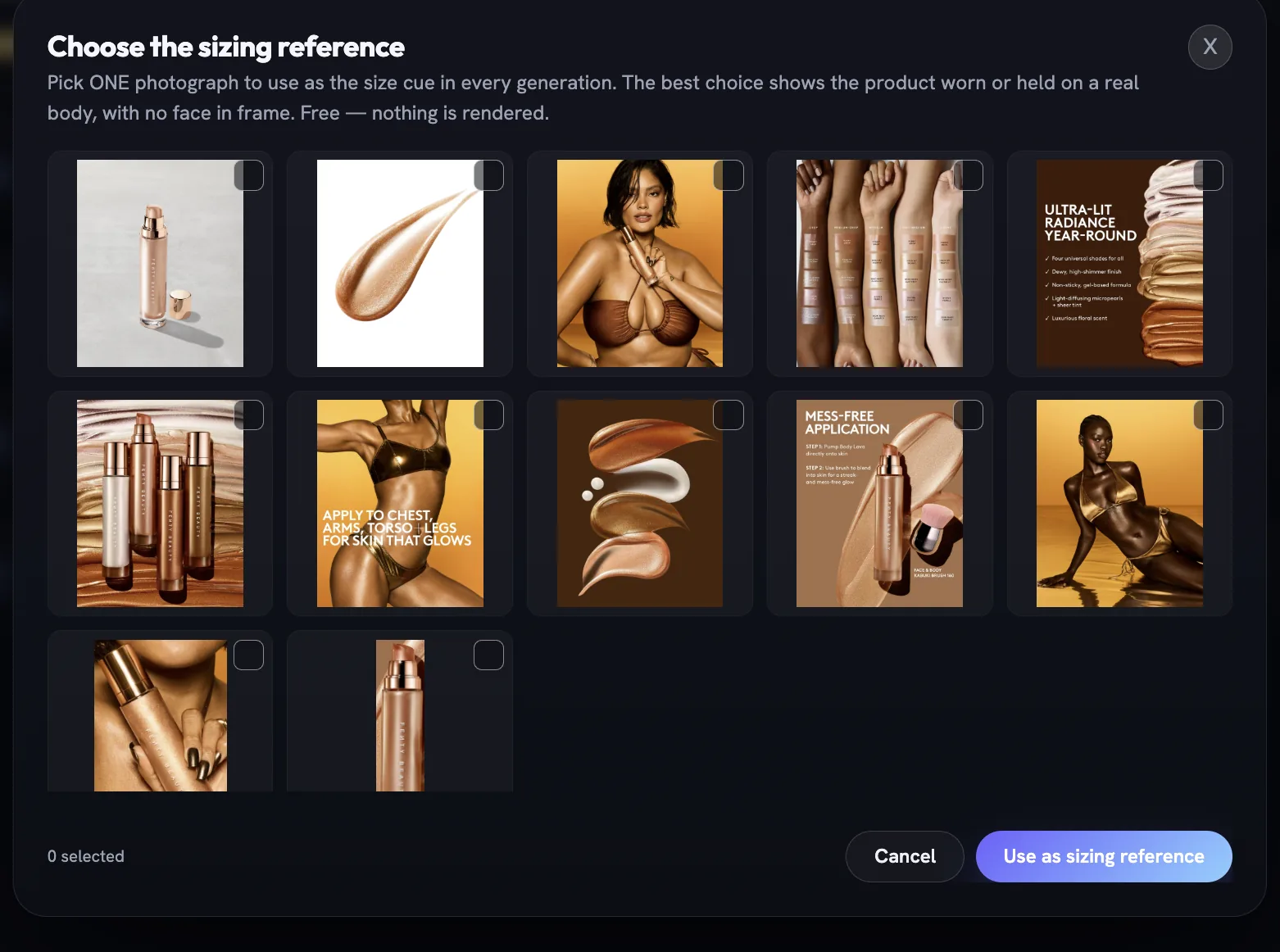
No on-body photo in the grid? Add one under Product photos with Upload photos and it appears here. How Fotyra reads your photos explains the labels it is given.
When the measurements do the work
Without a usable photo, the build renders the scale reference from the real-world size it read from your product page. Those numbers sit in Scale & Dimensions further down the page, reachable from the Scale tab in the section strip: Height, Width, Depth, Volume and Weight, with a confidence pill and their source.
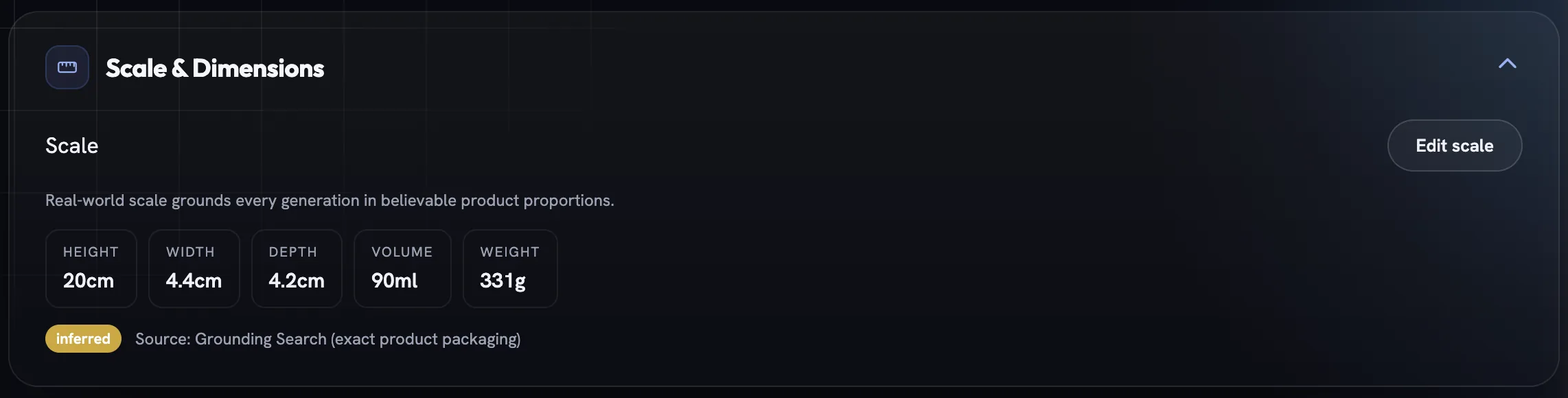
Read the pill first. exact (green) came from a stated specification, inferred (amber) was worked out from the label or category, estimated (grey) is a best guess. The less certain it is, the more it deserves a look.
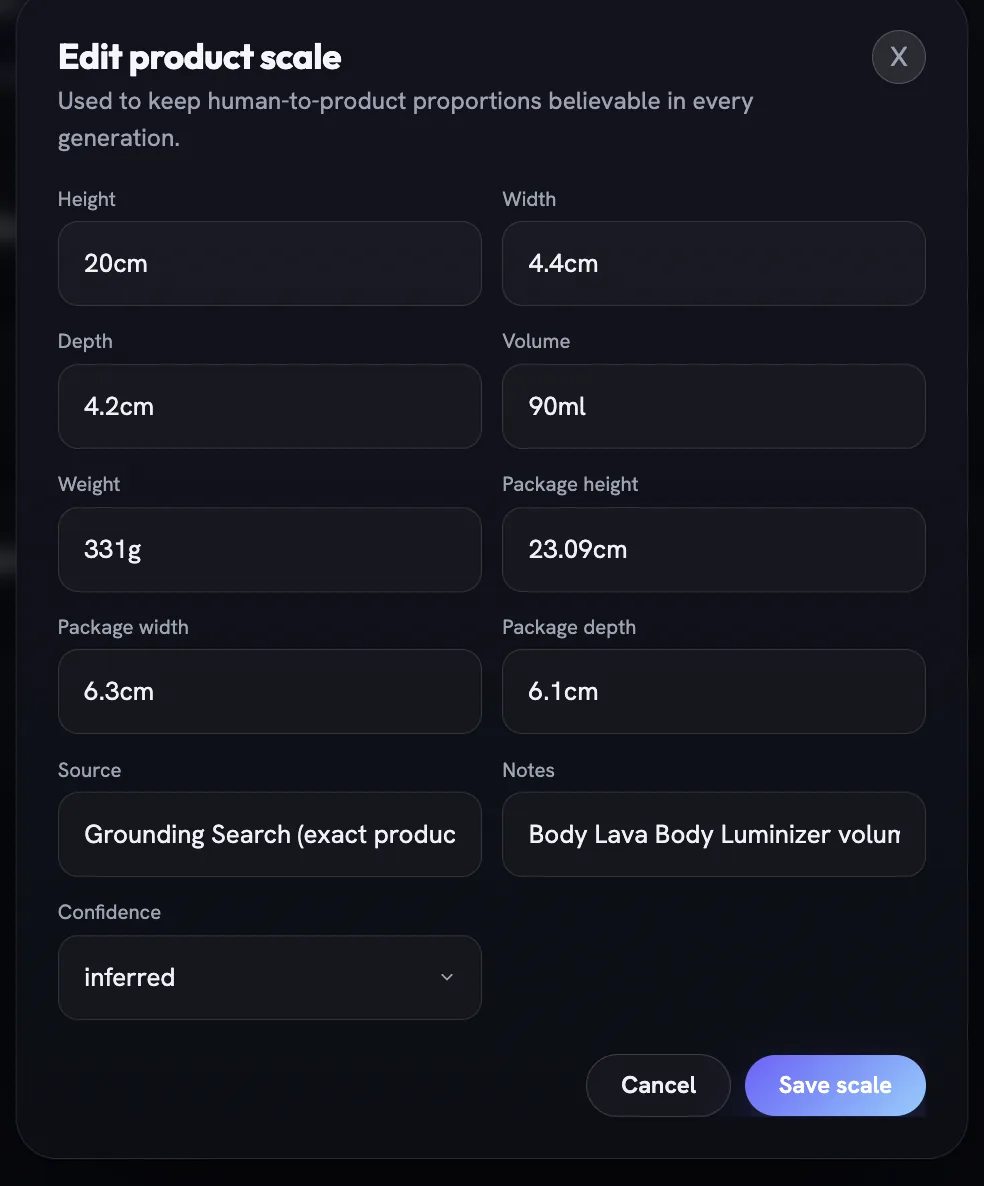
Press Edit scale (or Add scale when nothing is recorded) to open Edit product scale. Correct any of the ten fields — the five dimensions, the three package dimensions, Source and Notes — set Confidence, then Save scale. The save marks the sheet stale; the scale reference is not re-rendered until you rebuild, so follow it with Rebuild sheet.
What makes a good scale photo
A face in frame disqualifies a photo: the build only reuses shots with a person and no visible face, and a rendered view that shows one is re-rendered once and then erased. Shoot yours the way the render is made — head cropped at the neck or turned away, product worn or held, nothing else in frame.
More in Your products
Read enough. Make one.
Point Fotyra at your store and do exactly what this guide describes, on your own brand.