
How Fotyra reads your photos
A vision model captions and labels every photograph — angle, worn, face, texture, close-up part — and those labels alone decide which photos become sheet tiles and references.
On this page4
Every photograph in a product's gallery is read once by a vision model, which writes a one-line caption and a handful of labels: the angle, whether the product is worn, whether a face is in frame, whether the shot is of the product or of what is inside it. The reference sheet and every film choose pictures by those words alone, so knowing what gets written — and how to correct it — keeps the right photo in the right place.
What Fotyra writes about each photo
During a build the header card reads Reading every photo… and each card's caption fills in as it is written. Every photo ends up with the same labels.
- Caption — one line saying what the photo shows, sent to the Director as this photo's line in the sheet brief.
- Angle —
Front,Back,Left,Right,Front 3/4,Rear 3/4,Top,Bottom,Detail,PackagingorIn context; a dash means no angle. - Worn —
Product aloneorWorn on the body. - Texture —
Shows the productorShows its contents, for a swatch, smear, dollop or pour of what is inside. - Where on the product — close-ups only: the panel, side and nearest landmark the part sits on.
- Whether a person and a face are visible, and whether the whole product is in frame.
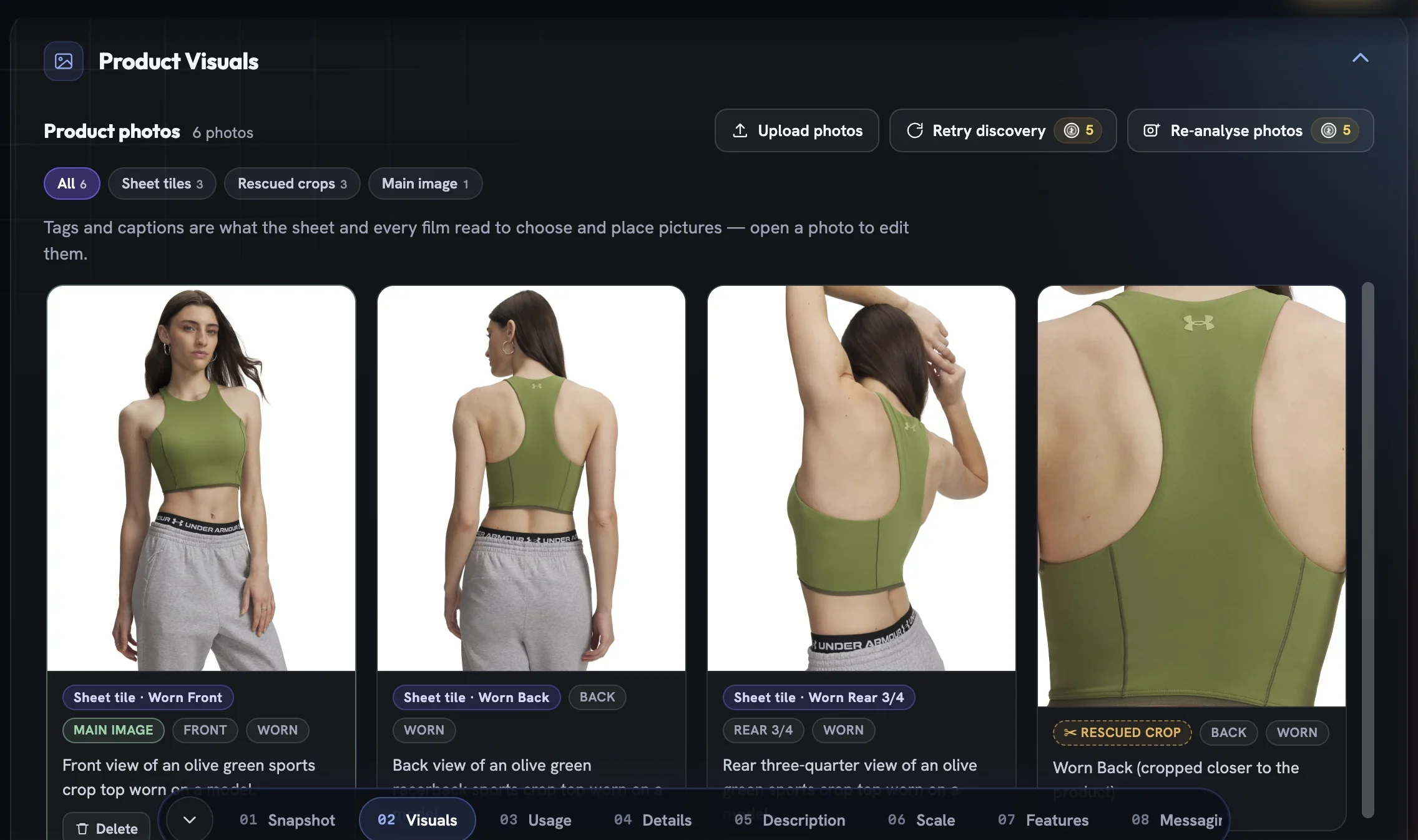
Only the geometric angles ever become sheet tiles — Detail, Packaging and In context never do.
Where each label sends a photo
Angle decides which tile of the reference sheet a photo fills; a wrong one puts a side profile in the Front tile. Worn on the body earns an on-body shot its own tile. Shows its contents makes a photo the material reference and keeps it off the tiles. In context photos ride with a generation, and a faceless photo of the product worn or held can serve as the scale reference.
A ✂ Rescued crop is a closer cut of a wider marketing shot, filed beside the original so both stay in the gallery. A photo that shows no product is kept off the sheet.

Reading new photos, or reading everything again
Photos you upload after the build arrive unread. An amber strip above the grid counts them — 3 photos not analysed yet — with an Analyse 3 new photos · free button that reads only the unlabelled photos and leaves everything else, including the main image, alone. Until you press it those photos are invisible to the sheet and every film.
Re-analyse photos is the heavier option, priced on the button. It re-reads every photograph, refreshes labels, parts and places, and re-reads the How it's used dossier too. You can leave the page while it works; a receipt line under the toolbar says how many photos were read when it finishes. If the read fails, nothing is changed and nothing is charged.
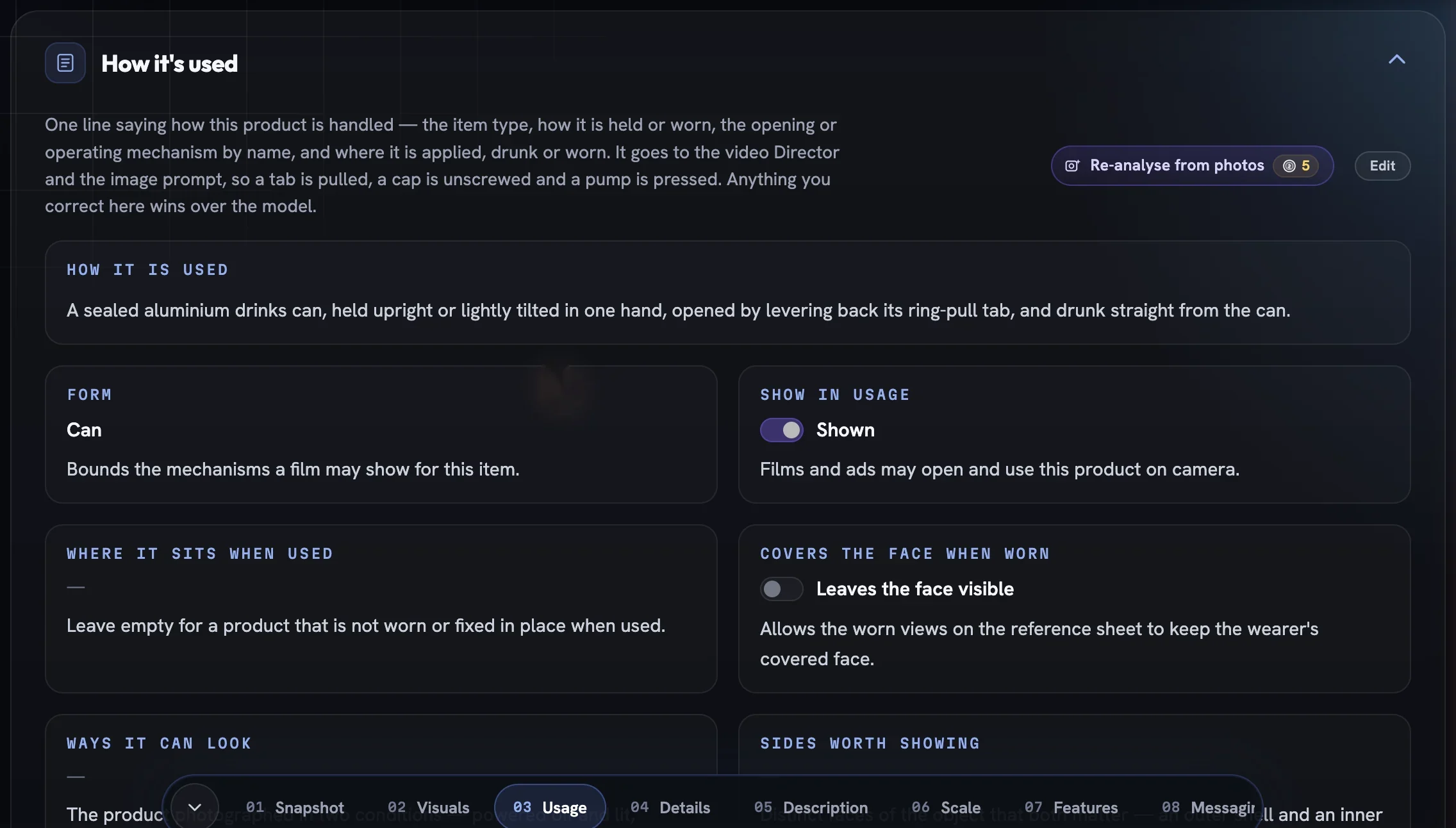
Correcting a label
A missed Worn keeps an on-body shot off the sheet; a missed Texture composes a cream smear as if it were the jar. Every label is yours to fix.
Open the photo
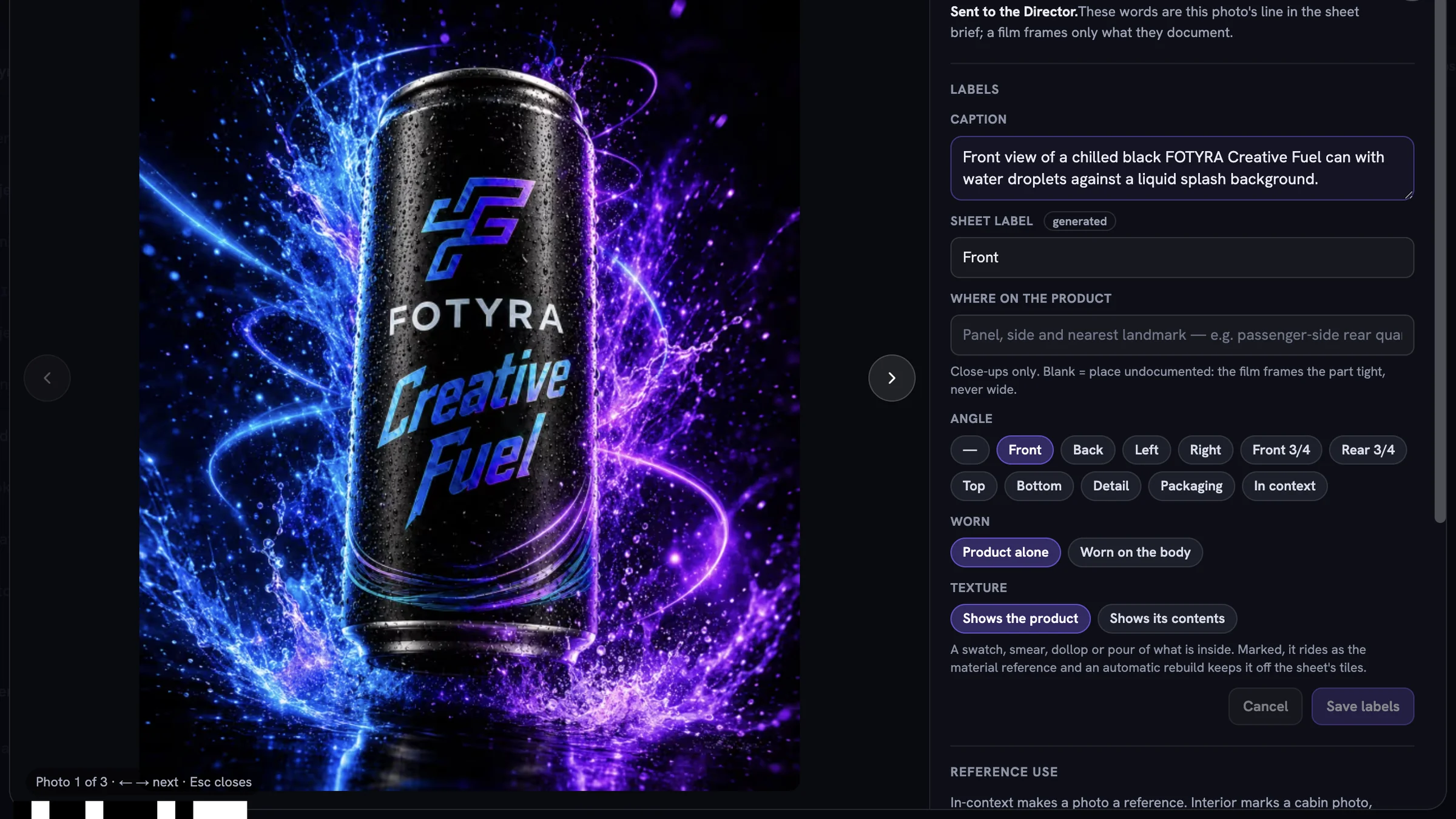
Click any card in Product photos. The picture sits on the left, its Labels on the right.
Rewrite the Director's line
The Caption is what a film reads, so make it say exactly what the photo shows. The Sheet label beneath is
generateduntil you write your own.Set the facets
Pick the Angle chip, then Worn and Texture. For a close-up, fill in Where on the product — blank means the film frames the part tight, never wide.
Save labels
Press
Save labels. The confirmation readsLabels saved — rebuild the sheet to apply them to its tiles.Rebuild the sheet
Editing labels marks the sheet stale;
Rebuild sheetredraws its tiles from the corrected labels.
Anything you correct is sticky. No later analysis, free or paid, overwrites a field you saved. If the read does not finish during a build, the sheet panel says the views need checking; set the angles by hand before you rebuild.
More in Your products
Read enough. Make one.
Point Fotyra at your store and do exactly what this guide describes, on your own brand.