
In-context images
In-context, interior and texture photos are real pictures of the product in use that ride with a generation so films stage it truthfully instead of inventing how it is held, sized or filled.
On this page5
The reference sheet tells a film what your product looks like. In-context images tell it how the product lives in the world — held, worn, poured, parked, in a room. Without them a film guesses how the product is handled, how big it is beside a person and what its contents look like.
Why the sheet is not enough
The sheet documents geometry: front, back, sides, top. It says nothing about a hand around the product, a cabin seen from the driver's seat, or the colour of a cream once it leaves the tube.
An in-context reference is a real photograph of the product in use that travels with the generation. An interior stops a film inventing a car cabin; a texture swatch stops a cream rendering as the wrong colour.
Three kinds of reference
Every photograph on the product page is a card in the Product photos gallery with read-only tags. Three of those tags decide whether a photo can ride with a generation.
| Tag | What it means | When it rides |
|---|---|---|
| In-context | A member of the reference set — the product in use | When you pick it at Create |
| Interior | A cabin photo of a vehicle | With every film by default, once it is also In-context |
| Texture | A swatch, smear, dollop or pour of what is inside | Pre-selected at Create as the material reference |
The build files photos into these groups automatically from their labels. Photos that are already sheet tiles are inside the sheet image, so they are never offered as separate references; rescued crops are not offered either. A photo with a visible face is never added on its own — you decide that one.

Add a photo to the reference set
Each card in the gallery has an In-context button in its ops row. Pressing it adds the photo to the reference set and the button flips to In-context ✓; pressing again removes it. On a vehicle product an Interior button appears beside it.
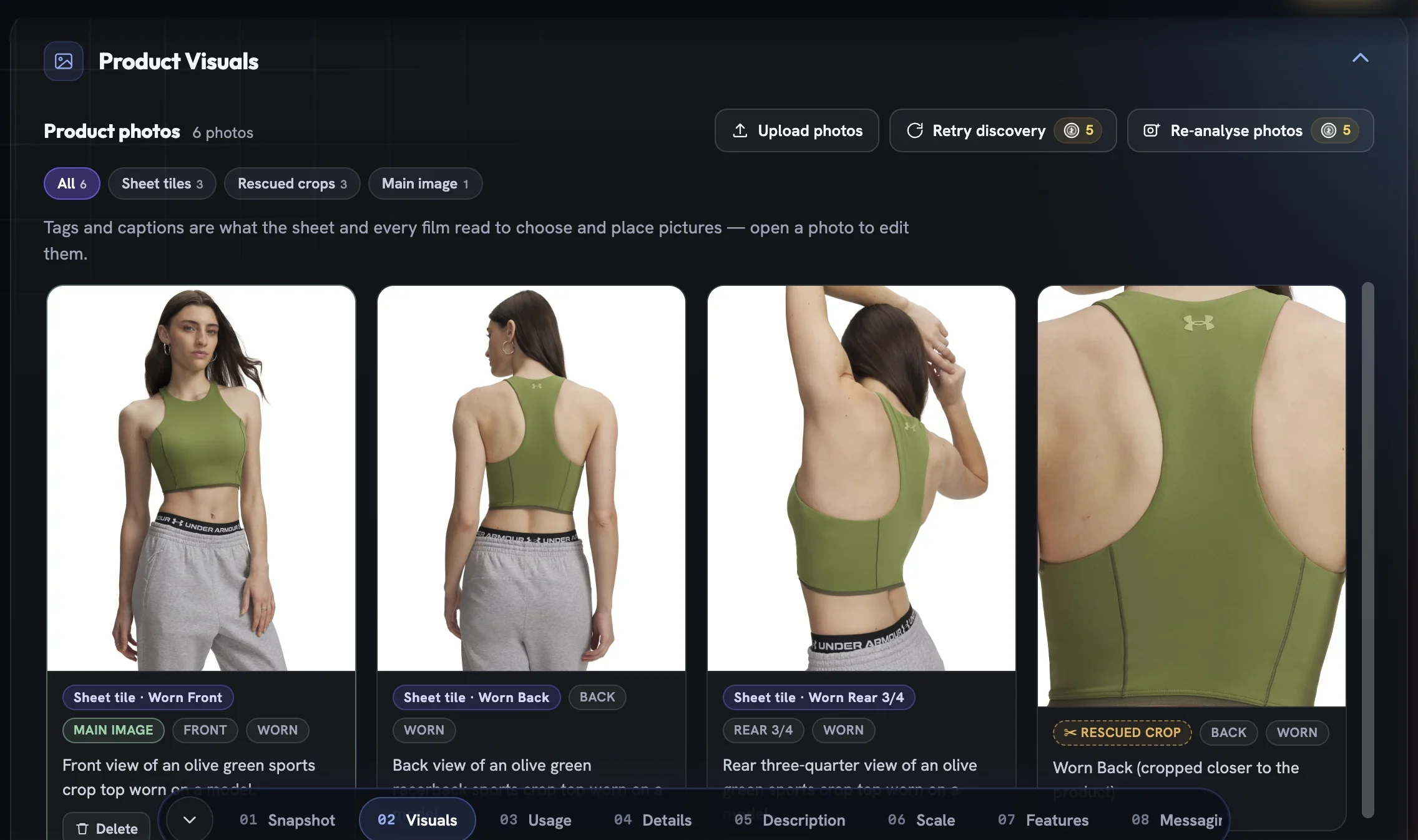
Open the product's photos
On the product page, scroll to Product Visuals and use the filter pills to find the photos that show the product in use.
Press In-context on the card
The photo joins the reference set and the card confirms it with “Added as an in-context reference.” Adding or removing is free and immediate; nothing rebuilds.
Or decide inside the photo
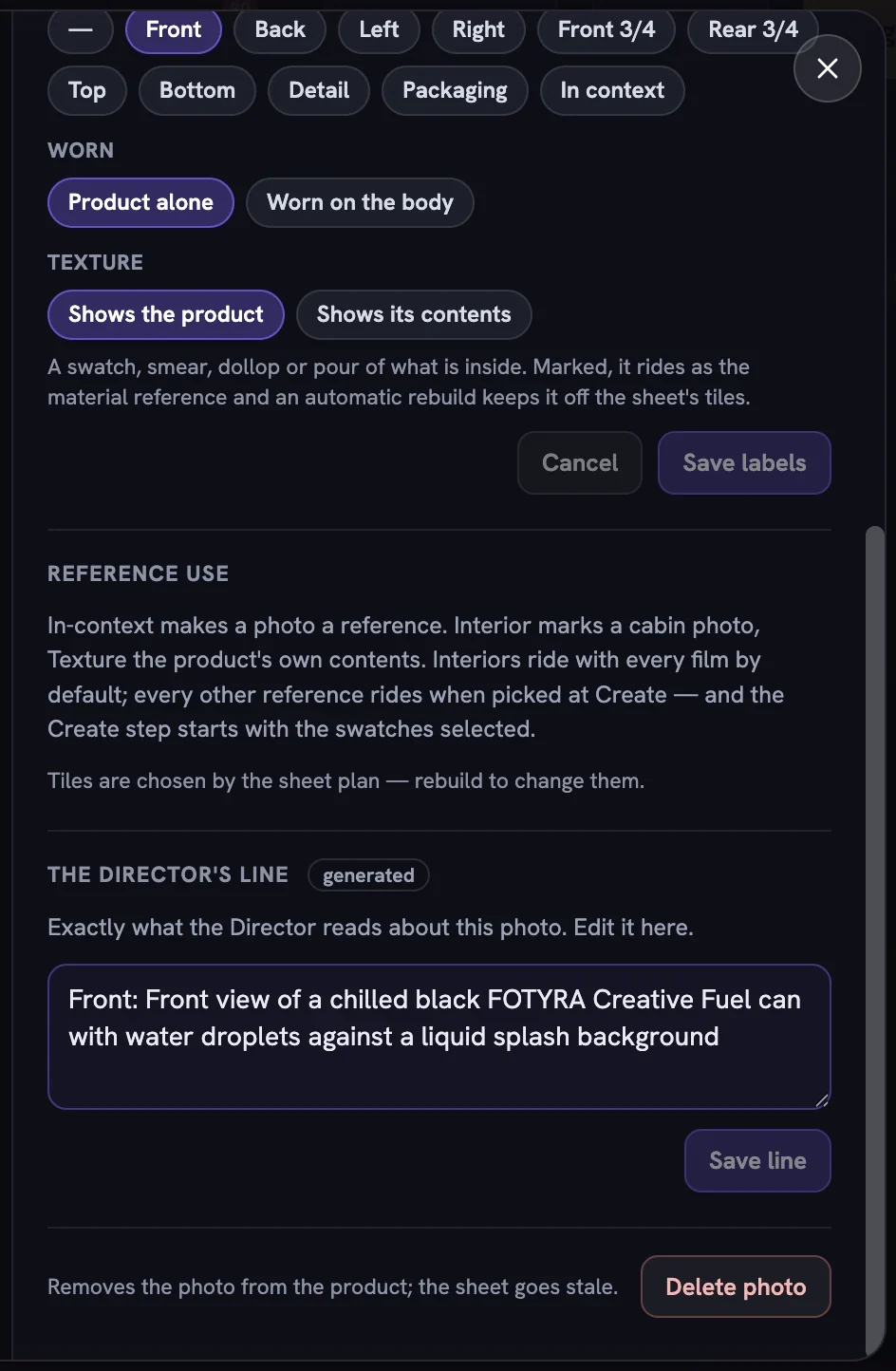
Click a card to open its detail modal. Under Reference use you get
+ Add as in-context reference,Mark as interioron a vehicle, and★ Make main image.Check the Director's line
When a sheet brief exists, The Director's line is the exact sentence the film's director reads about this photo. Rewrite it if it misses the point, or use
Reset to generated.
Mark textures and interiors
Interior and Texture are the photo's own designations, set in the detail modal. Marking one never adds the photo to the reference set by itself, and unmarking never removes it — In-context is always the switch that makes a photo a reference.
For a swatch or pour photo, open Labels and set the Texture row to Shows its contents. It then rides as the material reference and an automatic rebuild keeps it off the sheet's tiles. If the build read a product shot as a swatch, switch it back to Shows the product. For a photo of the product worn, set the Worn row to Worn on the body, then Save labels.
A photo with no caption cannot be chosen by the sheet or a film until it has been analysed — see how Fotyra reads your photos.
What rides with a generation
At Create, once you have chosen a product, the Add Reference Images panel lists its in-context, interior and texture photos. It is optional. Interior photos are selected for you and ride by default so the cabin is never invented; texture photos are selected for you so the product's own colour and consistency are rendered from life. Uncheck any you want to leave out.
Every other in-context photo rides only when you tick it for that run. Catalogue views travel on the sheet, so they are not offered again for a film, and statics pre-select their own automatic set. Nothing generates until you confirm the plan in the Create flow.

More in Your products
Next in your products.
Your products01
Add your first product
Paste a product page from your own domain (Shopify variants included) or create one by hand, and Fotyra reads the page, pulls the photos and writes a brand-aware brief.
4 min readRead
Your products06
Add your own scale reference
One faceless photo of the product worn or held on a body is the size cue every render reads — pick your own for free, or let the build render one from the measurements you confirm.
4 min readRead
Read enough. Make one.
Point Fotyra at your store and do exactly what this guide describes, on your own brand.