
Add your own photos and rebuild
Upload the missing back, side or worn view, analyse it for free, then choose the right grade of rebuild — raw only, sheet only, or the whole product — your corrections are kept.
On this page5
Fotyra builds your product's reference sheet from real photographs only, so a view you never photographed stays missing from every ad and film. The fastest fix is yours to make: shoot the back, the side or the product on a body, upload it, label it and rebuild. Only the rebuild is priced.
Shoot the view that is missing
The sheet badge tells you what to photograph. A product that reads Partial — missing left, right, top needs exactly those pictures; a wearable product with no worn view needs one on a body. Then bring the files to Product photos inside Product Visuals.

Press Upload photos
Pick your files — several at once, in any common image format, up to ten per upload. The main image stays exactly as it is.
Watch them land
A bar tracks the upload, then Fotyra checks, converts and stores the files. Anything it cannot read is refused by name so you can export it again.
Analyse the new photos
Uploads join the end of the gallery tagged
Uploadedand not analysed yet. PressAnalyse new photos— it is free — so each one gets a caption and tags the sheet can read.Correct the labels
Open each card, check the Angle chip (Back, Left, Top and so on), set
Worn on the bodyif the product is on a person, and pressSave labels.Rebuild the sheet
Your uploads only reach the sheet through a rebuild. Press
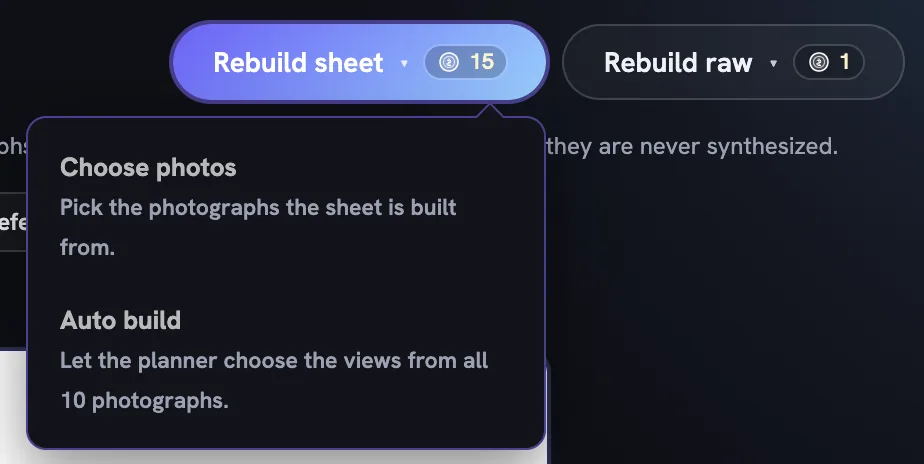
Rebuild sheet ▾and pick the grade you need — see below.
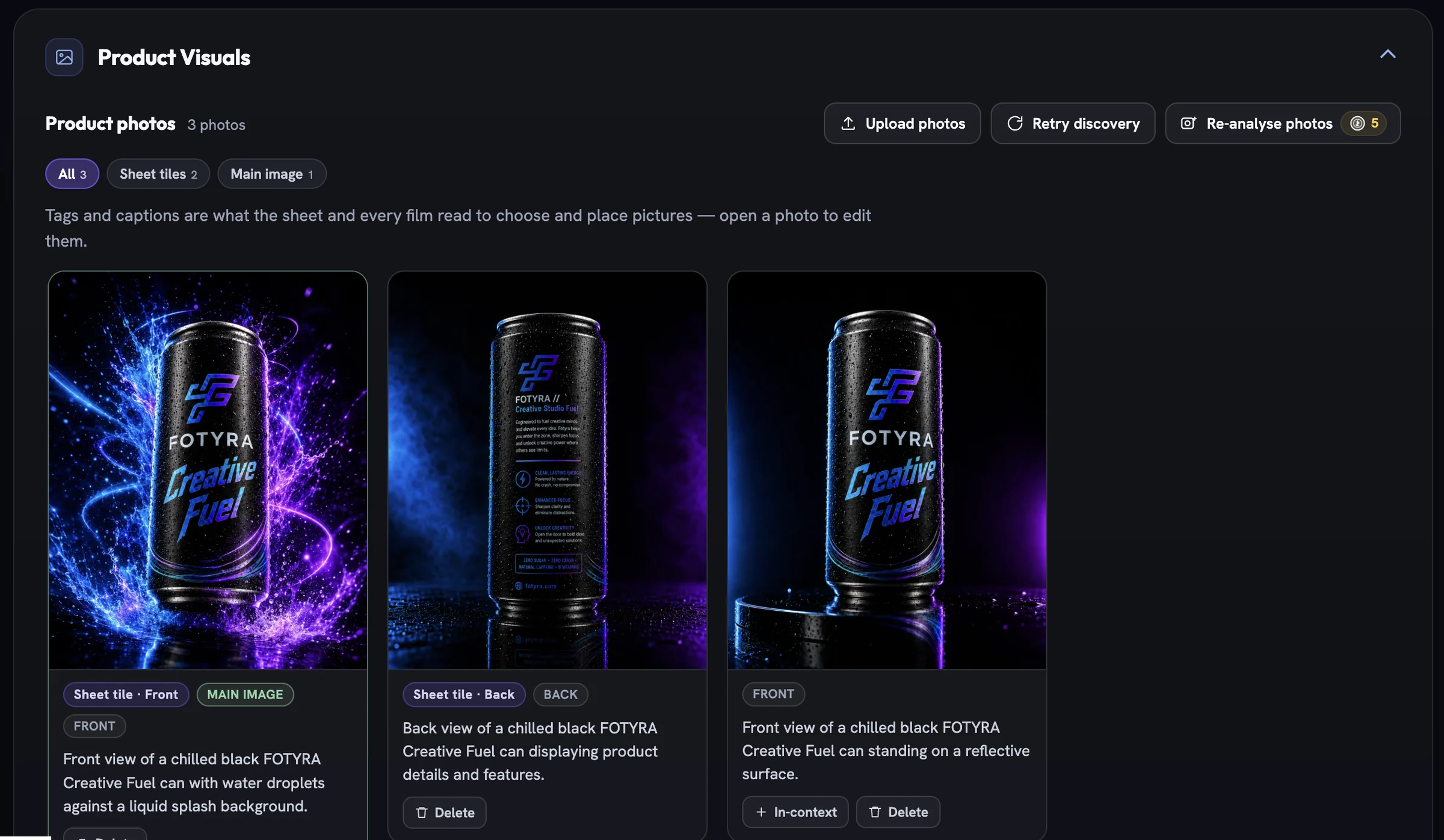
If the first crawl missed pictures on your product page, Retry discovery sends it back for images only. Any photo can become the thumbnail everywhere: open it and press ★ Make main image.
Labels are what the sheet reads
An upload is just pixels until it is analysed. The caption, the Angle chip and the Worn row are what the sheet build and every film read when they choose and place pictures, so a back view left tagged as Front is treated as a second front. Corrected labels are sticky and survive every rebuild — how Fotyra reads your photos explains each one.
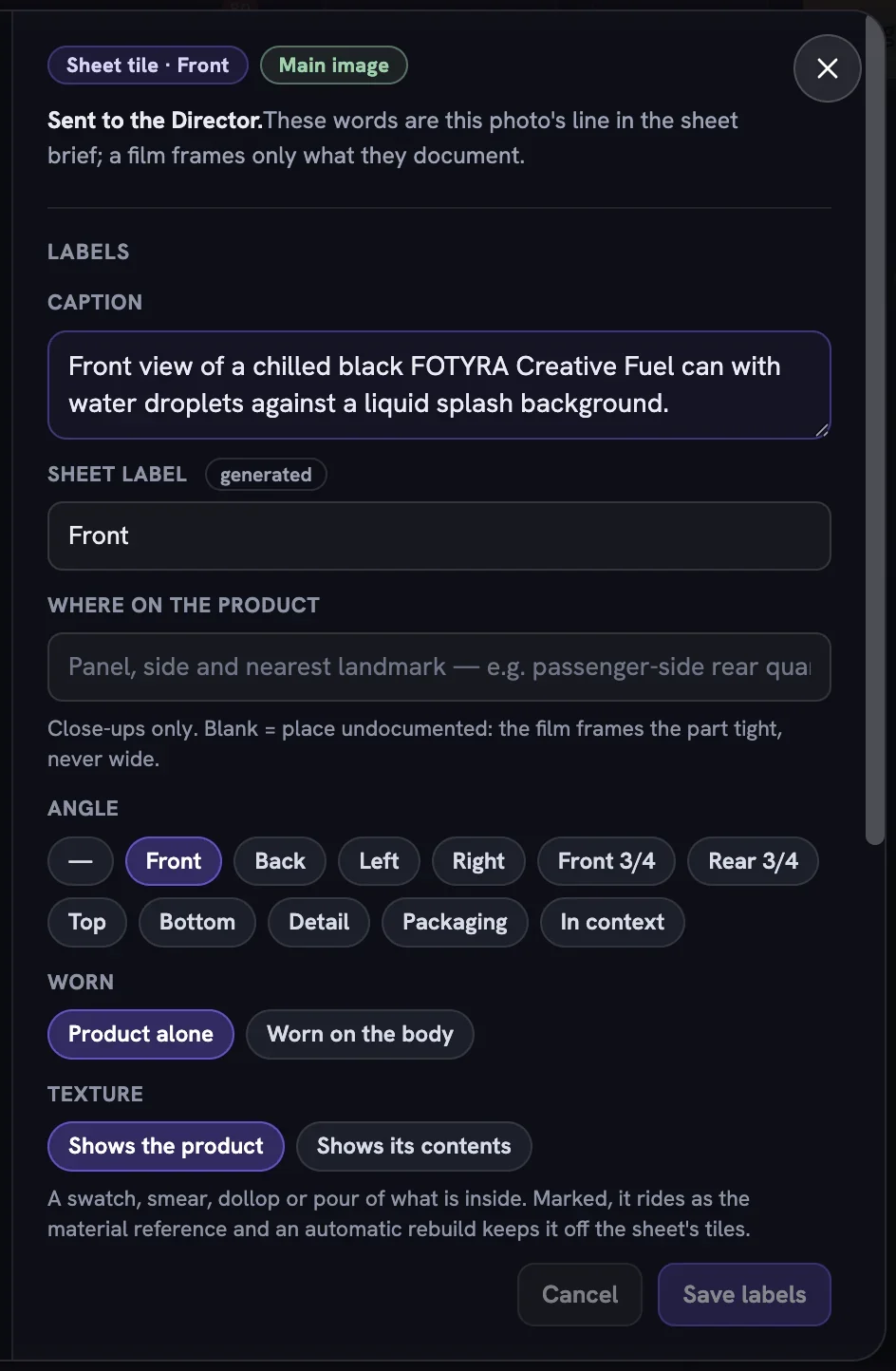
Why the sheet goes stale
Nothing rebuilds on its own. Every upload, delete or main-image change, every label edit, every change to how the product is used and every save in Scale & Dimensions only marks the sheet stale. You see it as a · stale suffix on the badge, a yellow notice that the photos changed since the sheet was built, a strip under How it's used with a Go to the sheet button, or a toast after a scale edit.
Until you rebuild, generation keeps rendering from the old sheet, so your new back view is not yet reaching your work.
Three grades of rebuild
Pick the smallest rebuild that fixes the problem. Each button shows its own price; the raw-only option is by far the cheapest.
| Button | What it redraws | Reach for it when |
|---|---|---|
Rebuild raw ▾ | The raw sheet only, from photos you select or by auto re-cutting each tile. Clean sheet and scale reference untouched. | One tile is badly cropped |
Rebuild sheet ▾ | The sheets and the scale reference from current photos and labels. Auto build lets the planner choose; Choose photos lets you pick up to six. | You added or relabelled photos |
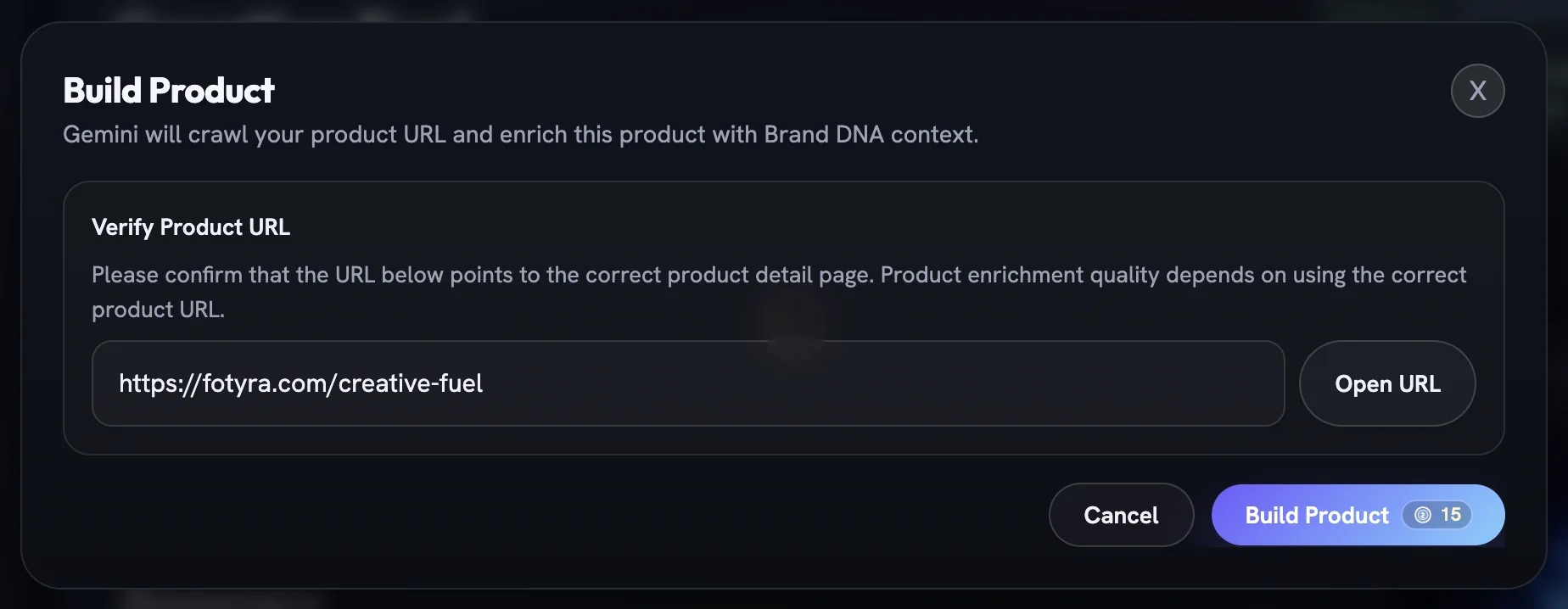
Re-Build Product | Everything: re-reads the product page, re-analyses every photo, rebuilds sheet and scale, writes a new product version. | The page changed or the brief is wrong |
The two sheet buttons live on the sheet panel. Re-Build Product is in the page header (and as Re-Build on the Products list); it opens the Build Product dialog, where you confirm the product page address before pressing Build Product. It is disabled while any build is running and on a historical version.
The finished sheet appears while the scale reference is still developing. If a build fails, the button reads Retry build; if one stalls, Recover build releases the held credits. Afterwards the "Please verify this matches your real product" callout returns — read the new sheet before you generate from it.
What a rebuild keeps
A rebuild is not a reset. Your corrections travel with the product:
- Every label you corrected by hand
- Your own tile plan, if you chose the photos
- A scale reference you picked yourself
- Rescued crops and any in-context, interior or texture references curated during the build
- The previous product version, kept in history
More in Your products
Read enough. Make one.
Point Fotyra at your store and do exactly what this guide describes, on your own brand.