
Spokesmodel DNA
The third DNA. A spokesmodel is a persona anchored in your Brand DNA — a face, a voice and a reference sheet that stay the same person in every film. How to create one, read its profile and cast it.
Brand DNA says how you sound and look, Product DNA says what you sell, and Spokesmodel DNA says who fronts it. Most brands want the same person to front their ads for a season, not a new stranger every render. A spokesmodel is that person: an AI character with a fixed identity, a portrait, a voice and a multi-pose reference sheet, generated from your Brand DNA so they already look like they belong to you. Once created, the Creative Director can cast them in any film and every scene reads as the same human.
Your roster
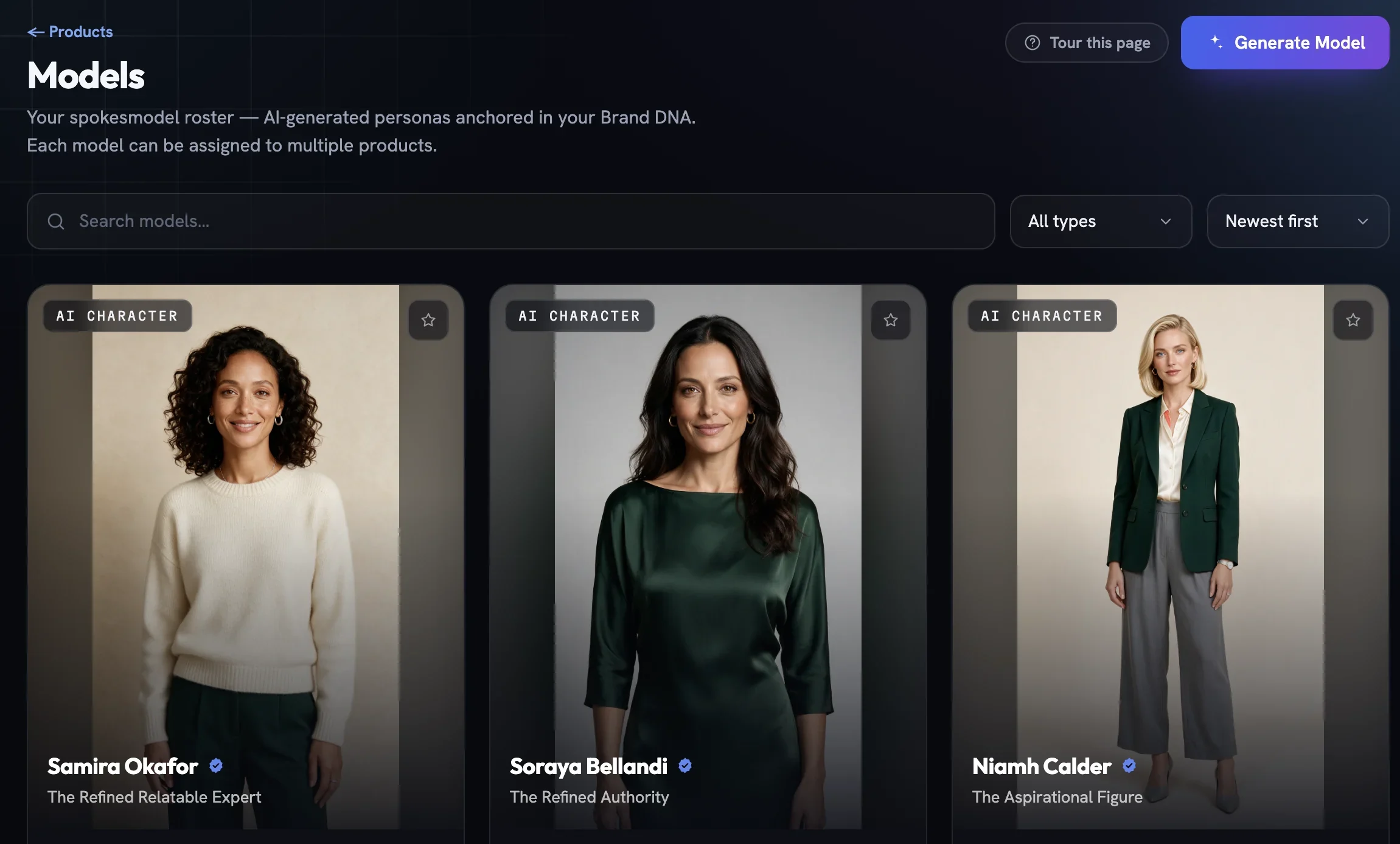
Open Spokesmodels in the sidebar under Brand Intelligence. The Models page lists every persona in the project as a card — portrait, name and archetype, an AI Character badge — with search, a type filter and a sort. View Profile opens the full persona; Generate Model starts a new one.
Generating a spokesmodel
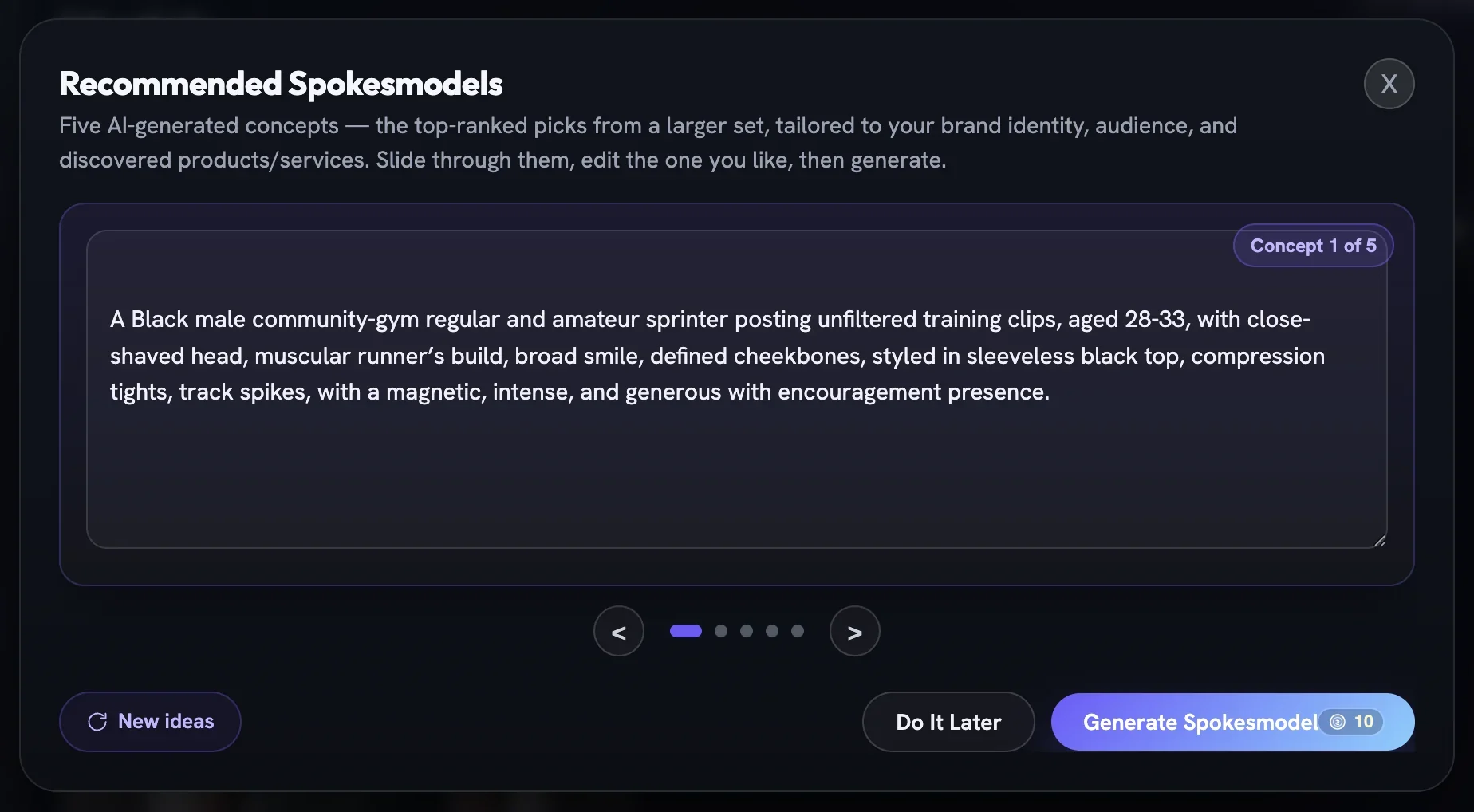
Press Generate Model and the studio writes five concepts for you first, tailored to your brand identity, audience and the products it has already read. Each concept is a paragraph you can edit in place: age band, build, hair, style, the energy they carry. Slide through them with the arrows, ask for New ideas if none land, or press Do It Later to leave without spending anything.
Read the five concepts
Each one is written against your Brand DNA: the audience it speaks to, the products it would hold, the archetype it plays.
Edit the one you like
Change any detail directly in the text — the accent, the hairstyle, the age band. What you type is what gets built.
Press Generate Spokesmodel
The studio draws the portrait, builds the reference sheet and assigns a voice. Credits are shown on the button and charged only when the persona is delivered.
Check the profile
Open the new card and read the sections below before you cast the persona in a film.
Reading a profile
A persona page follows the same pattern as a product: a header with a Latest Version selector, Favourite and Delete, then a numbered strip — 01 Portrait, 02 Snapshot, 03 Voice, 04 Reference, 05 Identity, 06 Personality, 07 Visual Brief. Each section shows a status pill and its own regenerate control, so you can redraw the portrait without touching the voice.
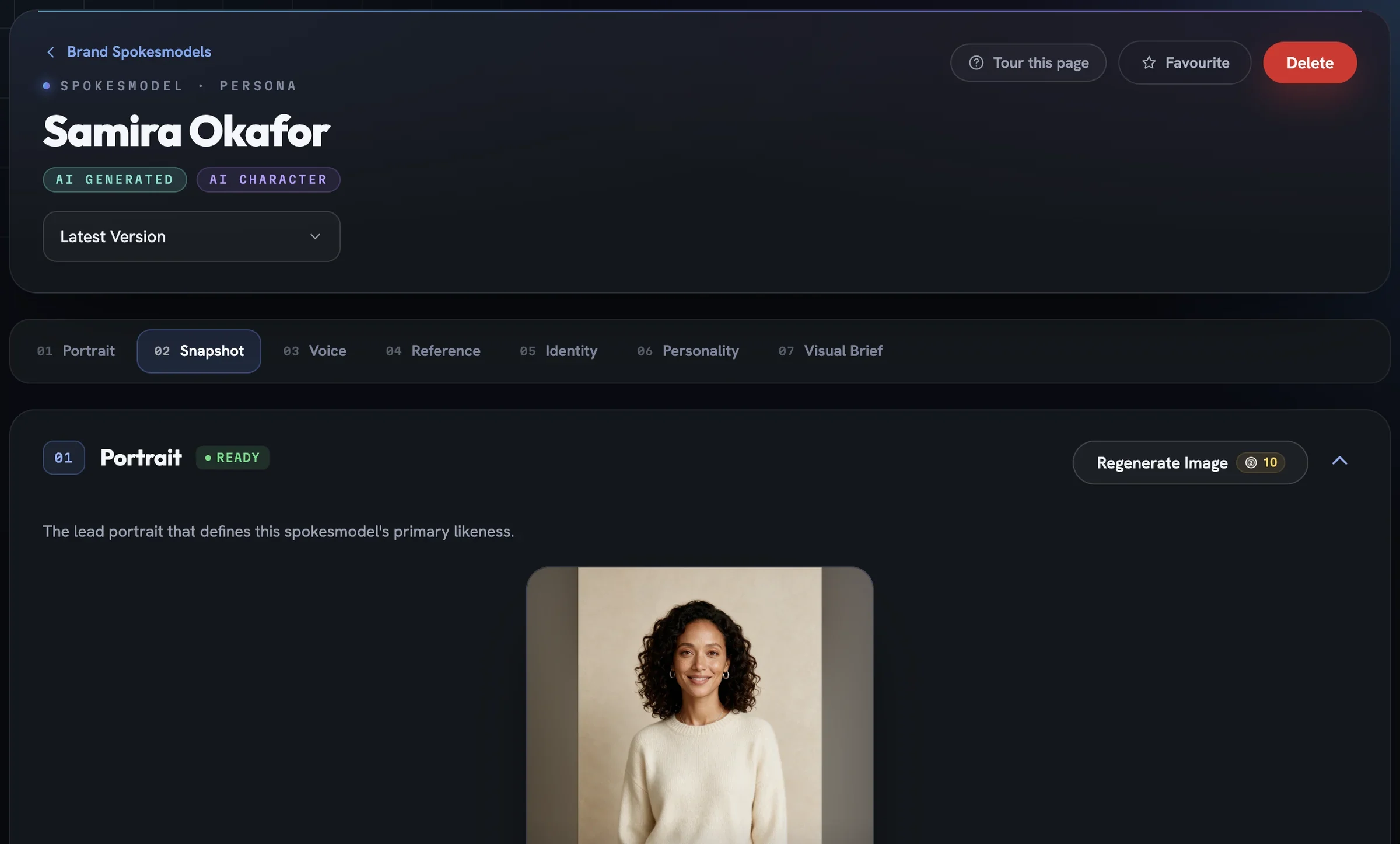
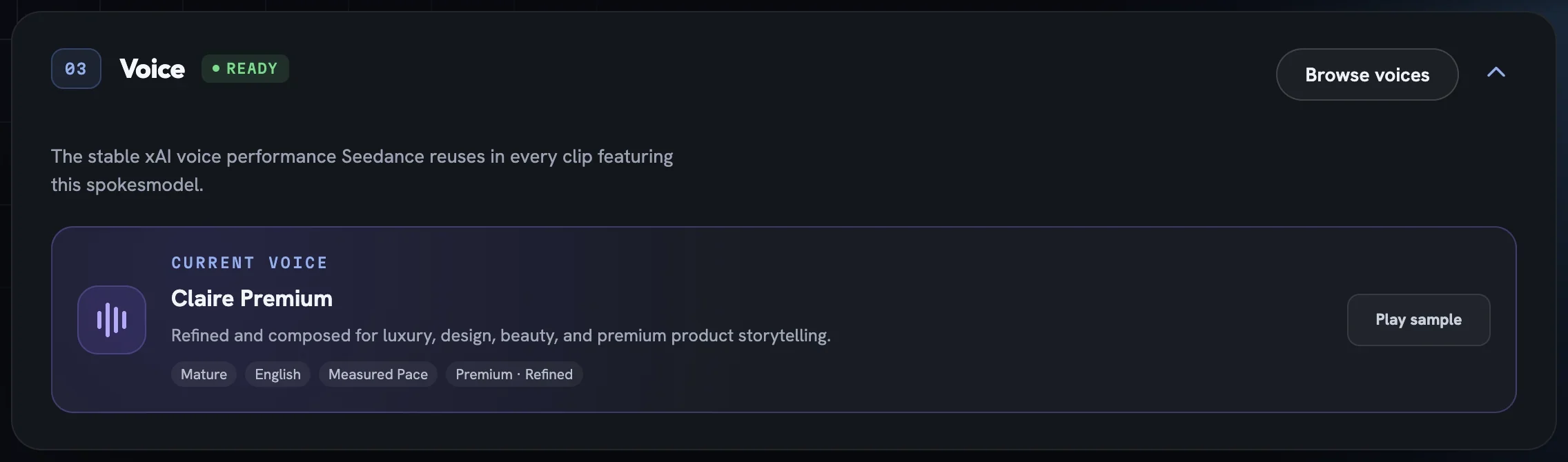
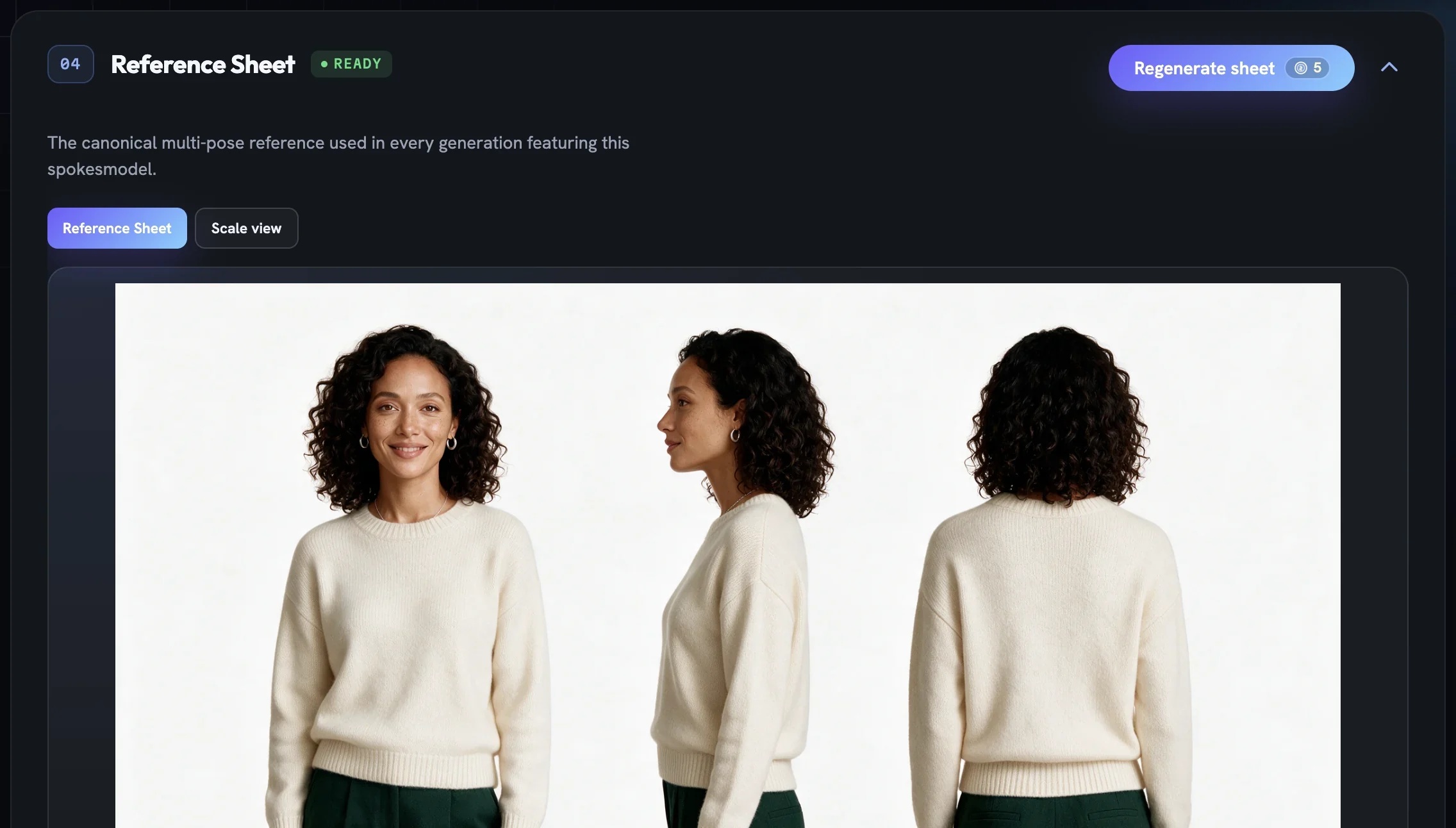
Regenerate Image redraws itVoice is the stable performance the persona reuses in every clip: a named voice with tone tags, Play sample to hear it and Browse voices to swap it. Reference Sheet is the canonical multi-pose reference — front, three-quarter and back — used in every generation featuring the persona, with a Scale view and Edit scale so human-to-product proportions stay believable.
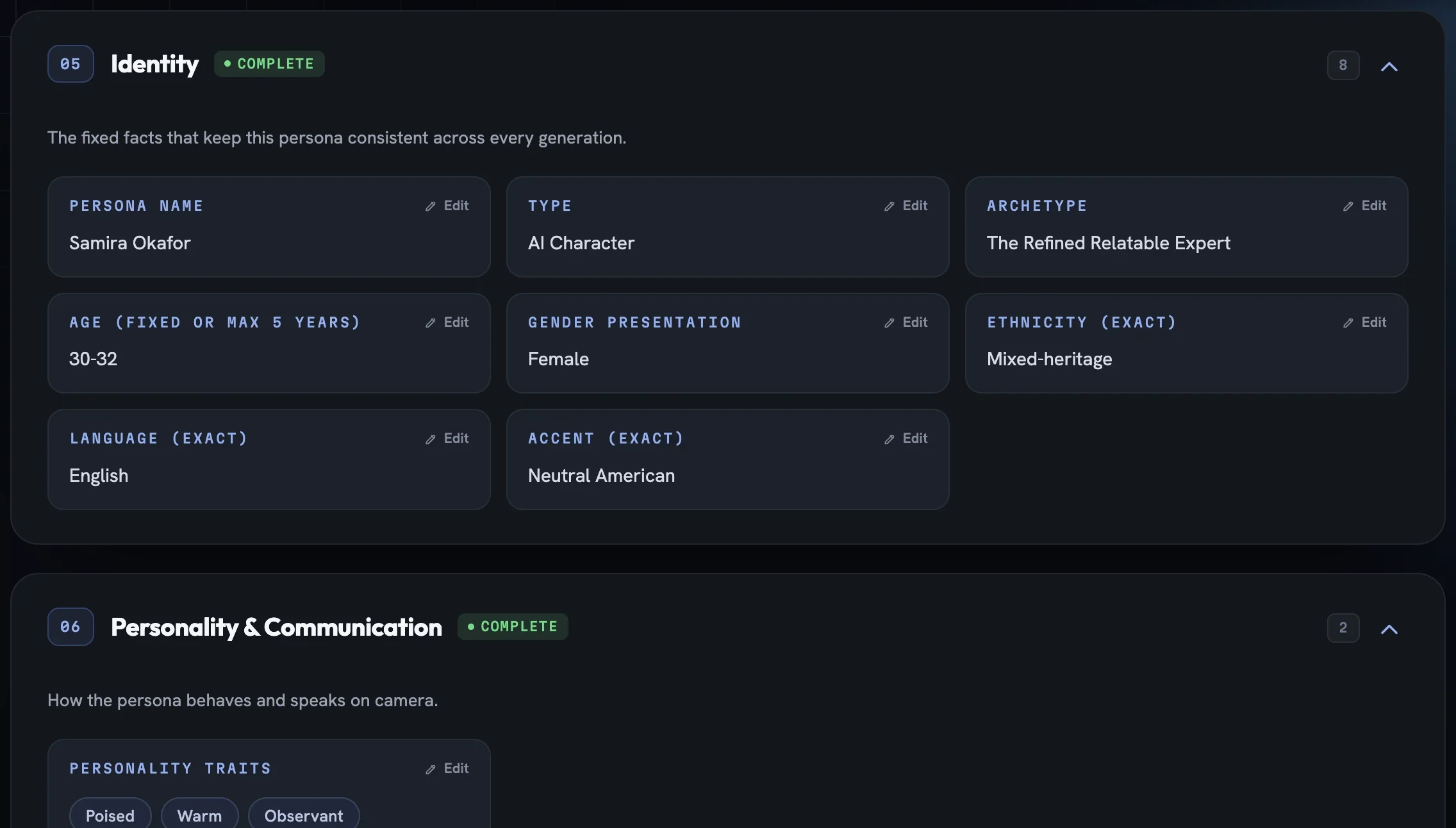
Identity holds the fixed facts — persona name, type, archetype, age band, gender presentation, ethnicity, language and accent — each with an Edit pencil. Personality & Communication holds traits and speaking style, and Visual Brief the wardrobe, grooming and setting notes the director reads when it stages them. Edit a fact and the next generation follows it; the portrait and sheet are only redrawn when you ask.
Casting at Create
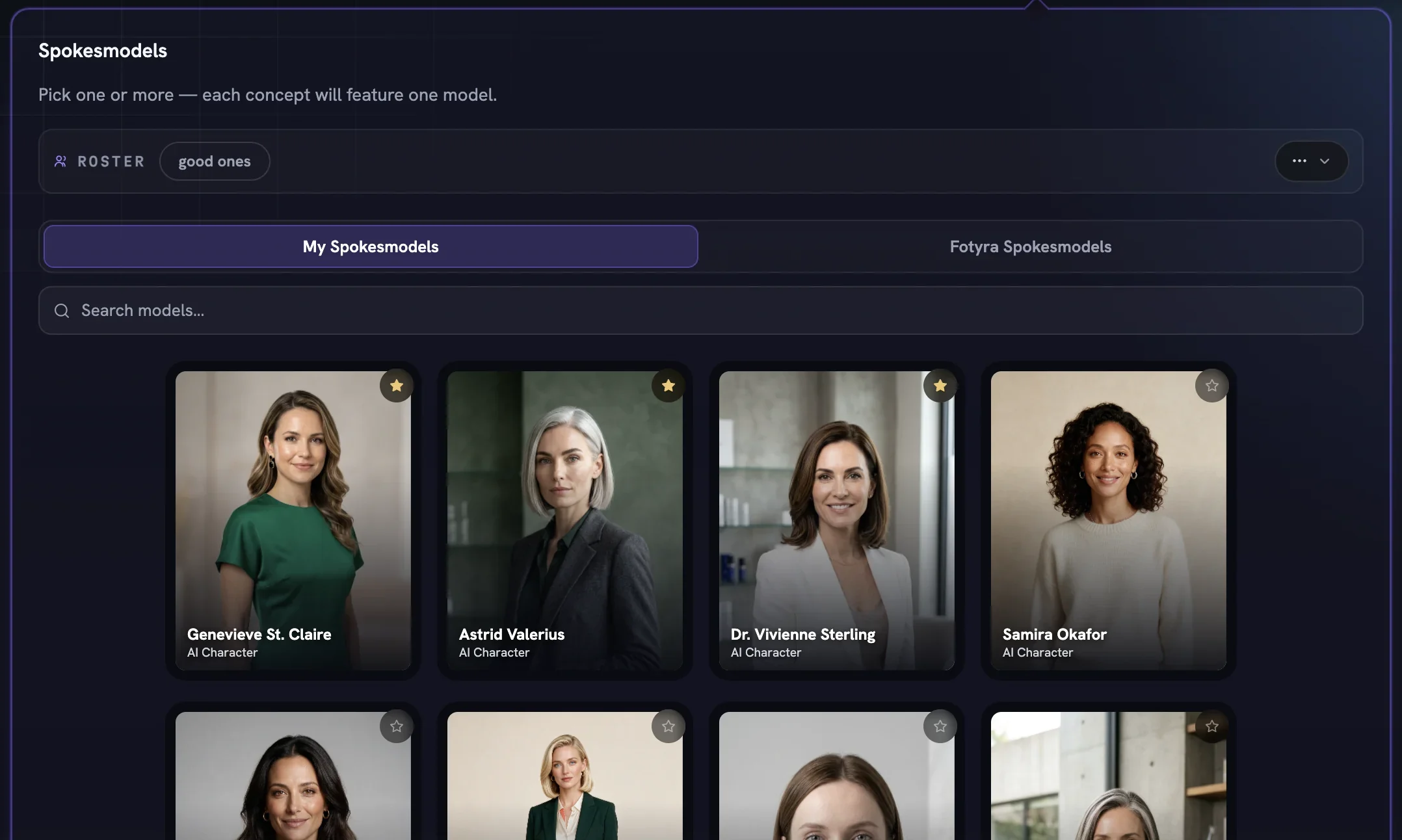
On the Setup step switch Spokesmodel on under Output Settings. A picker opens with two tabs: My Spokesmodels, the personas in this project, and Fotyra Spokesmodels, a shared roster of ready-made characters you can filter by gender, age range, ethnicity, skin tone, archetype, category, build, language and audience. Pick up to six; the director casts one suitable model per concept, and each film still has one person on camera.
On the film review screen the Cast tile carries Cast a spokesmodel ▾, so a film written without one can still be recast before it renders. Wardrobe and makeup rows on the Direction step style the persona; their identity never changes, only their clothes.
More in Start here
Next in start here.
Start here02
What is Product DNA?
Every creative anchors to one product. Product DNA is the structured profile of that product — real photographs assembled into a reference sheet, how it is used, its true size, its claims and its guardrails — that keeps every render honest to the thing you sell.
5 min readRead
Start here04
One workflow, every ad type
Set Fotyra up once — brand, product, spokesmodels — and every ad after that takes one of two paths: the Short Way, on auto pilot by the Fotyra Director, or the Director Path, where you take the controls.
6 min readRead
Start here05
What you can make
Three still types under Static Creative and four film types under Video Ads, what each is for, and how the choice changes the controls and the price you see.
5 min readRead
Read enough. Make one.
Point Fotyra at your store and do exactly what this guide describes, on your own brand.